
ONLINE ONBOARDING
Step-by-step tutorials to help you get started with OCLite faster.
Step 1: Global Configuration
Step 2: HRMS
1. HRMS Configurations – Manage Department
2. HRMS Configurations – Manage Designation
3. HRMS Configurations – Manage Job Classifications
4. Staff Management – How to Add New Staff?
5. Staff Management – How to Edit Staff’s Information?
6. Leave Setup – Step 1: Define Leave Types
7. Leave Setup – Step 2: Leave Entitlement Defaults
Step 3: Payroll
Step 4: Accounting
1. Accounting Configurations – Wizards
2. Accounting Configurations – Accounting Period
3. Understanding Chart of Accounts
4. How to Create and Manage Customer (Debtor)
5. How to Create and Manage Invoice
6. How to Create and Manage Receipt (Receive Payment)
7. How to Create and Manage Credit Note
8. How to Create and Manage Debit Note
9. How to Create and Manage Supplier (Creditor)
10. How to Create and Manage Receive Invoice
11. How to Create and Manage Self-Billed Invoice
12. How to Create and Manage Payment (Issue Payment / Payment Voucher)
13. How to Create and Manage Received Credit Note
Step 5: Pricebook
Step 6: CRM
Step 7: POS
Step 8: System Enhancements (Optional)
Global Configuration
1. How Do I Change My Username, Email, or Password?
2. How to Set Reports Template?
4. What Should I Do If I Forgot My Password?
HRMS
1. HRMS Configurations – Manage Approvers
2. Staff Management – Resign, Deactivate, Suspend & Unassign
PAYROLL
1. Manage Adjustments – Adjustment Purposes
2. Manage Adjustments – Add Adjustment Individually
CRM
1. Contact Book Overview (Leads, Accounts and Contacts)
3. Financial Transactions Overview
ACCOUNTING
Step 9: OC Lite Beginner Certification
Complete all onboarding modules to unlock and download your Beginner Digital Certificate.
Leave Setup – Step 1: Define Leave Types
? Where to Access HRMS
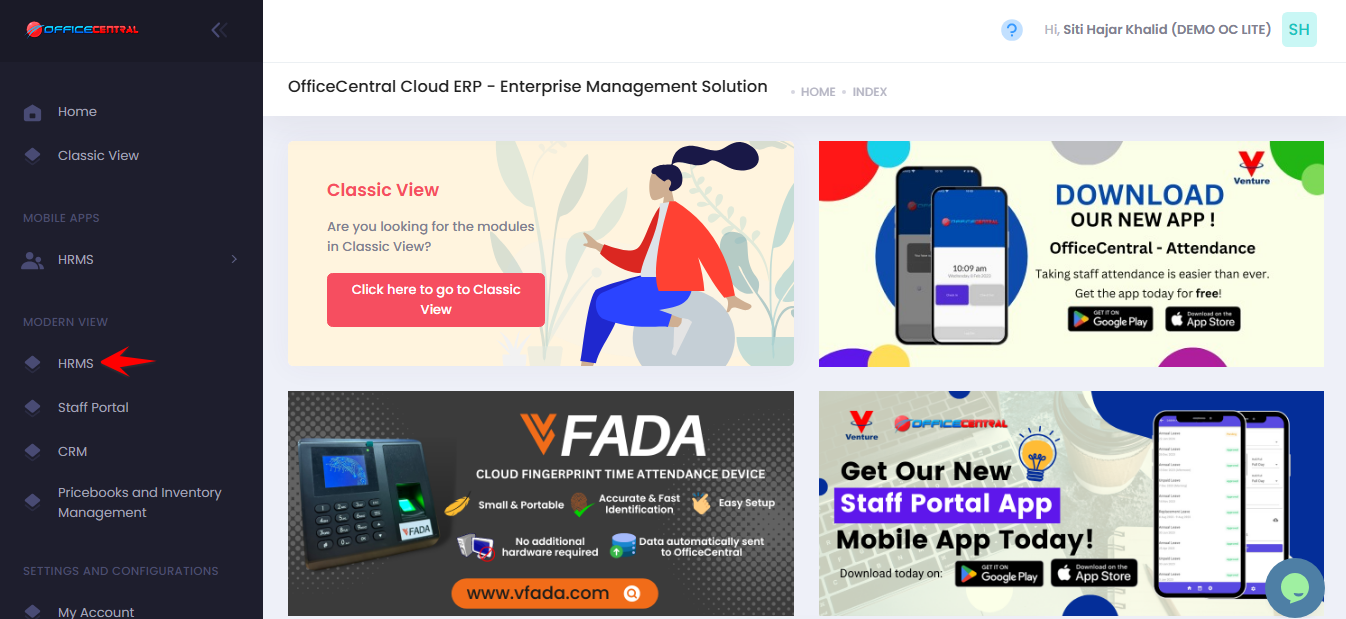
? Where to Access This Function
-
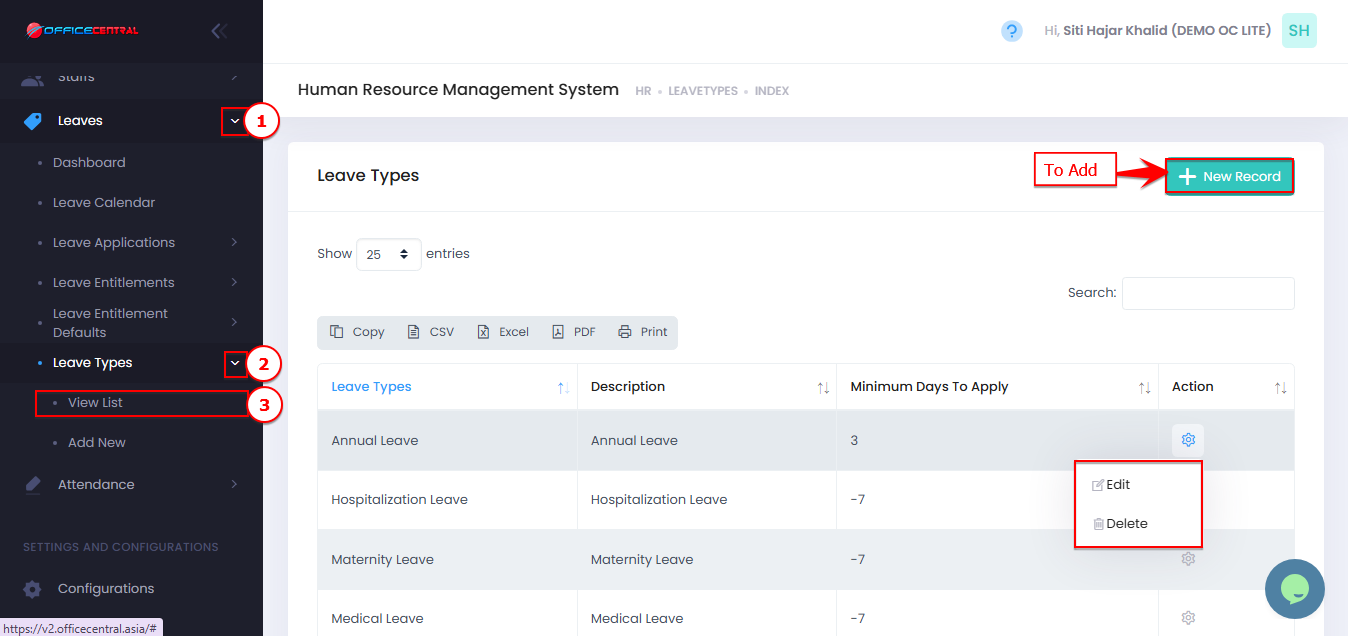
Go to Leaves → Leave Types → View List
-
You will see the list of leave types currently available in your company.
-
From here, you can:
| Fucntion | Function |
|---|---|
| Add | Click to create a new leave type |
| Edit | Modify an existing leave type |
| Delete | Remove an unused leave type (cannot delete if already assigned) |
✅ Tip: Always click Submit after adding or editing a leave type to ensure your changes are recorded.
Use the screenshot below to locate each button:
2️⃣ How to Add a New Leave Type
-
Click Add to create a new leave type.
-
Fill in the required information:
| Field | What to Enter / Explanation |
|---|---|
| Name | Name of the leave type (e.g., Emergency Leave) |
| Description | Short description or purpose of the leave (e.g., Urgent matters, minimum days to apply not applied) |
| Minimum Days to Apply | Staff must apply before or after the leave date: • Positive number → apply at least X days before leave • Negative number → apply within X days after leave |
| Gender | Select which staff can apply: Male, Female, or All |
| Leave Allocation | How leave is granted: • Annually → leave allocated at the start of the year. AL = 12 → staff gets all 12 days at once • Monthly → leave allocated based on months served. AL = 12 → staff receives 1 day per month • Daily → leave allocated based on days served |
| For HR Admin Use Only | Staff cannot apply for this leave; only HR can assign |
| Allow Application Even When Balance Has Exhausted | Staff can apply even if they have no remaining balance. Leave balance will become negative in record. It doesn’t automatically take as Unpaid Leave |
| This Leave Balance Can Be Brought Forward | Tick ✅ if unused leave can carry over to next year |
| Calendar Days Leave | Tick ✅ if this leave counts weekends and public/state holidays as leave (e.g., maternity / paternity leave) |
| Allow Staff Under Probation to Apply | Tick ✅ if probation staff are allowed to apply for this leave |
| Prorate for Newly Joined Staff | Tick ✅ if leave entitlement is prorated for staff joining mid-year |
| Prorate for Resigning Staff | Tick ✅ if leave entitlement is prorated for staff leaving mid-year |
| Is Paid Leave | Tick ✅ if this leave is paid |
| Allow to Request Leave Longer Than Entitlement Year | Tick ✅ if staff can use next year’s entitlement when applying |
| Leave Type Parent | Select a parent leave type if this leave depends on another leave balance |
- After filling in all fields:
-
Click Submit to confirm the new leave type.
Tip: Always double-check the settings to ensure leave entitlements are correct, especially for probation staff, calendar days calculation, and prorated leave.