
ONLINE ONBOARDING
Step-by-step tutorials to help you get started with OCLite faster.
Step 1: Global Configuration
Step 2: HRMS
1. HRMS Configurations – Manage Department
2. HRMS Configurations – Manage Designation
3. HRMS Configurations – Manage Job Classifications
4. Staff Management – How to Add New Staff?
5. Staff Management – How to Edit Staff’s Information?
6. Leave Setup – Step 1: Define Leave Types
7. Leave Setup – Step 2: Leave Entitlement Defaults
Step 3: Payroll
Step 4: Accounting
1. Accounting Configurations – Wizards
2. Accounting Configurations – Accounting Period
3. Understanding Chart of Accounts
4. How to Create and Manage Customer (Debtor)
5. How to Create and Manage Invoice
6. How to Create and Manage Receipt (Receive Payment)
7. How to Create and Manage Credit Note
8. How to Create and Manage Debit Note
9. How to Create and Manage Supplier (Creditor)
10. How to Create and Manage Receive Invoice
11. How to Create and Manage Self-Billed Invoice
12. How to Create and Manage Payment (Issue Payment / Payment Voucher)
13. How to Create and Manage Received Credit Note
Step 5: Pricebook
Step 6: CRM
Step 7: POS
Step 8: System Enhancements (Optional)
Global Configuration
1. How Do I Change My Username, Email, or Password?
2. How to Set Reports Template?
4. What Should I Do If I Forgot My Password?
HRMS
1. HRMS Configurations – Manage Approvers
2. Staff Management – Resign, Deactivate, Suspend & Unassign
PAYROLL
1. Manage Adjustments – Adjustment Purposes
2. Manage Adjustments – Add Adjustment Individually
CRM
1. Contact Book Overview (Leads, Accounts and Contacts)
3. Financial Transactions Overview
ACCOUNTING
Step 9: OC Lite Beginner Certification
Complete all onboarding modules to unlock and download your Beginner Digital Certificate.
How to Top-Up OC Credit
OC Credit is required for:
-
SMS messages sent to staff
-
Emails sent to staff (e.g., notifications, payslips)
-
Accounting reports sent by email (e.g., General Ledger, Aging reports)
-
Financial documents sent to customers:
-
Quotation
-
Order Acceptance
-
Invoice
-
Receipt
-
Delivery Order
-
-
Any feature that uses AI functions
⚠️ Tip: Make sure your account has enough OC Credit before enabling features that consume credits.
? Where to Access This Function
-
Go to Global Configuration
-
Click OC Credit
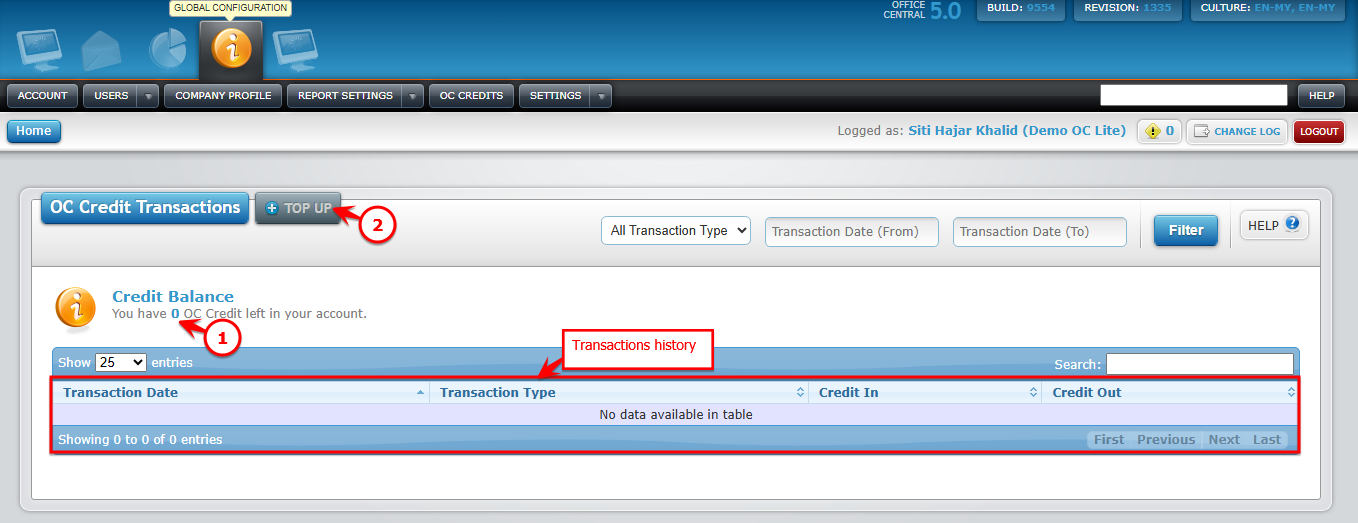
Use the screenshot below to locate each button:

Steps to Top-Up OC Credit
1️⃣ Check Current Credit Balance
-
The top section of the page shows your current OC Credit balance.
-
Make note of your remaining credit before topping up.
2️⃣ Click Top-Up
-
Locate the Top-Up button and click it.
Use the screenshot below to locate each button:
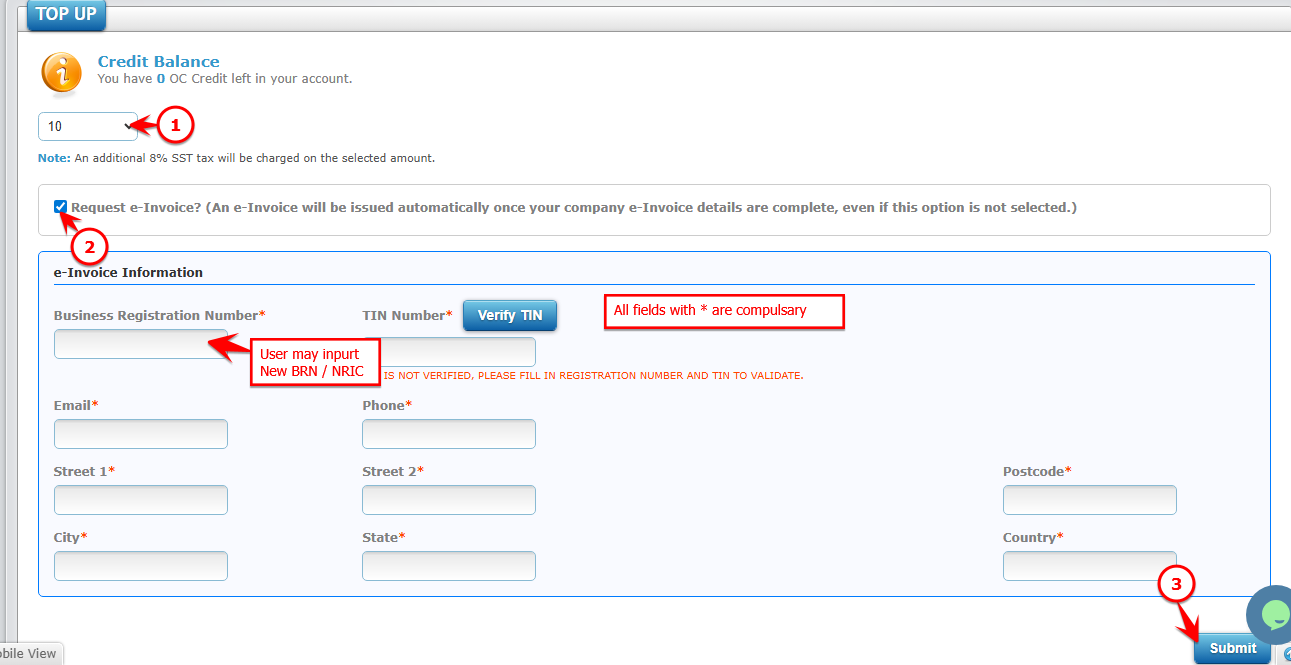
3️⃣ Choose Top-Up Amount & Request e-Invoice
| No. | Field | What to Do |
|---|---|---|
| 1 | Top-Up Amount | Select or enter the number of OC Credits to purchase |
| 2 | Request e-Invoice | Check this option if you need an official e-Invoice for your purchase |
| 3 | Submit | Click Submit to proceed to next step |
4️⃣ Confirm Payment
-
System will direct user to FPX, please select bank
-
Click Confirm to proceed
5️⃣ Verify Top-Up
-
Once payment is processed, your OC Credit balance will update automatically
-
Check the transaction history section to confirm