
ONLINE ONBOARDING
Step-by-step tutorials to help you get started with OCLite faster.
Step 1: Global Configuration
Step 2: HRMS
1. HRMS Configurations – Manage Department
2. HRMS Configurations – Manage Designation
3. HRMS Configurations – Manage Job Classifications
4. Staff Management – How to Add New Staff?
5. Staff Management – How to Edit Staff’s Information?
6. Leave Setup – Step 1: Define Leave Types
7. Leave Setup – Step 2: Leave Entitlement Defaults
Step 3: Payroll
Step 4: Accounting
1. Accounting Configurations – Wizards
2. Accounting Configurations – Accounting Period
3. Understanding Chart of Accounts
4. How to Create and Manage Customer (Debtor)
5. How to Create and Manage Invoice
6. How to Create and Manage Receipt (Receive Payment)
7. How to Create and Manage Credit Note
8. How to Create and Manage Debit Note
9. How to Create and Manage Supplier (Creditor)
10. How to Create and Manage Receive Invoice
11. How to Create and Manage Self-Billed Invoice
12. How to Create and Manage Payment (Issue Payment / Payment Voucher)
13. How to Create and Manage Received Credit Note
Step 5: Pricebook
Step 6: CRM
Step 7: POS
Step 8: System Enhancements (Optional)
Global Configuration
1. How Do I Change My Username, Email, or Password?
2. How to Set Reports Template?
4. What Should I Do If I Forgot My Password?
HRMS
1. HRMS Configurations – Manage Approvers
2. Staff Management – Resign, Deactivate, Suspend & Unassign
PAYROLL
1. Manage Adjustments – Adjustment Purposes
2. Manage Adjustments – Add Adjustment Individually
CRM
1. Contact Book Overview (Leads, Accounts and Contacts)
3. Financial Transactions Overview
ACCOUNTING
Step 9: OC Lite Beginner Certification
Complete all onboarding modules to unlock and download your Beginner Digital Certificate.
How to Manage Contacts
Contacts are linked to an Account and represent individuals from the company / organization who handle communications, transactions, or follow-ups.
How Contacts Are Created
Contacts (PICs) can be created in multiple ways:
| Method | Explanation | Remarks |
|---|---|---|
| Add Manually in Contact Book | Manually add a new contact without linking to an account | See 3.3 How to Manage Contacts |
| Add via Account (PIC) | Add a Person-In-Charge (PIC) directly under an Account | Contacts added here will also appear in the main Contact Book list. Each account can have unlimited PICs/contacts |
? Where to Access CRM
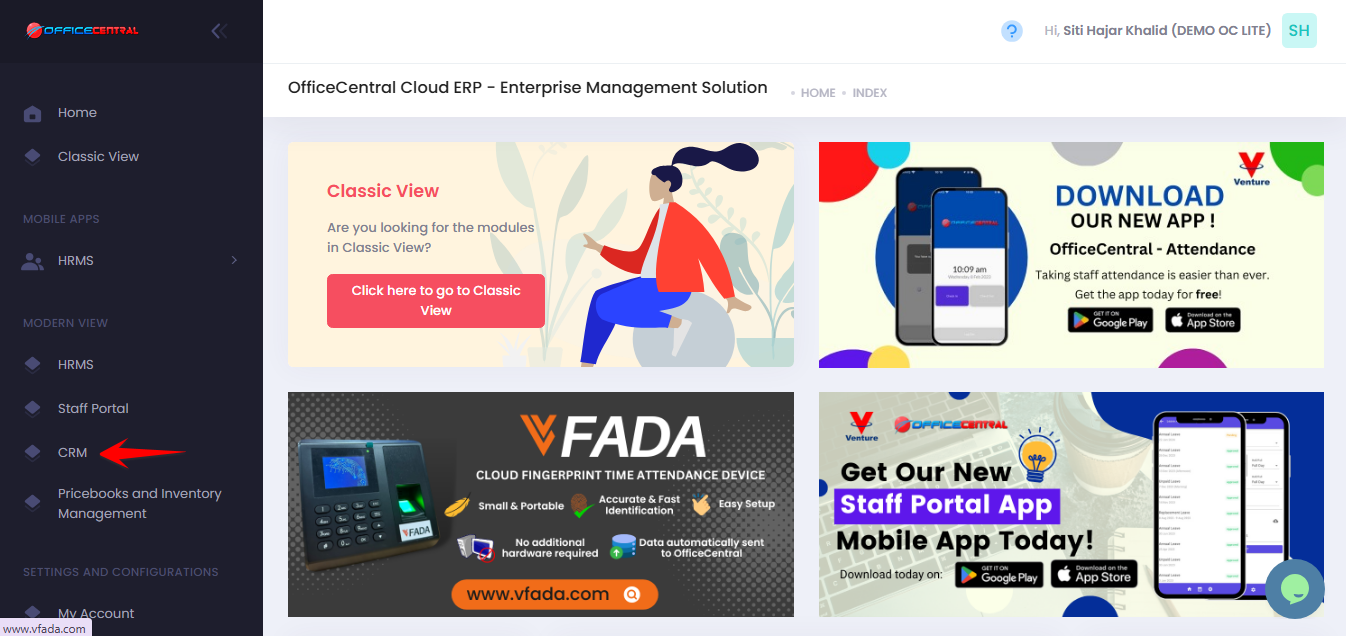
Where to Access Functions
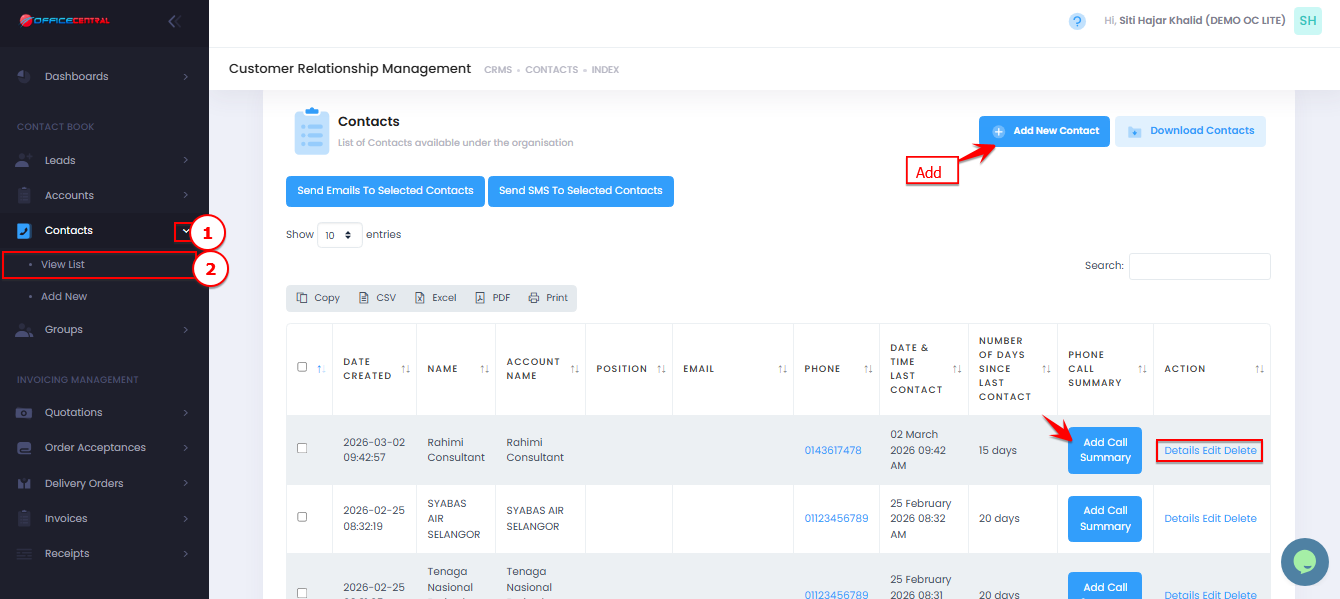
- Go to CRM > Contacts > View List
- Pn the Contacts tab, you will see the following functions:
| No. | Function | Description |
|---|---|---|
| 1 | Add New Contact | Add a new contact (PIC) under the account |
| 2 | Details | View full information of the contact |
| 3 | Edit | Update contact information |
| 4 | Delete | Remove contact from the account and list |
| 5 | Add Call Summary | User can take note call summary. The call summary will be recorded in Communications > Phone Calls |
Use the screenshot below to locate these buttons.
How to Add a New Contact
-
Go to Contacts > View List
-
Click Add New Contact.
-
Fill in the required fields:
| Field | Description |
|---|---|
| Account * | Users can only select an existing account. If the account, organization, or company doesn’t exist, they must create one first. |
| Title | Mr, Mrs, Madam, Dato’, etc. |
| Contact Name * | Contact’s first name |
| Contact Last Name * | Contact’s last name |
| Phone | Include country code (e.g., 60) |
| Mobile | Include country code (optional) |
| Contact email | |
| Position | Optional role or job title |
| Tags | Optional labels for grouping |
| Identification Number | Optional |
| Date of Birth | Optional |
| Date of Anniversary | Optional |
| Religion | Optional |
| Race | Optional |
| Gender | Male or Female |
| Social Media Information | Optional |
| Address Information | Recommended |
-
Click Save.
⚠️ Important Notes:
-
Ensure email and phone are accurate for communication
-
Multiple contacts can be added under one account
-
Contacts will be used in financial transactions
How to View Contact Details
-
From Contacts list, click Details next to the contact.
-
You can see full contact info including email, phone, position, and tags.
How to Edit a Contact
-
From Contacts list, click Edit next to the contact.
-
Update required information.
-
Click Save.
How to Delete a Contact
-
From Contacts list, click Delete next to the contact.
-
Confirm deletion.
⚠️ Important Notes:
-
Deleted contacts cannot be recovered