
ONLINE ONBOARDING
Step-by-step tutorials to help you get started with OCLite faster.
Step 1: Global Configuration
Step 2: HRMS
1. HRMS Configurations – Manage Department
2. HRMS Configurations – Manage Designation
3. HRMS Configurations – Manage Job Classifications
4. Staff Management – How to Add New Staff?
5. Staff Management – How to Edit Staff’s Information?
6. Leave Setup – Step 1: Define Leave Types
7. Leave Setup – Step 2: Leave Entitlement Defaults
Step 3: Payroll
Step 4: Accounting
1. Accounting Configurations – Wizards
2. Accounting Configurations – Accounting Period
3. Understanding Chart of Accounts
4. How to Create and Manage Customer (Debtor)
5. How to Create and Manage Invoice
6. How to Create and Manage Receipt (Receive Payment)
7. How to Create and Manage Credit Note
8. How to Create and Manage Debit Note
9. How to Create and Manage Supplier (Creditor)
10. How to Create and Manage Receive Invoice
11. How to Create and Manage Self-Billed Invoice
12. How to Create and Manage Payment (Issue Payment / Payment Voucher)
13. How to Create and Manage Received Credit Note
Step 5: Pricebook
Step 6: CRM
Step 7: POS
Step 8: System Enhancements (Optional)
Global Configuration
1. How Do I Change My Username, Email, or Password?
2. How to Set Reports Template?
4. What Should I Do If I Forgot My Password?
HRMS
1. HRMS Configurations – Manage Approvers
2. Staff Management – Resign, Deactivate, Suspend & Unassign
PAYROLL
1. Manage Adjustments – Adjustment Purposes
2. Manage Adjustments – Add Adjustment Individually
CRM
1. Contact Book Overview (Leads, Accounts and Contacts)
3. Financial Transactions Overview
ACCOUNTING
Step 9: OC Lite Beginner Certification
Complete all onboarding modules to unlock and download your Beginner Digital Certificate.
CRM Configurations – Company Settings
This module allows users to configure important CRM system settings such as reference number format, email automation, invoice behaviour, tax report settings, and default terms and remarks.
These configurations help ensure CRM transactions such as quotations and invoices follow consistent numbering, communication, and reporting standards.
? Where to Access CRM
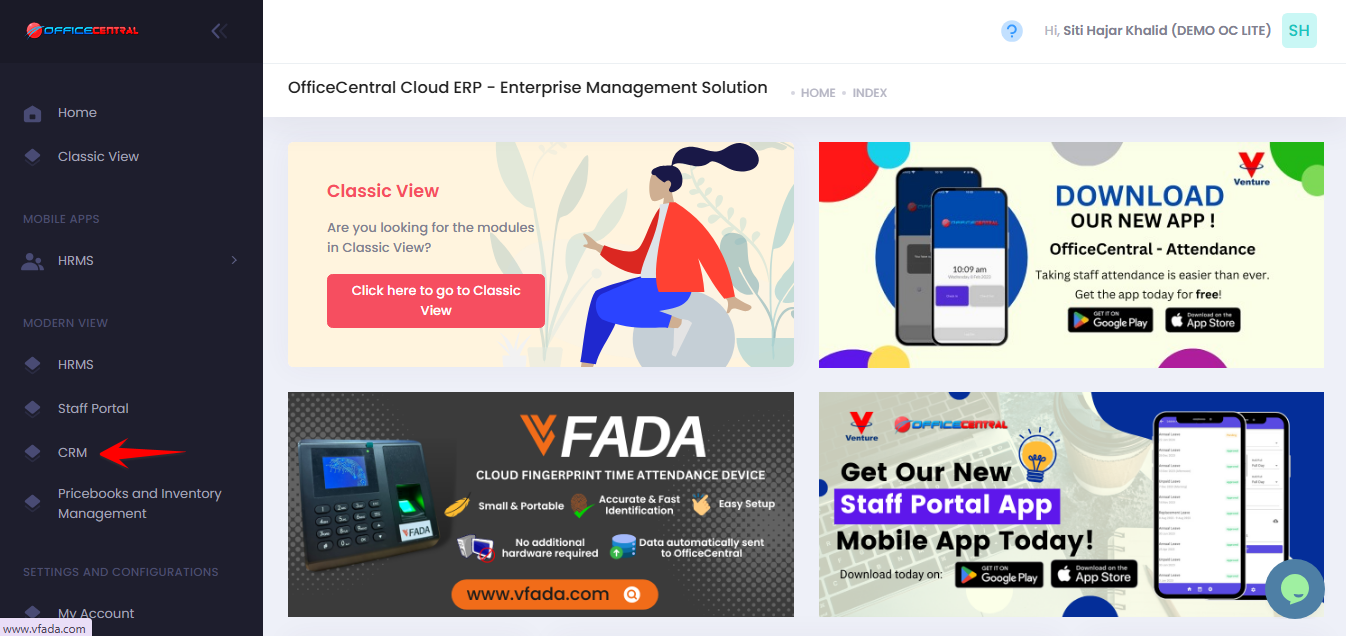
? Where to Access This Function
-
Go to CRM > Settings & Configurations > Company Settings
-
In the Company Settings page, you can configure the following settings:
| No. | Setting | Description |
|---|---|---|
| 1 | Reference Number Format | Define how transaction reference numbers are generated |
| 2 | Country Rules | Set system rules based on country |
| 3 | Email Settings | Configure automatic email sending for finalized transactions |
| 4 | Invoice Settings | Set default invoice and quotation behaviours |
| 5 | Report Settings | Configure tax report due date display |
| 6 | Terms and Remarks | Set default terms and remarks for CRM documents |
Use the screenshot below to locate these buttons.
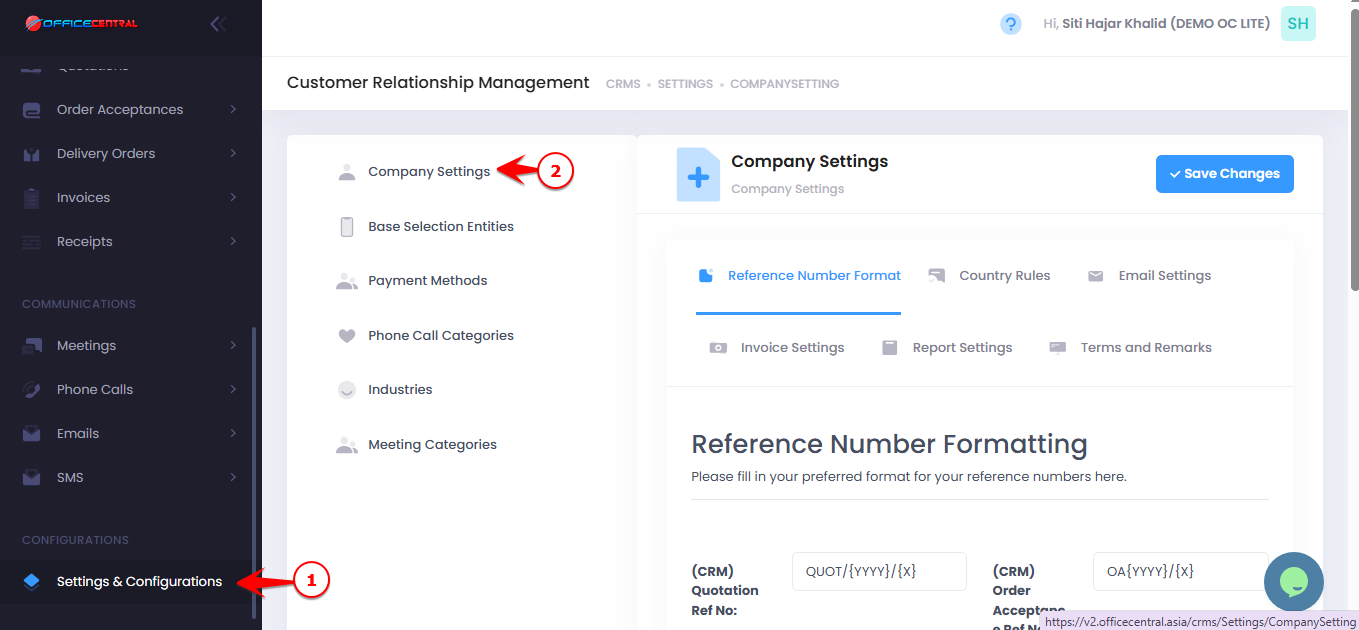
1️⃣Reference Number Format
This setting controls how reference numbers for CRM transactions (such as Quotations, Invoices, Delivery Orders, etc.) are generated.
Reset Period
You can configure when the running number resets.
| Setting | Explanation |
|---|---|
| By Year INV/{YYYY}/{X} |
The running number resets every year. Example: INV/2026/1, INV/2026/2 → next year becomes INV/2027/1 |
| By Month INV/{YYYY}/{MM}/{X) |
The running number resets every month. Example: INV/2026/01/1, INV/2026/01/2 → next month becomes INV/2026/02/1 |
This helps maintain organized numbering based on accounting or reporting periods.
Running Number Format
The system uses a standard running number format.
| Example | Result |
|---|---|
| Running number | 1, 2, 3, 4 |
| Not supported | 001, 0001, 01, 00001 |
The same rule applies to larger numbers.
| Example | Result |
|---|---|
| Number 11 | 11 |
| Not supported | 011, 0011, 00011 |
Important Recommendation
Once the reference number format is configured, users are recommended not to manually edit the reference number when creating transactions.
Manual changes may cause the running number to skip.
Example:
Reference format:INV/{yyyy}/{x}
Expected sequence:
INV/2026/1 INV/2026/2 INV/2026/3
If a user manually edits the number:
INV/2026/3 ← manually edited "INV/2026/3 - PROJECT ABC"
This may create gaps in the numbering sequence.
⚠️ Best practice: Allow the system to generate reference numbers automatically.
2️⃣ Country Rules
This setting defines the country configuration used by the CRM system.
| Setting | Description |
|---|---|
| Default Country | Malaysia |
⚠️ Currently, the system supports Malaysia as the default country rule.
3️⃣Email Settings
This setting allows the system to automatically send email notifications when CRM transactions are finalized.
When enabled, the system will send the document to the email registered in:
Contact Book → Account / Contact
Example
When a user finalizes an invoice, the system will automatically send the invoice to the customer’s registered email.
⚠️ Important Notes
| Setting | Explanation |
|---|---|
| Email Automation | Emails will be sent automatically when transactions are finalized |
| OC Credit Usage | Each email sent will consume OC Credit |
Ensure your company has sufficient OC Credit balance before enabling this feature.
4️⃣ Invoice Settings
This section allows users to configure default behaviour for invoicing and quotations.
| Setting | Description |
|---|---|
| Default Deliverer | Select the default salesperson responsible for delivery. This list is retrieved from staff records in the HRMS module |
| Invoicing Report Address | Define the address that will appear on invoice reports |
⚠️ Note for OC Lite Users
The OC Lite package supports only one company location.
Therefore, it is recommended to use the company address as the invoicing report address.
Quotation Approval Setting
Users can choose whether quotation approval is required before finalizing.
| Option | Result |
|---|---|
| Approval Required | Quotations must be approved by a supervisor or approver |
| No Approval Required | Quotations can be finalized directly |
5️⃣ Report Settings
This setting allows users to configure whether tax report due dates should appear in reports.
| Setting | Description |
|---|---|
| Tax Report Due Date | Select Yes or No to determine whether tax report due date will be displayed |
6️⃣Terms and Remarks
This section allows users to configure default terms and remarks for CRM transactions.
These terms will automatically appear in:
-
Quotations
-
Invoices
-
CRM transaction documents
⚠️ Important Note
The terms and remarks configured here will also appear in invoices within the Accounting module, ensuring consistent information across both modules.
CRM Configurations – Base Selection Entities
This module allows users to add, edit, or delete predefined options for various CRM entities such as Potential Types, Task Status, Lead Status, Lead Type, Lead Source, and Account Type.
These options are used throughout the CRM module to categorize leads, tasks, opportunities, and accounts consistently.
By default, the system comes with predefined options:
| Entity | Default Options |
|---|---|
| PotentialType | Tender, Direct Negotiation, Purchase |
| TaskStatus | Completed, Pending, New |
| PotentialStage | Closed Lost to Competition, Closed Lost, Closed Won, Negotiation/Review, Identifying Decision Makers, Value Proposition, Needs Analysis, Qualification, Request for Quotation/Proposal, New |
| LeadStatus | Prequalified, Not Contacted, Lost Lead, Junk Lead, Contacted, Contact in Future, Attempted to Contact, Closed, Open, New |
| LeadType | Cold, Warm, Hot |
| LeadSource | Public Relations, Web Research, Trade Show, Partner, Employee Referral, Cold Call, Advertisement, Words of Mouth, Newsletter, Online, Events |
| AccountType | Integrator, Distributor, Competitor, Supplier, Partner, Customer |
? Where to Access CRM
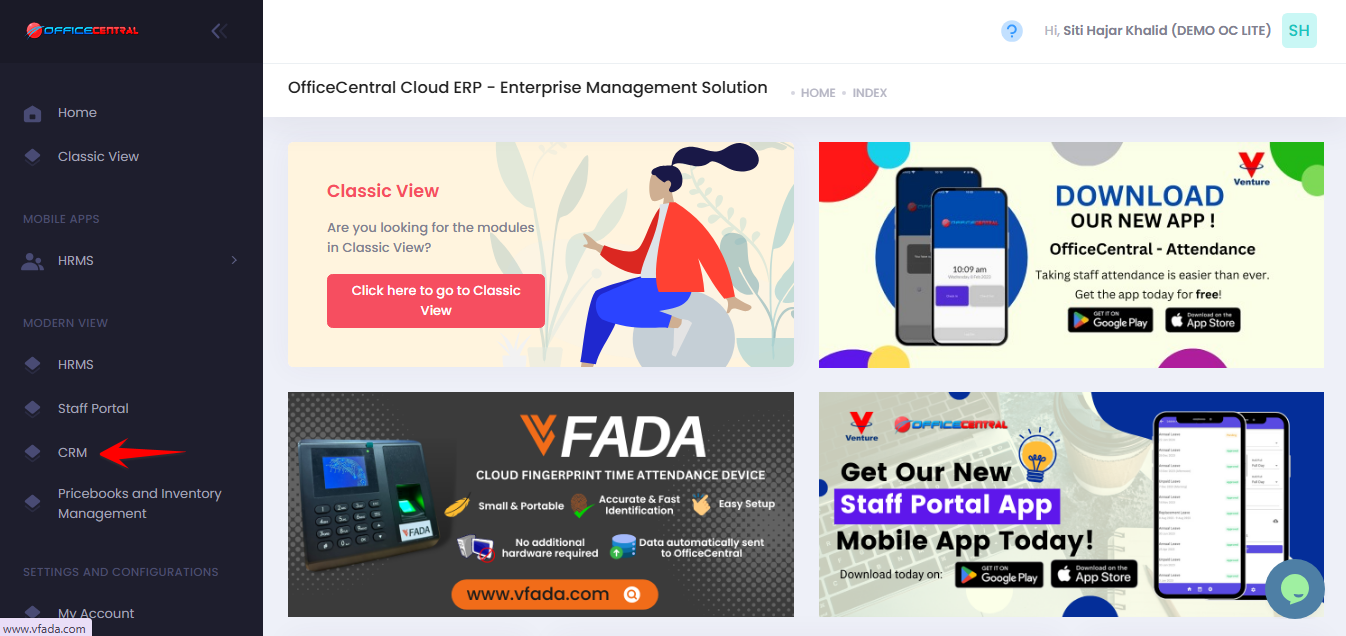
? Where to Access This Function
-
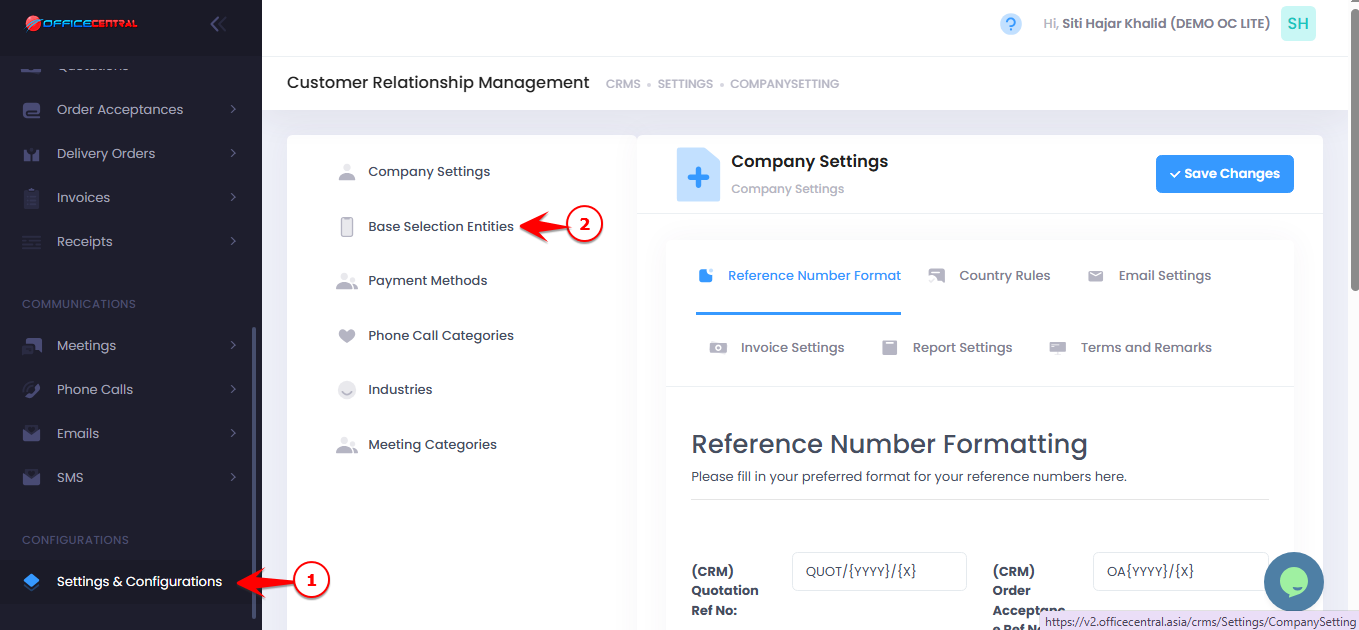
Go to CRM > Settings & Configurations > Base Selection Entities
-
In the Base Selection Entities page, you can:
| No. | Function | Description |
|---|---|---|
| 1 | Add | Add a new option to an entity type |
| 2 | Edit | Modify an existing option |
| 3 | Delete | Remove an option (only if it’s not used in existing CRM data) |
Use the screenshot below to locate these buttons.
1️⃣ How to Add a New Option
-
Go to Base Selection Entities and click “Add”.
- Enter the Option Name (Base Selection Entities Name).
- Select the Entity Type (e.g., PotentialType, LeadStatus).
-
Click Save.
⚠️ Important Notes:
Choose meaningful names as these options will appear in dropdown lists throughout the CRM module.
Deleting options that are already used in records may affect existing data.
2️⃣ How to Edit an Option
-
Click Edit next to the option you want to modify.
-
Update the Option Name.
-
Click Save.
⚠️ Important Notes:
Editing an option will update it everywhere it is used in the CRM module.
Be cautious if it is already used in opportunities, leads, or tasks.
3️⃣ How to Delete an Option
-
Click Delete next to the option you want to remove.
-
Confirm the deletion.
⚠️ Important Notes:
You can only delete options that are not assigned to any records.
If the option is in use, the system will prevent deletion.
CRM Configurations – Payment Methods
This module allows you to configure the payment methods your company accepts in CRM (Receipts) and POS module.
? Where to Access CRM
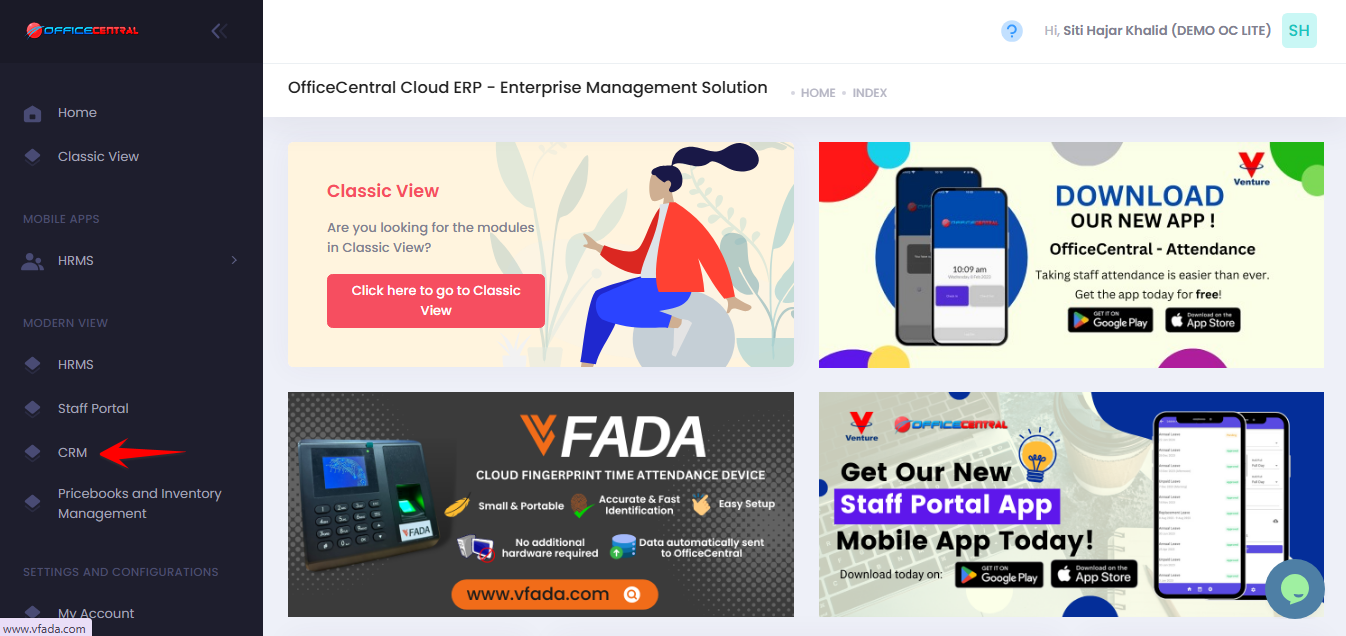
? Where to Access This Function
-
Go to CRM > Settings & Configurations > Payment Methods
-
On the Payment Methods page, you can see all configured payment methods and perform the following actions:
| No. | Button | Function |
|---|---|---|
| 1 | Add | Add a new payment method |
| 2 | Edit | Modify existing payment method details |
| 3 | Delete | Remove a payment method (only if not used in any transactions) |
Use the screenshot below to locate these buttons.
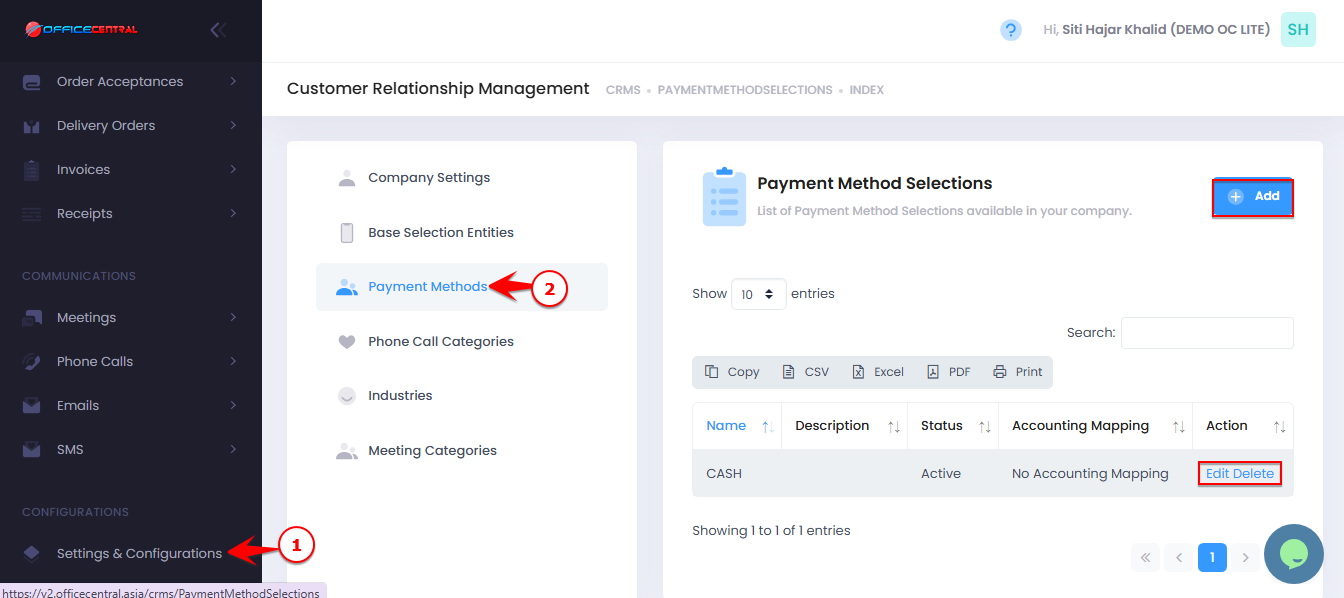
1️⃣ Add New Payment Method
-
Click “Add” on the Payment Methods page.
-
Fill in the required information:
| No. | Field | Description |
|---|---|---|
| 1 | Name | Enter the name of the payment method, e.g., “Cash”, “Credit Card”, “Bank Transfer” |
| 2 | Description | Optional – additional information about this payment method |
-
Click Save to create the payment method.
Edit Payment Method
-
Click “Edit” next to the payment method you want to modify.
-
Update the required fields (name, description, default status, active status).
-
Click Save to apply the changes.
Delete Payment Method
-
Click “Delete” next to the payment method you want to remove.
-
Confirm deletion.
⚠️ Important Note:
-
Payment methods that are already linked to invoices or quotations cannot be deleted.
-
Only UNUSED payment methods can be deleted.
CRM Configurations – Phone Call Categories
The Phone Call Categories module allows users to create, manage, and organize types of phone calls.
These categories are useful to classify and report on calls, such as follow-ups, cold calls, customer inquiries, or support calls. Users can add custom categories to suit their company’s needs.
? Where to Access CRM
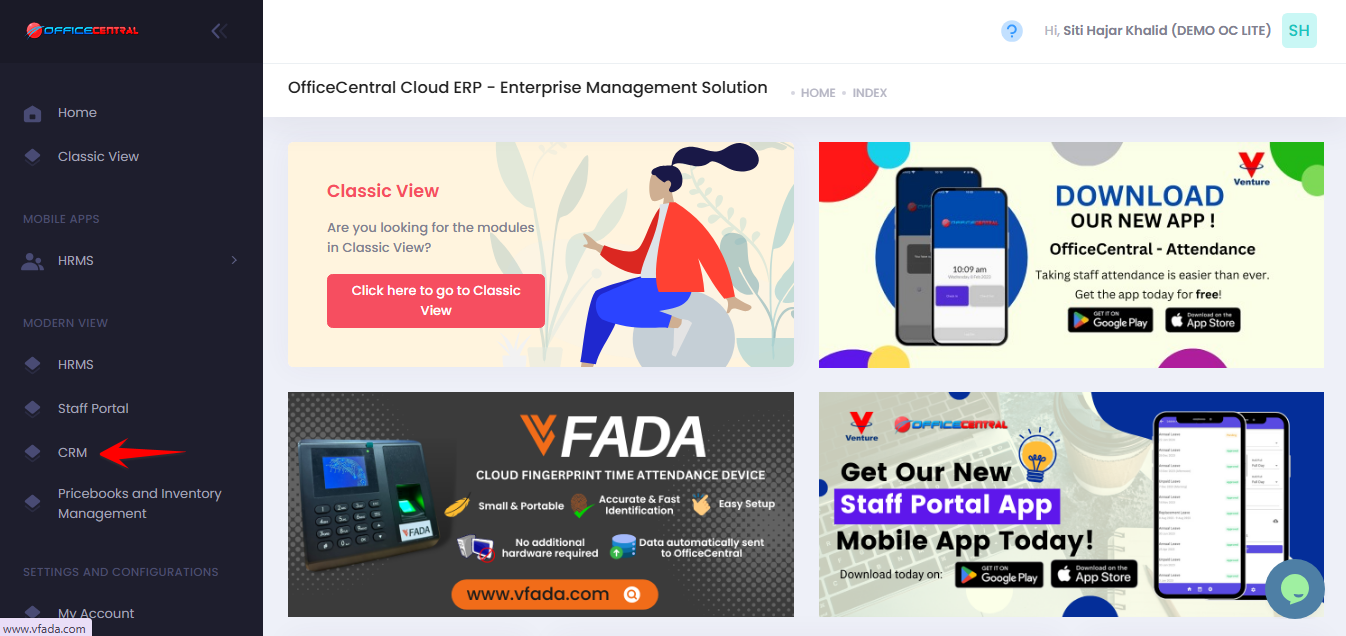
Where to Access Functions
- Go to CRM > Settings & Configurations > Phone call Categories
- On the Phone Call Categories page, you can:
| No. | Function | Description |
|---|---|---|
| 1 | Add | Create a new phone call category |
| 2 | Edit | Modify an existing category |
| 3 | Delete | Remove a category (only if it’s not used in any call records) |
Use the screenshot below to locate these buttons.
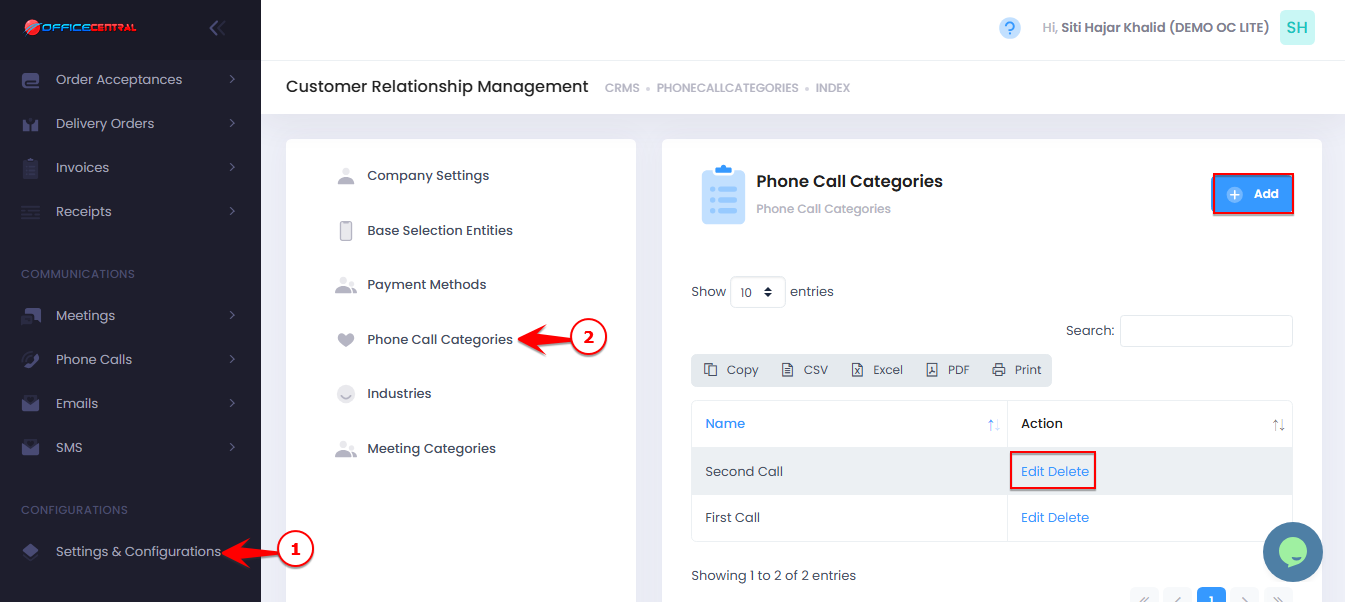
1️⃣ How to Add a New Phone Call Category
-
Click the “Add” button.
-
Enter the Phone Category Name (e.g., Follow-Up, Cold Call, Customer Inquiry).
-
Optionally, select Parent Category
-
Click Save.
⚠️ Important Notes:
Choose clear and meaningful names, as these will appear in dropdowns when logging phone calls.
Deleting a category that is in use will not be allowed.
2️⃣How to Edit a Phone Call Category
-
Click Edit next to the category you want to modify.
-
Update the Phone Call Category or Parent Cstegory
-
Click Save.
⚠️ Important Notes:
Editing will update the category everywhere it has been used in logged calls.
Avoid changing names of categories actively in use unless necessary.
How to Delete a Phone Call Category
-
Click Delete next to the category you want to remove.
-
Confirm the deletion.
⚠️ Important Notes:
Only categories not linked to existing calls can be deleted.
If the category is used, the system will prevent deletion to avoid affecting historical data.
CRM Configurations – Industry
The Industry module allows users to manage industry categories used in the CRM system. This makes it easier to organize records, filter data, and generate industry-based reports.
The system already includes several default industry categories, but users can add new industries if required.
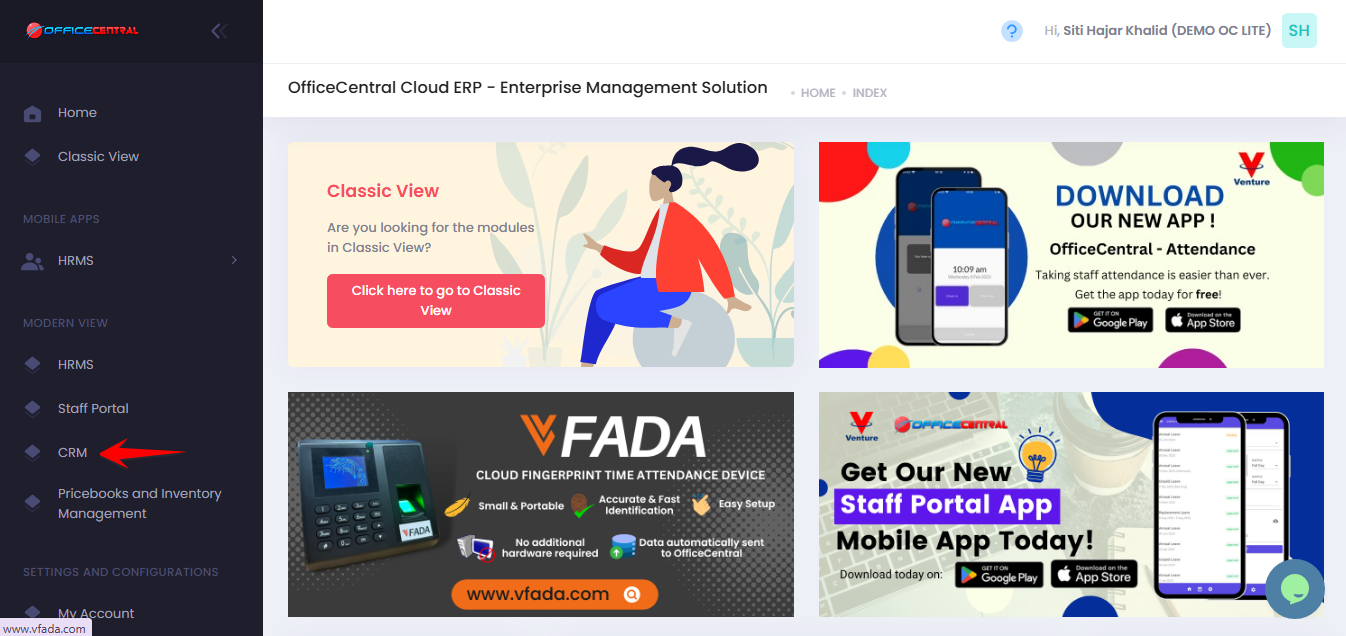
? Where to Access CRM
Where to Access This Function
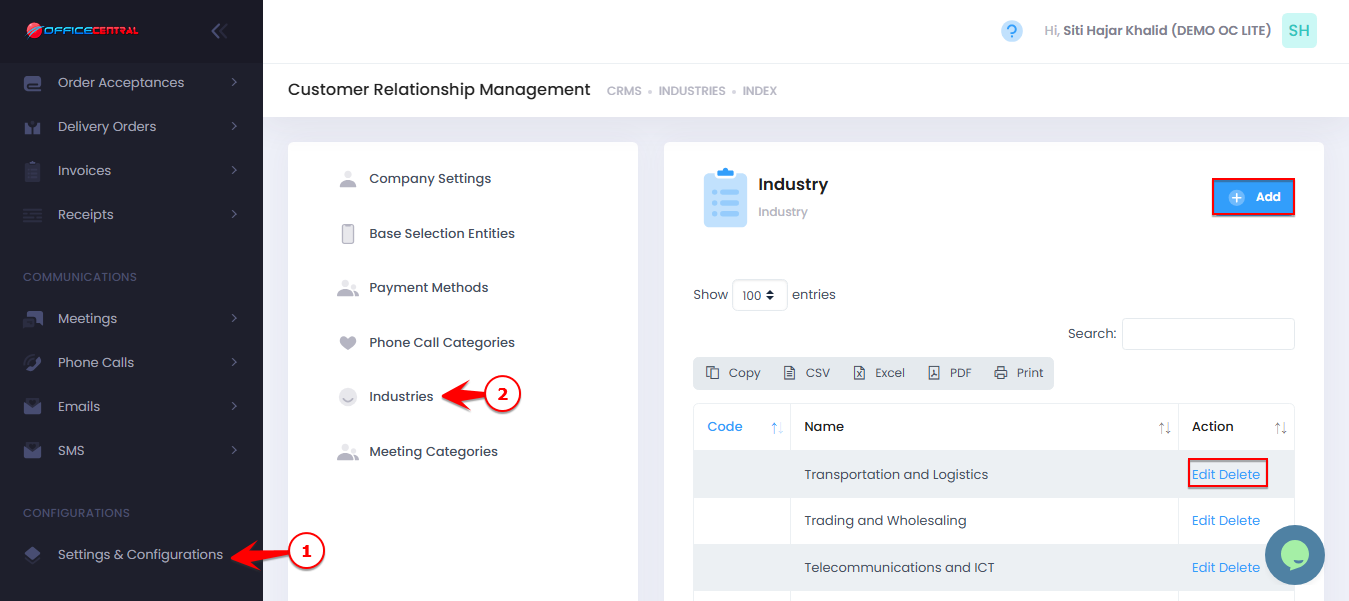
- Go to CRM > Settings & Configurations > Industries
- On the Industry page, you can manage industry categories.
| No. | Function | Description |
|---|---|---|
| 1 | Add | Add a new industry category |
| 2 | Edit | Modify an existing industry |
| 3 | Delete | Remove an industry (if not used in any records) |
Use the screenshot below to locate these buttons.
Default Industry List
The system already provides the following industry categories:
-
Transportation and Logistics
-
Trading and Wholesaling
-
Telecommunications and ICT
-
Retail
-
Professional and Business Services
-
Personal Services
-
Oil & Gas, Mining & Energy
-
Industrial and Commercial Products
-
Hospitality, Food Service & Tourism
-
Healthcare, Pharmaceutical & Biotechnology
-
Furniture and Wood-based Manufacturing
-
Food & Beverages
-
Financial Services
-
Electrical and Electronics
-
Education and Training
-
Consumer Goods
-
Construction, Property Development & Building
-
Chemical and Plastics
-
Automotive
-
Agriculture, Livestock, Plantations and Commodities
These options are available for users to select when creating or managing accounts and leads in CRM.
1️⃣ How to Add a New Industry
If the required industry is not available in the default list, you can add a new one.
Steps:
-
Click Add.
-
Enter the Industry Code and Name.
-
Click Save.
The new industry will then appear in the industry dropdown list when creating or editing accounts.
2️⃣ How to Edit an Industry
-
Click Edit next to the industry you want to update.
-
Modify the Industry Code and Name.
-
Click Save.
⚠️ Note:
Editing an industry name will update it wherever it is used in the system.
3️⃣ How to Delete an Industry
-
Click Delete next to the industry you want to remove.
-
Confirm the deletion.
⚠️ Important Note:
An industry can only be deleted if it is not used in any account or CRM records.
CRM Configurations – Meeting Categories
The Meeting Categories module allows users to create and manage categories used when scheduling meetings and movements in the CRM system. These categories help classify the purpose or type of meeting, making it easier to organize records, track activities, and generate reports.
Meeting Categories are also linked to Movement Categories, so the same category can be used when logging staff movements related to meetings or business visits.
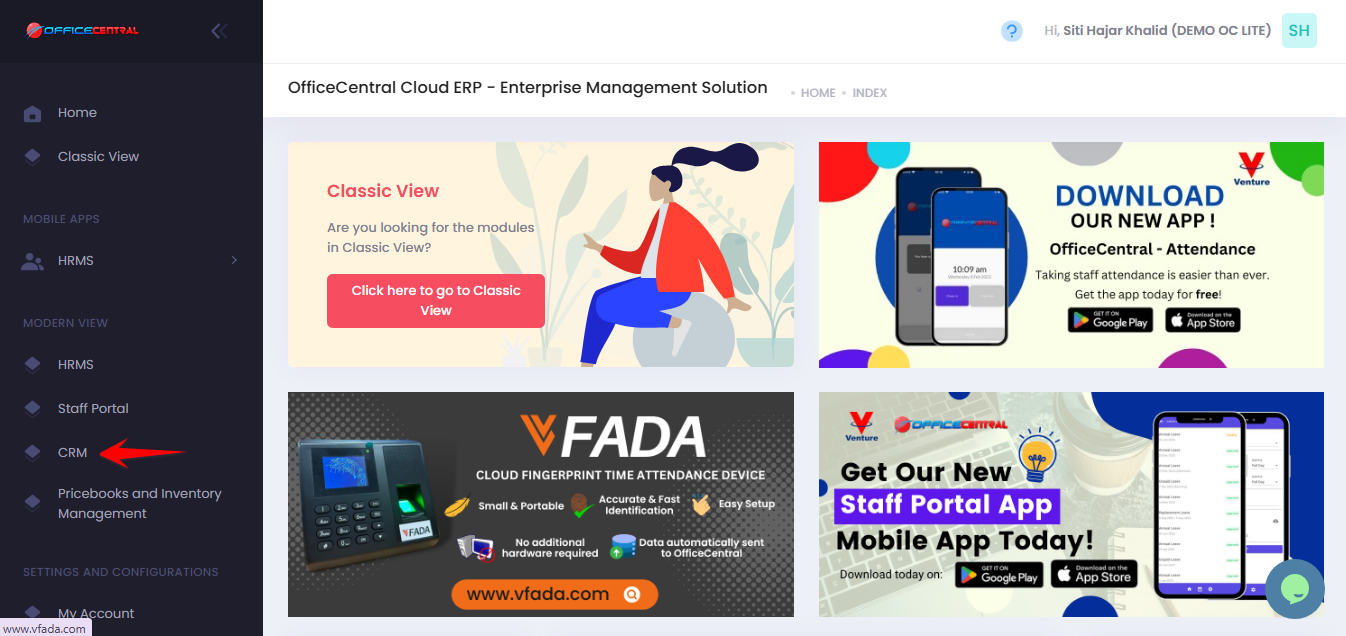
? Where to Access CRM
Where to Access This Function
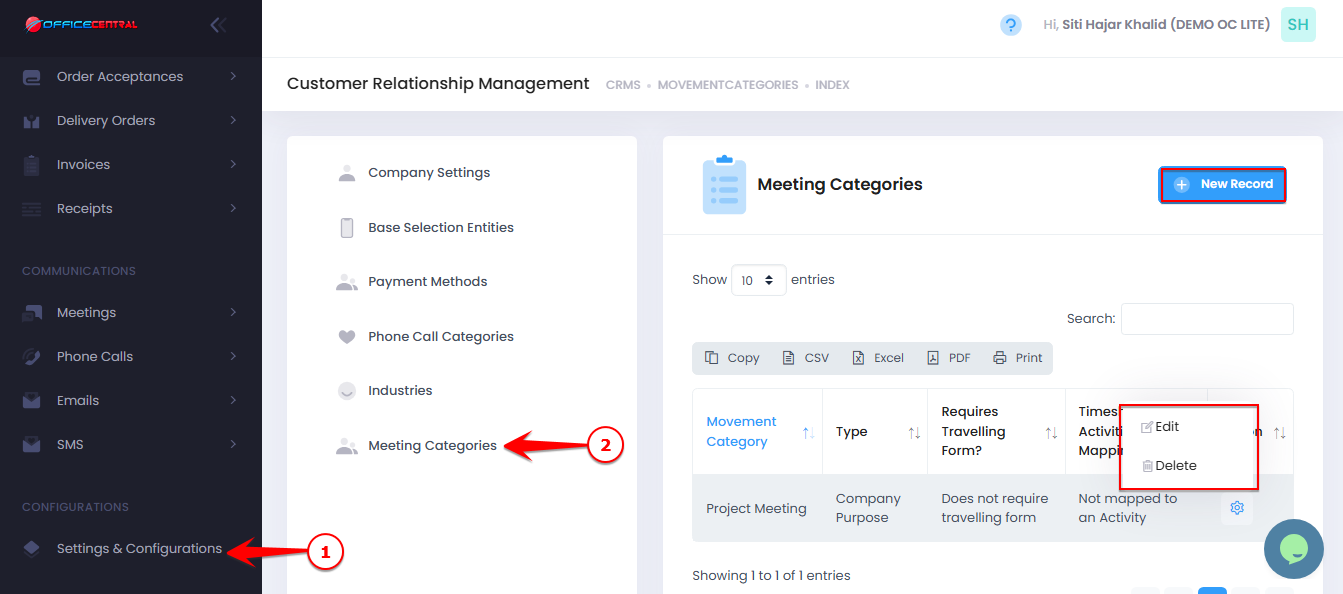
- Go to CRM > Settings & Configurations > Meeting Categories
- On the Meeting Categories page, you can manage the available categories.
| No. | Function | Description |
|---|---|---|
| 1 | Add | Add a new meeting category |
| 2 | Edit | Modify an existing category |
| 3 | Delete | Remove a category (if it is not used in any records) |
Use the screenshot below to locate these buttons.
1️⃣ How to Add a New Meeting Category
If your company needs additional categories for meetings or movements, you can create them here.
Steps:
-
Click New Record.
-
Enter the Meeting Category Name.
-
Click Save.
The new category will then be available when users schedule meetings or record movements.
2️⃣ How to Edit a Meeting Category
-
Click Edit next to the category you want to update.
-
Modify the category name.
-
Click Save.
⚠️ Note:
Editing a category will update the name wherever it is used in meeting or movement records.
3️⃣ How to Delete a Meeting Category
-
Click Delete next to the category you want to remove.
-
Confirm the deletion.
⚠️ Important Note:
A category can only be deleted if it is not currently used in any meeting or movement records.