
ONLINE ONBOARDING
Step-by-step tutorials to help you get started with OCLite faster.
Step 1: Global Configuration
Step 2: HRMS
1. HRMS Configurations – Manage Department
2. HRMS Configurations – Manage Designation
3. HRMS Configurations – Manage Job Classifications
4. Staff Management – How to Add New Staff?
5. Staff Management – How to Edit Staff’s Information?
6. Leave Setup – Step 1: Define Leave Types
7. Leave Setup – Step 2: Leave Entitlement Defaults
Step 3: Payroll
Step 4: Accounting
1. Accounting Configurations – Wizards
2. Accounting Configurations – Accounting Period
3. Understanding Chart of Accounts
4. How to Create and Manage Customer (Debtor)
5. How to Create and Manage Invoice
6. How to Create and Manage Receipt (Receive Payment)
7. How to Create and Manage Credit Note
8. How to Create and Manage Debit Note
9. How to Create and Manage Supplier (Creditor)
10. How to Create and Manage Receive Invoice
11. How to Create and Manage Self-Billed Invoice
12. How to Create and Manage Payment (Issue Payment / Payment Voucher)
13. How to Create and Manage Received Credit Note
Step 5: Pricebook
Step 6: CRM
Step 7: POS
Step 8: System Enhancements (Optional)
Global Configuration
1. How Do I Change My Username, Email, or Password?
2. How to Set Reports Template?
4. What Should I Do If I Forgot My Password?
HRMS
1. HRMS Configurations – Manage Approvers
2. Staff Management – Resign, Deactivate, Suspend & Unassign
PAYROLL
1. Manage Adjustments – Adjustment Purposes
2. Manage Adjustments – Add Adjustment Individually
CRM
1. Contact Book Overview (Leads, Accounts and Contacts)
3. Financial Transactions Overview
ACCOUNTING
Step 9: OC Lite Beginner Certification
Complete all onboarding modules to unlock and download your Beginner Digital Certificate.
Leave Setup – Step 3: Process Leave Entitlements
? Where to Access HRMS
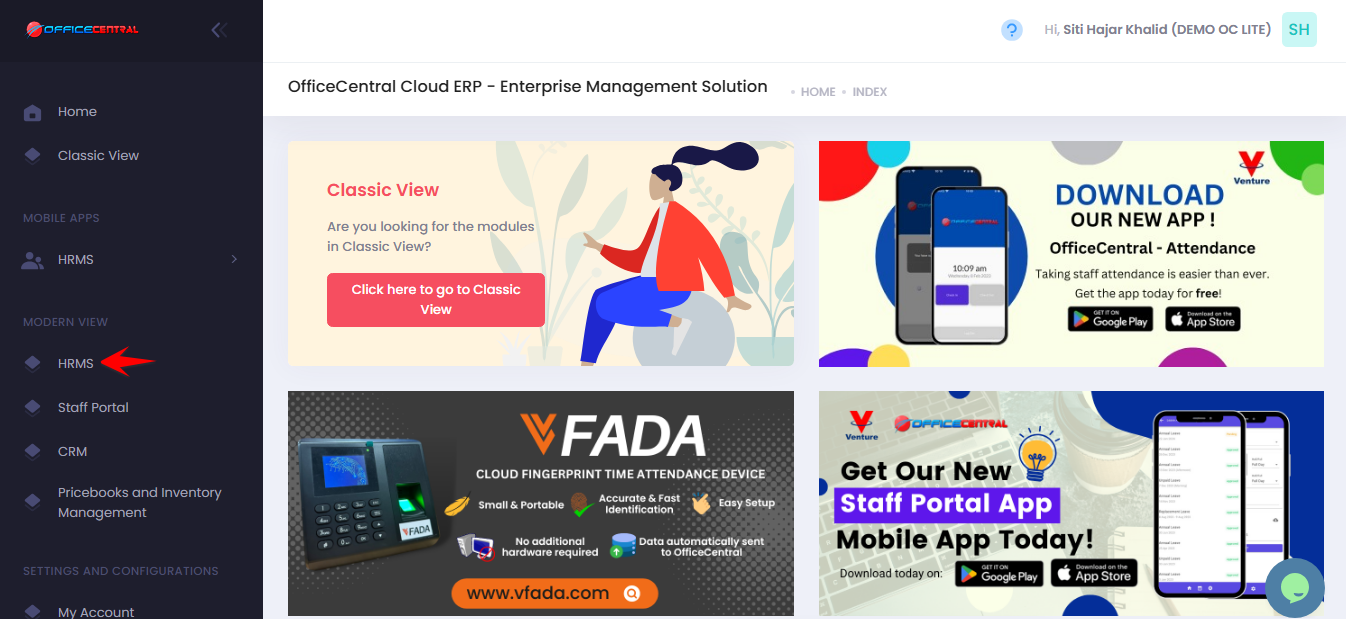
1️⃣ Where to Access This Function
-
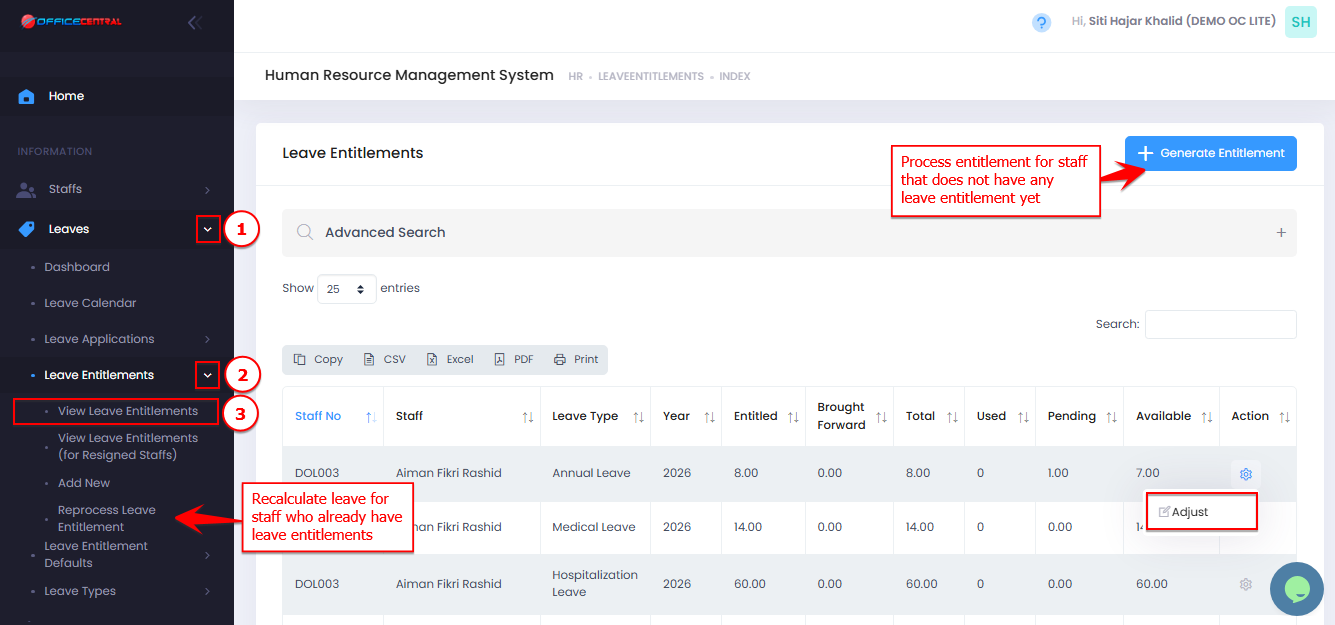
Go to Leaves → Leave Entitlement→ View Entitlements
-
You will see a list of existing leave entitlements for each staff in your company.
| Button | Function |
|---|---|
| Generate Entitlement | Create leave entitlement for staff without entitlements |
| Reprocess Leave Entitlement | Recalculate leave for staff who already have entitlements |
| Adjust | Manually adjust leave balance (Not Recommended) |
Use the screenshot below to locate the buttons.
? When to Use “Generate Entitlement”
Use Generate Entitlement when:
-
A new staff joins the company
-
Staff does not have any leave entitlement yet
This function will:
-
Automatically calculate leave based on:
-
Job Classification
-
Years of Service
-
Leave Entitlement Settings
-
? When to Use “Reprocess Entitlements”
Use Reprocess Entitlements when:
-
Staff changes Job Classification
-
There is an update in entitlement amount
-
There are changes in leave carry-forward settings
-
New year adjustment is required to recalculate balances
This function will:
-
Recalculate leave based on updated configuration
-
Update existing entitlements
-
Not create duplicates
⚠️ About the “Adjust” Button (Not Recommended)
The Adjust button allows manual changes to leave balance.
⚠️ This is NOT recommended for normal usage.
Only use Adjust when:
-
You do NOT want the system to calculate automatically
-
You need a one-time manual correction
-
There is a special case outside normal entitlement rules
❌ Avoid frequent manual adjustments because:
-
It overrides automatic calculation
-
Future reprocess may overwrite manual changes
-
It may cause inconsistency in leave records
✅ Best Practice:
Always use Generate or Reprocess instead of Adjust whenever possible.
❓ Troubleshooting
Reprocess many times but system not updating?
Usually caused by:
-
Change in Job Classification not saved properly
-
Years of Service not updated correctly
-
Staff profile information incomplete
✔ Solution:
-
Check staff profile (classification & join date)
-
Confirm entitlement settings
-
Run Reprocess Entitlements again