
ONLINE ONBOARDING
Step-by-step tutorials to help you get started with OCLite faster.
Step 1: Global Configuration
Step 2: HRMS
1. HRMS Configurations – Manage Department
2. HRMS Configurations – Manage Designation
3. HRMS Configurations – Manage Job Classifications
4. Staff Management – How to Add New Staff?
5. Staff Management – How to Edit Staff’s Information?
6. Leave Setup – Step 1: Define Leave Types
7. Leave Setup – Step 2: Leave Entitlement Defaults
Step 3: Payroll
Step 4: Accounting
1. Accounting Configurations – Wizards
2. Accounting Configurations – Accounting Period
3. Understanding Chart of Accounts
4. How to Create and Manage Customer (Debtor)
5. How to Create and Manage Invoice
6. How to Create and Manage Receipt (Receive Payment)
7. How to Create and Manage Credit Note
8. How to Create and Manage Debit Note
9. How to Create and Manage Supplier (Creditor)
10. How to Create and Manage Receive Invoice
11. How to Create and Manage Self-Billed Invoice
12. How to Create and Manage Payment (Issue Payment / Payment Voucher)
13. How to Create and Manage Received Credit Note
Step 5: Pricebook
Step 6: CRM
Step 7: POS
Step 8: System Enhancements (Optional)
Global Configuration
1. How Do I Change My Username, Email, or Password?
2. How to Set Reports Template?
4. What Should I Do If I Forgot My Password?
HRMS
1. HRMS Configurations – Manage Approvers
2. Staff Management – Resign, Deactivate, Suspend & Unassign
PAYROLL
1. Manage Adjustments – Adjustment Purposes
2. Manage Adjustments – Add Adjustment Individually
CRM
1. Contact Book Overview (Leads, Accounts and Contacts)
3. Financial Transactions Overview
ACCOUNTING
Step 9: OC Lite Beginner Certification
Complete all onboarding modules to unlock and download your Beginner Digital Certificate.
How to Create a Sales Transaction
This guide explains how to create and complete a sales transaction using the OfficeCentral POS module.
Sales transactions allow users to record customer purchases, process payments, and generate receipts.
Before Starting
Ensure that:
✅ Counter has been created.
✅ Counter has been opened.
✅ Required items and Pricebook are available.
Where to Access
POS > Point of Sale (POS)
How to Create a Sales Transaction
Step 1: Access POS Screen
After opening the counter, the POS sales screen will be displayed.
The following functions are available:
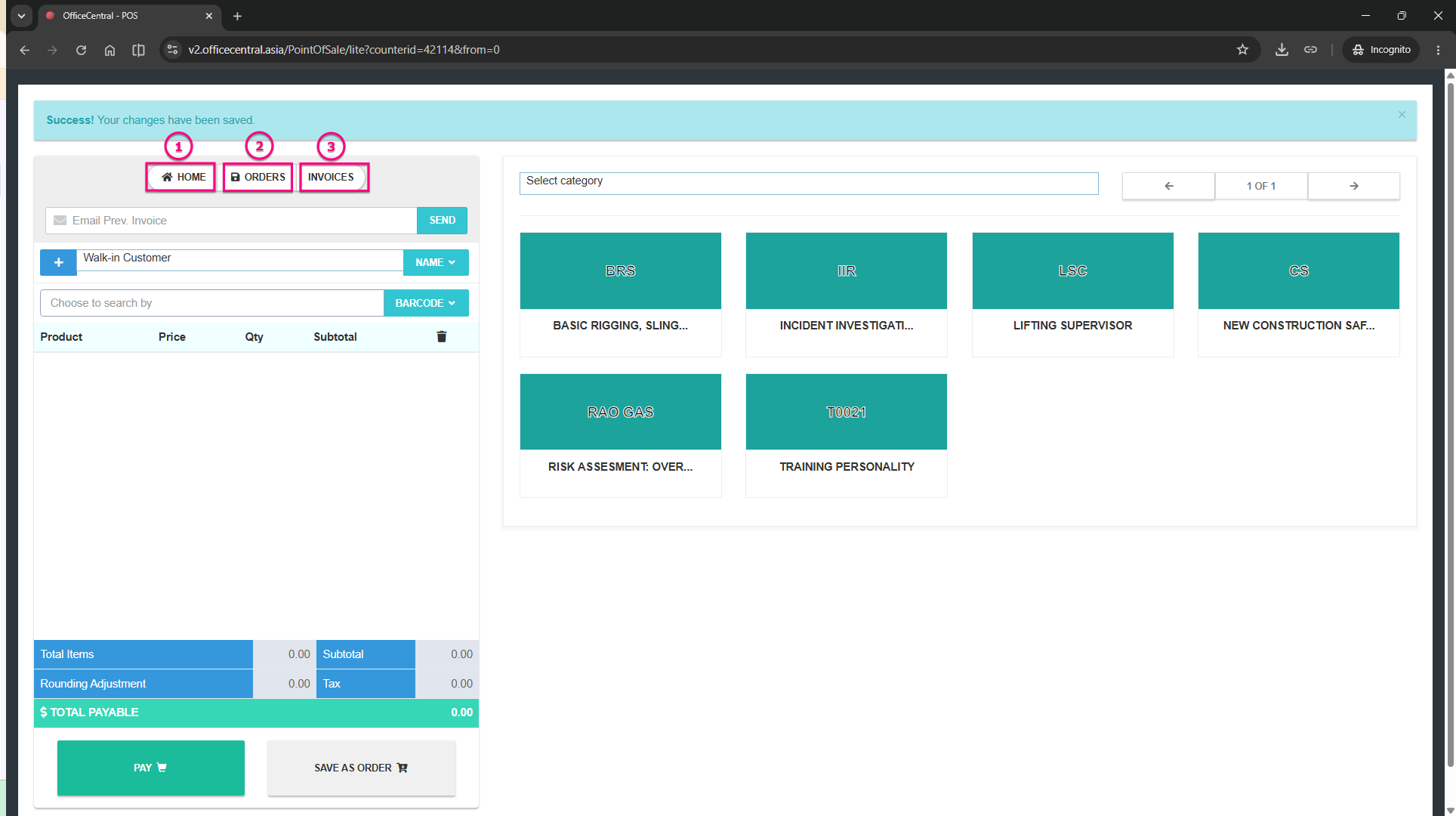
|
No. |
Menu |
Function |
|
1 |
Home |
Return to counter list |
|
2 |
Orders |
View previously saved orders |
|
3 |
Invoices |
View completed sales transactions |
Step 2: Select Pricebook
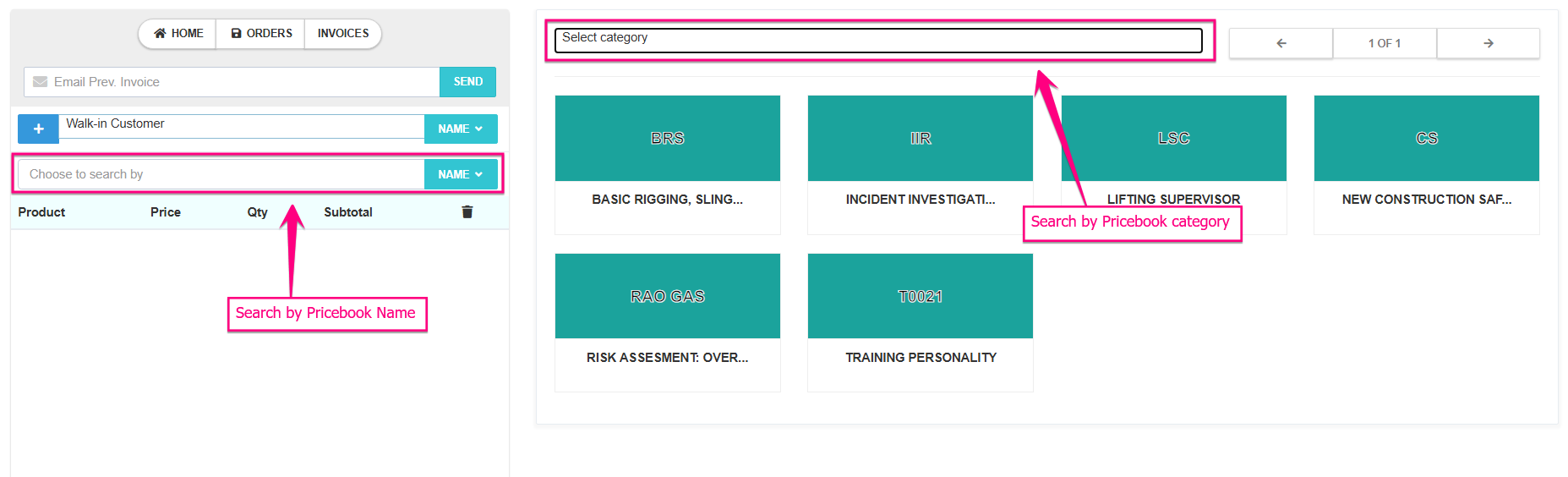
Select the required Pricebook from the right panel.
Users may also search for Pricebook using:
- Pricebook Category
- Pricebook Name
Step 3: Add Items into Cart
Select the required items from the Pricebook.
Users can perform the following actions:
- Change item quantity
- Apply discount
- Remove items using the delete icon
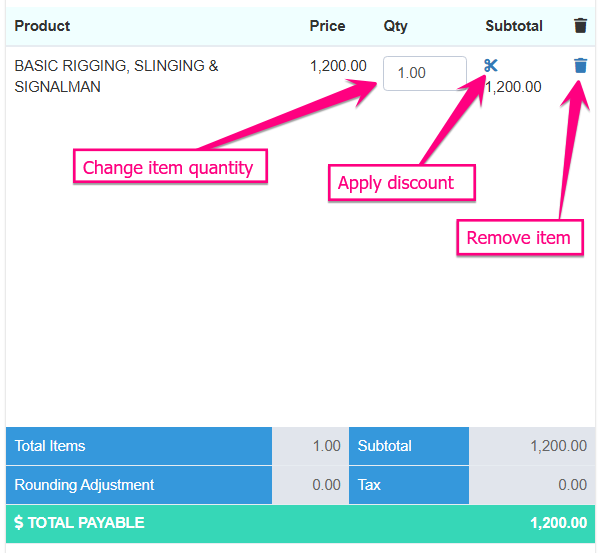
Review all items before proceeding.
Step 4: Save Order (Optional)
If payment is not required immediately:
- Click Save as Order.
- The system will create an Order Acceptance record.
The order can be reviewed later from the Orders section.
Step 5: Proceed Payment
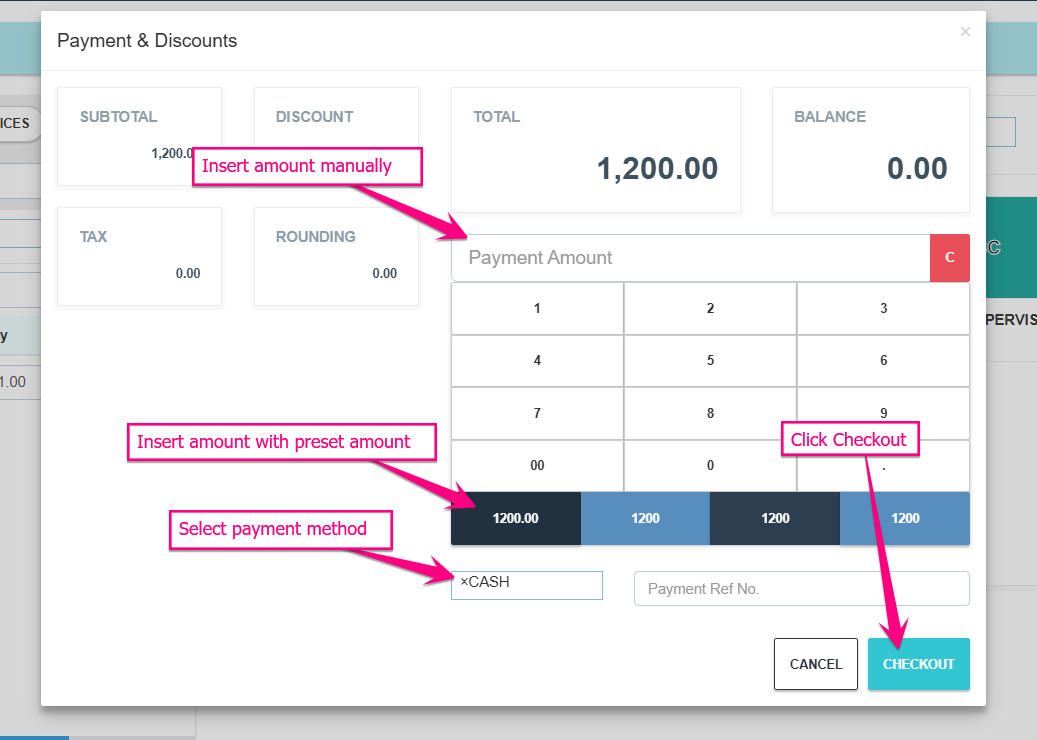
To complete the transaction:
- Click Pay.
- Enter the payment amount.
- Select payment method.
- Enter payment reference number (if applicable).
- Click Checkout.
Step 6: Print Receipt
After successful payment:
- The receipt print preview will appear.
- Click print to generate the customer receipt.
Step 7: View Completed Transactions
To view recent transactions:
- Click Invoices.
- The invoice list will display completed sales transactions.
Important Notes
⚠️ Saving an order is optional. Users may proceed directly to payment if the transaction is completed immediately.
⚠️ Stock availability must be sufficient before completing a sales transaction.
⚠️ Receipt printing is only available after successful payment completion.
Summary
|
Action |
Result |
|
Add Item |
Adds product into transaction |
|
Save as Order |
Creates order acceptance |
|
Pay |
Starts payment process |
|
Checkout |
Completes transaction |
|
Print Receipt |
Generates customer receipt |
|
Invoice |
Stores completed sales record |