
ONLINE ONBOARDING
A step-by-step guide to operate business better with OCLite
Step 1: Global Configuration
Step 2: HRMS
1. HRMS Configurations – Manage Department
2. HRMS Configurations – Manage Designation
3. HRMS Configurations – Manage Job Classifications
4. Staff Management – How to Add New Staff?
5. Staff Management – How to Edit Staff’s Information?
6. Leave Setup – Step 1: Define Leave Types
7. Leave Setup – Step 2: Leave Entitlement Defaults
Step 3: Payroll
Step 4: Accounting
1. Accounting Configurations – Wizards
2. Accounting Configurations – Accounting Period
3. Understanding Chart of Accounts
4. How to Create and Manage Customer (Debtor)
5. How to Create and Manage Invoice
6. How to Create and Manage Receipt (Receive Payment)
7. How to Create and Manage Credit Note
8. How to Create and Manage Debit Note
9. How to Create and Manage Supplier (Creditor)
10. How to Create and Manage Receive Invoice
11. How to Create and Manage Self-Billed Invoice
12. How to Create and Manage Payment (Issue Payment / Payment Voucher)
13. How to Create and Manage Received Credit Note
Step 5: Pricebook
Step 6: CRM
Step 7: POS
Step 8: System Enhancements (Optional)
Global Configuration
1. How Do I Change My Username, Email, or Password?
2. How to Set Reports Template?
4. What Should I Do If I Forgot My Password?
HRMS
1. HRMS Configurations – Manage Approvers
2. Staff Management – Resign, Deactivate, Suspend & Unassign
PAYROLL
1. Manage Adjustments – Adjustment Purposes
2. Manage Adjustments – Add Adjustment Individually
CRM
1. Contact Book Overview (Leads, Accounts and Contacts)
3. Financial Transactions Overview
ACCOUNTING
Step 9: OC Lite Beginner Certification
Complete all onboarding modules to unlock and download your Beginner Digital Certificate.
How to Manage Leads
This guide shows how to add, view, edit, and delete leads in OfficeCentral. Leads represent potential customers or prospects who have not yet become full accounts.
? Where to Access CRM
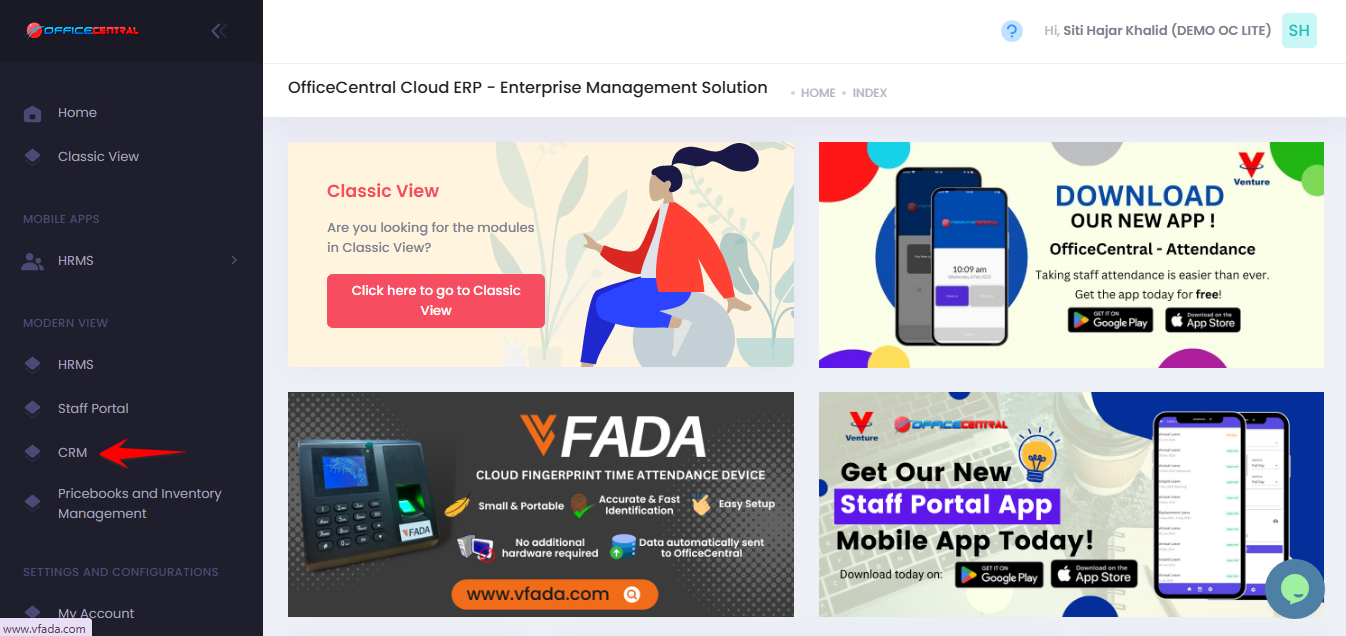
Where to Access This Function
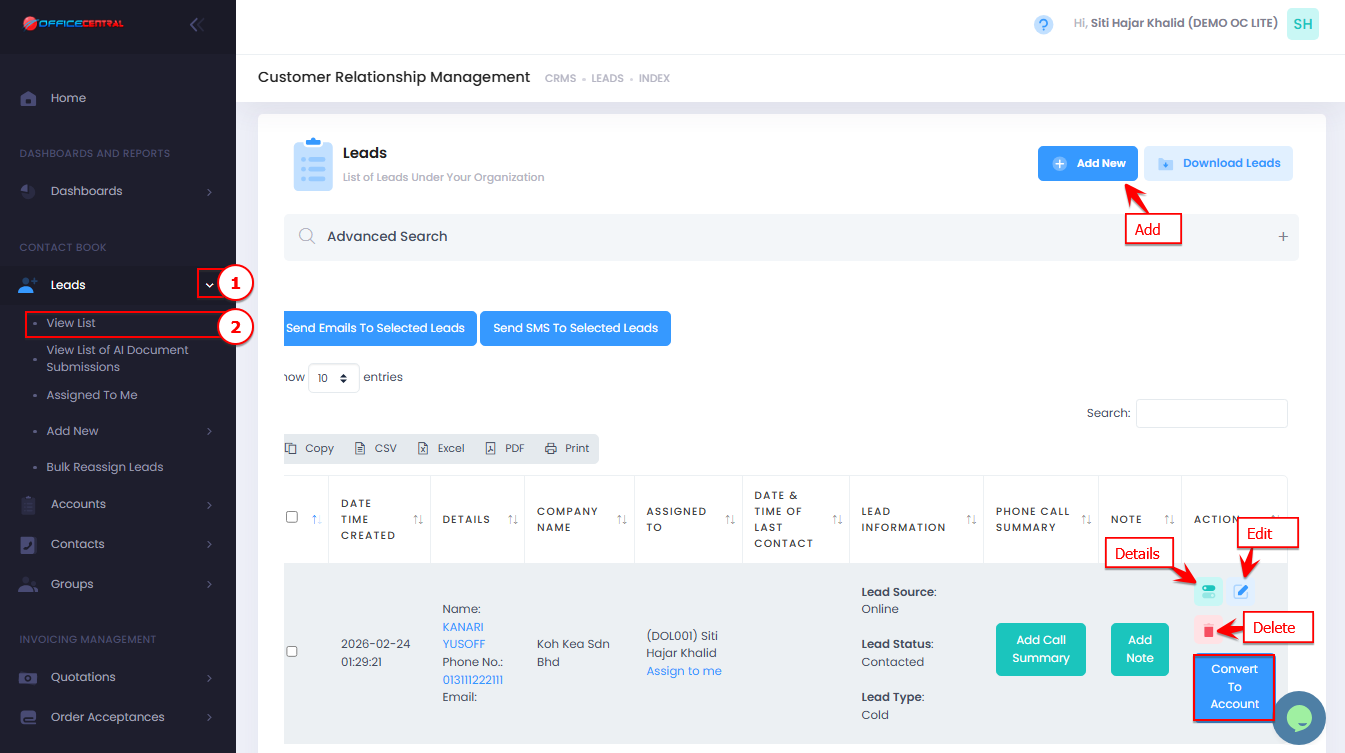
- Go to CRM > Leads > View List
- Here you can see all leads currently in the system and access the following actions:
| # | Function | Description |
|---|---|---|
| 1 | Add | Add a new lead to the system |
| 2 | Edit | Update details of an existing lead |
| 3 | Delete | Remove a lead (only if no associated activities exist) |
| 4 | Details | See full information about a lead |
| 5 | Convert to Account | Convert a qualified lead into an account |
Use the screenshot below to locate these buttons.
How to Add a New Lead
-
Click “Add New”.
-
Fill in the required fields:
1. Personal Information
No. Field Description 1 Title Select the appropriate title (e.g., Mr, Mrs, Madam, Dato’, Datin, Tun, etc.) 2 Position Job title or role of the lead 3 First Name * Lead’s first name 4 Last Name Lead’s last name 5 Email Enter a valid email address (e.g., email@companydomain.com) 6 Phone Enter phone number with country code (e.g., 60 for Malaysia) 7 Identification Number IC / passport number if applicable 8 Gender Select gender 9 Religion Select religion if applicable 10 Race Select race if applicable 2. Company Information
No. Field Description 1 Company Registration Number Official company registration number 2 Company Name Name of the company 3 Industry Select the relevant industry 4 Number of Employees Estimated number of employees in the company 3. Company Contact Information
No. Field Description 1 Phone Company phone number (include country code) 2 Fax Company fax number (include country code) 3 Website Company website URL 4 Address Line 1 Primary company address 5 Address Line 2 Additional address information (optional) 6 Postcode Postal code 7 City City location 8 State State 9 Country Country 4. Lead Information
No. Field Description 1 Lead Source Source of the lead (e.g., advertisement, referral, website) 2 Lead Status Current status of the lead 3 Lead Type Type of lead (e.g., Cold, Warm, Hot) 4 Groups Assign the lead to a group if needed 5 Campaigns Link the lead to a specific marketing campaign 6 Note Additional remarks or information about the lead ⚠️ Important Notes: Fields marked with (*) are mandatoryand must be filled before saving.
-
Ensure the email and phone number are correct so the sales team can contact the lead easily.
-
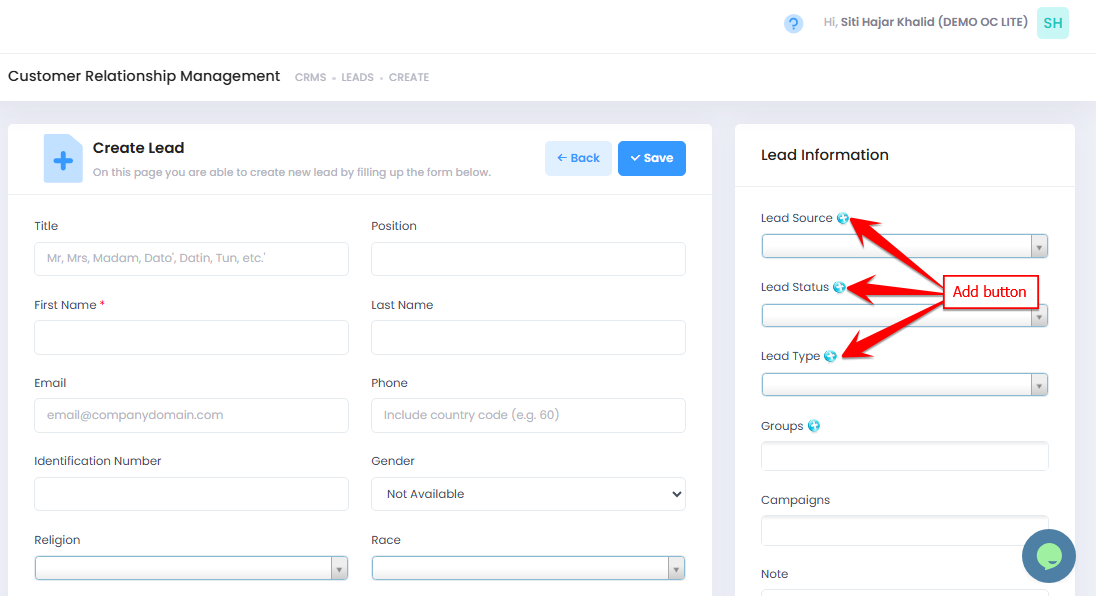
If the required option for Lead Source, Lead Status, or Lead Type is not available, you can create it in CRM Configurations – Base Selection Entities or clicking the Add button as shown below
-
-
Click Save to add the lead.
Tip: Make sure to fill mandatory fields (*) to successfully save the lead.
How to View Lead Details
-
From the Leads list, click “Details” icon next to a lead.
-
You can see all information stored for the lead, including:
-
Personal Information
-
Company Contact Information
-
Lead Information & Lead Owner
-
Company Information
-
Notes
-
-
Use this page to quickly check a lead’s history or information before follow-ups.
How to Edit a Lead
-
From the Leads list, click “Edit” next to the lead you want to update.
-
Update the fields as necessary (contact info, status, source, etc.)
-
Click Save to apply the changes.
Important: Only update fields relevant to current information. Avoid changing historical data unless necessary.
How to Delete a Lead
-
From the Leads list, click “Delete” next to the lead.
-
Confirm the deletion.
Notes:
-
Only leads with no associated activities (tasks, follow-ups, or interactions) can be deleted.
-
Deletion is permanent and cannot be undone.
-
If a lead has existing activities, consider marking it as inactive instead.