
ONLINE ONBOARDING
Step-by-step tutorials to help you get started with OCLite faster.
Step 1: Global Configuration
Step 2: HRMS
1. HRMS Configurations – Manage Department
2. HRMS Configurations – Manage Designation
3. HRMS Configurations – Manage Job Classifications
4. Staff Management – How to Add New Staff?
5. Staff Management – How to Edit Staff’s Information?
6. Leave Setup – Step 1: Define Leave Types
7. Leave Setup – Step 2: Leave Entitlement Defaults
Step 3: Payroll
Step 4: Accounting
1. Accounting Configurations – Wizards
2. Accounting Configurations – Accounting Period
3. Understanding Chart of Accounts
4. How to Create and Manage Customer (Debtor)
5. How to Create and Manage Invoice
6. How to Create and Manage Receipt (Receive Payment)
7. How to Create and Manage Credit Note
8. How to Create and Manage Debit Note
9. How to Create and Manage Supplier (Creditor)
10. How to Create and Manage Receive Invoice
11. How to Create and Manage Self-Billed Invoice
12. How to Create and Manage Payment (Issue Payment / Payment Voucher)
13. How to Create and Manage Received Credit Note
Step 5: Pricebook
Step 6: CRM
Step 7: POS
Step 8: System Enhancements (Optional)
Global Configuration
1. How Do I Change My Username, Email, or Password?
2. How to Set Reports Template?
4. What Should I Do If I Forgot My Password?
HRMS
1. HRMS Configurations – Manage Approvers
2. Staff Management – Resign, Deactivate, Suspend & Unassign
PAYROLL
1. Manage Adjustments – Adjustment Purposes
2. Manage Adjustments – Add Adjustment Individually
CRM
1. Contact Book Overview (Leads, Accounts and Contacts)
3. Financial Transactions Overview
ACCOUNTING
Step 9: OC Lite Beginner Certification
Complete all onboarding modules to unlock and download your Beginner Digital Certificate.
How to Approve / Reject / Unapprove Transactions
This guide explains how to approve or reject transactions in OfficeCentral.
Approval is required to ensure that transactions are:
-
Reflected in accounting reports
-
Included in financial records and aging reports
⚠️ Only approved transactions will appear in reports generated by the OfficeCentral system.
Where to Access Accounting
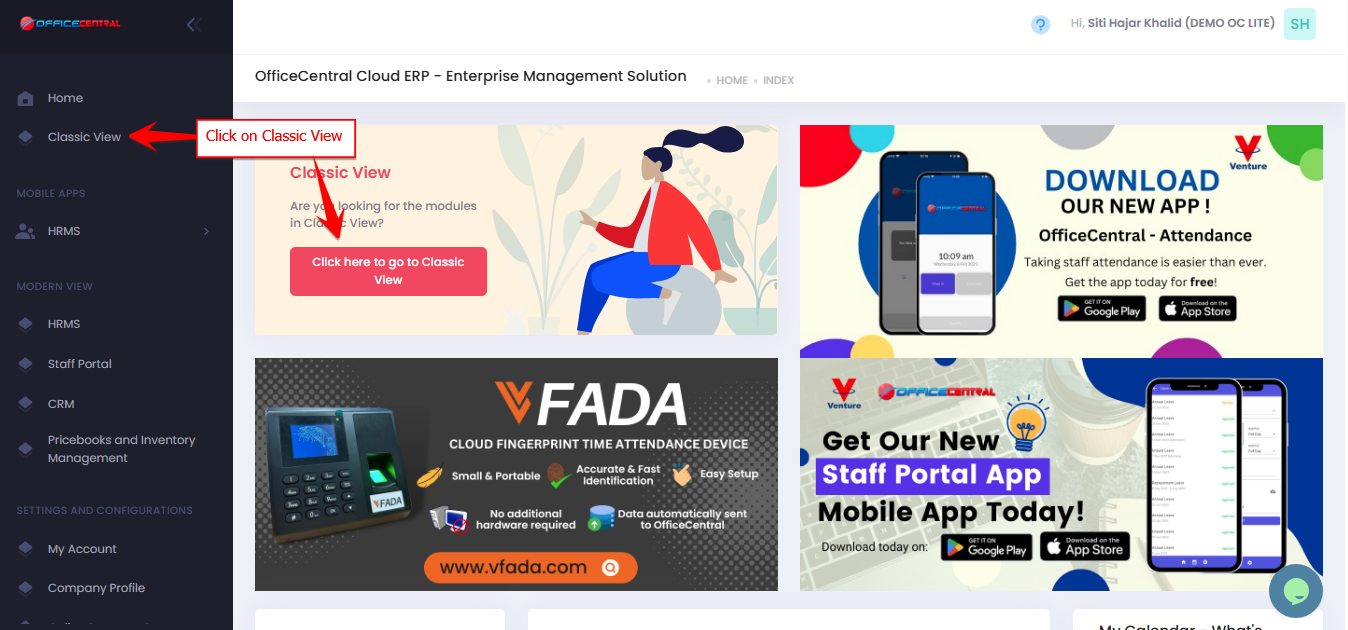
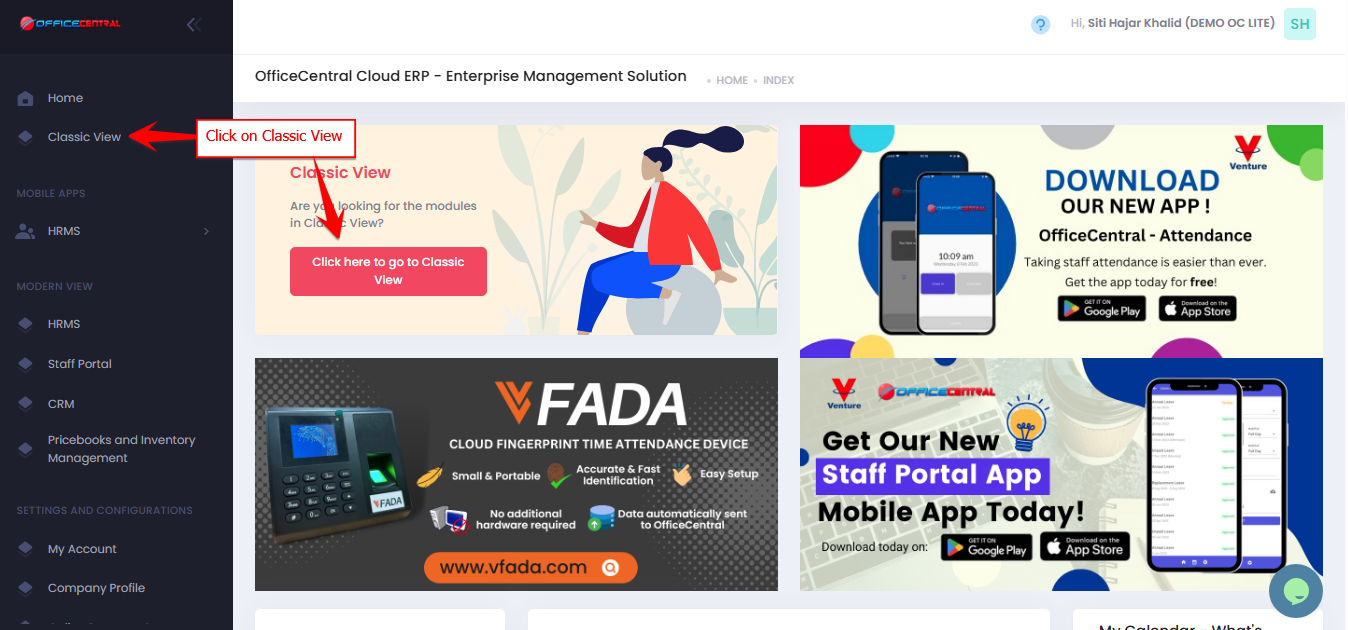

How to Approve / Reject Transactions
Step 1: Access the Transactions Module
-
Go to Accounting > Transactions > My Location > Active
Use the screenshot below to locate these buttons.

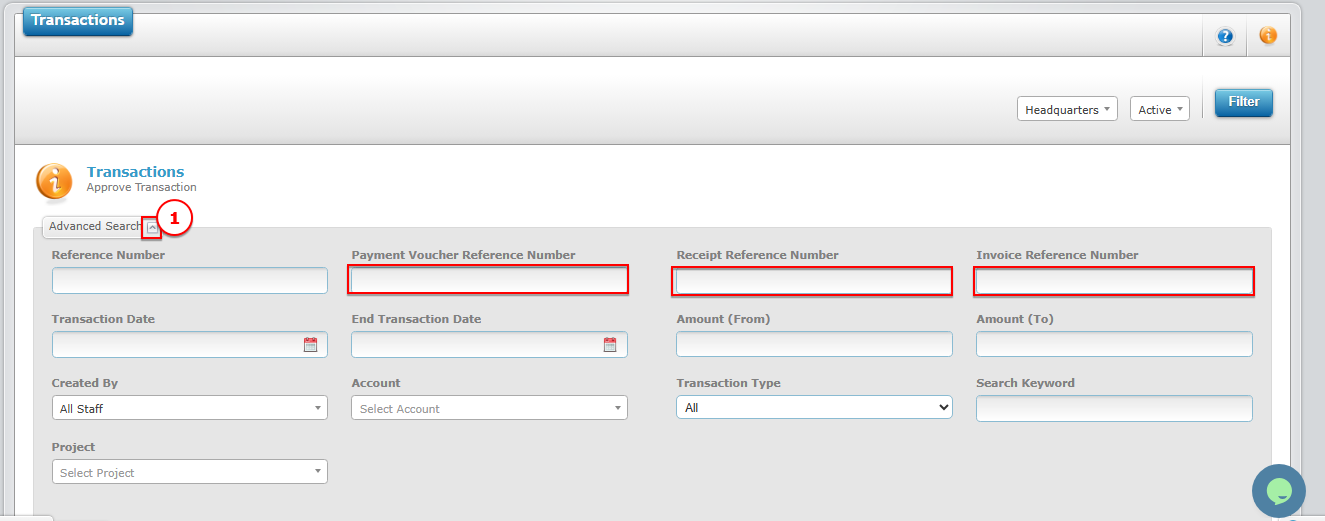
Step 2: Search Transaction
-
Use the Advanced Search Function to locate the transaction
-
Best to use reference number to find the transaction
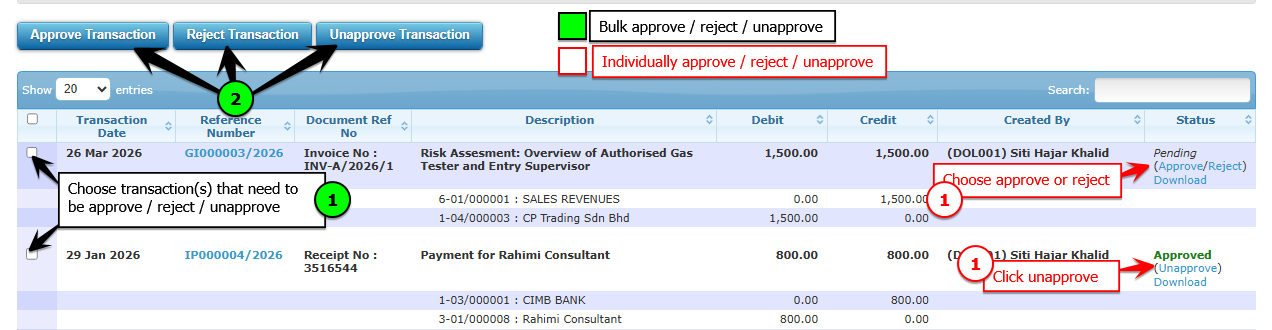
Step 3: Approve / Reject / Unapprove
| Action | Description |
|---|---|
| Approve | Confirms the transaction and includes it in reports |
| Reject | Declines the transaction (will not be included in reports) |
| Unapprove | Reverts an approved transaction back to Pending status for editing or further changes |
-
Click Approve to confirm the transaction
-
Click Reject if the transaction is incorrect or not required
-
Click Unapprove to revert the transaction to Pending so that it can be edited or reviewed again
⚠️ Note:
Only Pending transactions can be Reject
Use the screenshot below to locate these buttons.
⚠️ Important Notes
-
Only approved transactions will appear in:
-
Financial reports
-
Customer/vendor aging
-
-
Rejected transactions are NOT included in reports
-
All transactions must go through approval for accuracy and control
? Deletion Policy
-
Transactions CANNOT be deleted
Reasons:
-
To maintain audit trail compliance
-
Rejected transactions must be kept as proof if there are:
-
Missing numbers
-
Gaps in invoice sequence
-
? Example Scenario
If invoice numbers appear to skip (e.g., INV001 → INV003):
-
The missing invoice (INV002) may be rejected, not deleted
-
This ensures proper documentation for audit purposes
? Summary
| Action | Result |
|---|---|
| Approve | Included in reports and records |
| Reject | Not included, but still stored for audit |
| Delete | ❌ Not allowed |