
ONLINE ONBOARDING
Step-by-step tutorials to help you get started with OCLite faster.
Step 1: Global Configuration
Step 2: HRMS
1. HRMS Configurations – Manage Department
2. HRMS Configurations – Manage Designation
3. HRMS Configurations – Manage Job Classifications
4. Staff Management – How to Add New Staff?
5. Staff Management – How to Edit Staff’s Information?
6. Leave Setup – Step 1: Define Leave Types
7. Leave Setup – Step 2: Leave Entitlement Defaults
Step 3: Payroll
Step 4: Accounting
1. Accounting Configurations – Wizards
2. Accounting Configurations – Accounting Period
3. Understanding Chart of Accounts
4. How to Create and Manage Customer (Debtor)
5. How to Create and Manage Invoice
6. How to Create and Manage Receipt (Receive Payment)
7. How to Create and Manage Credit Note
8. How to Create and Manage Debit Note
9. How to Create and Manage Supplier (Creditor)
10. How to Create and Manage Receive Invoice
11. How to Create and Manage Self-Billed Invoice
12. How to Create and Manage Payment (Issue Payment / Payment Voucher)
13. How to Create and Manage Received Credit Note
Step 5: Pricebook
Step 6: CRM
Step 7: POS
Step 8: System Enhancements (Optional)
Global Configuration
1. How Do I Change My Username, Email, or Password?
2. How to Set Reports Template?
4. What Should I Do If I Forgot My Password?
HRMS
1. HRMS Configurations – Manage Approvers
2. Staff Management – Resign, Deactivate, Suspend & Unassign
PAYROLL
1. Manage Adjustments – Adjustment Purposes
2. Manage Adjustments – Add Adjustment Individually
CRM
1. Contact Book Overview (Leads, Accounts and Contacts)
3. Financial Transactions Overview
ACCOUNTING
Step 9: OC Lite Beginner Certification
Complete all onboarding modules to unlock and download your Beginner Digital Certificate.
Accounting Configurations – Accounting Period
This guide explains how to manage and reset your financial year using the Accounting Period functions.
This is mainly used by existing users when:
-
Moving to a new financial year
-
Closing previous year accounts
-
Making final adjustments before closing
? Where to Access Accounting
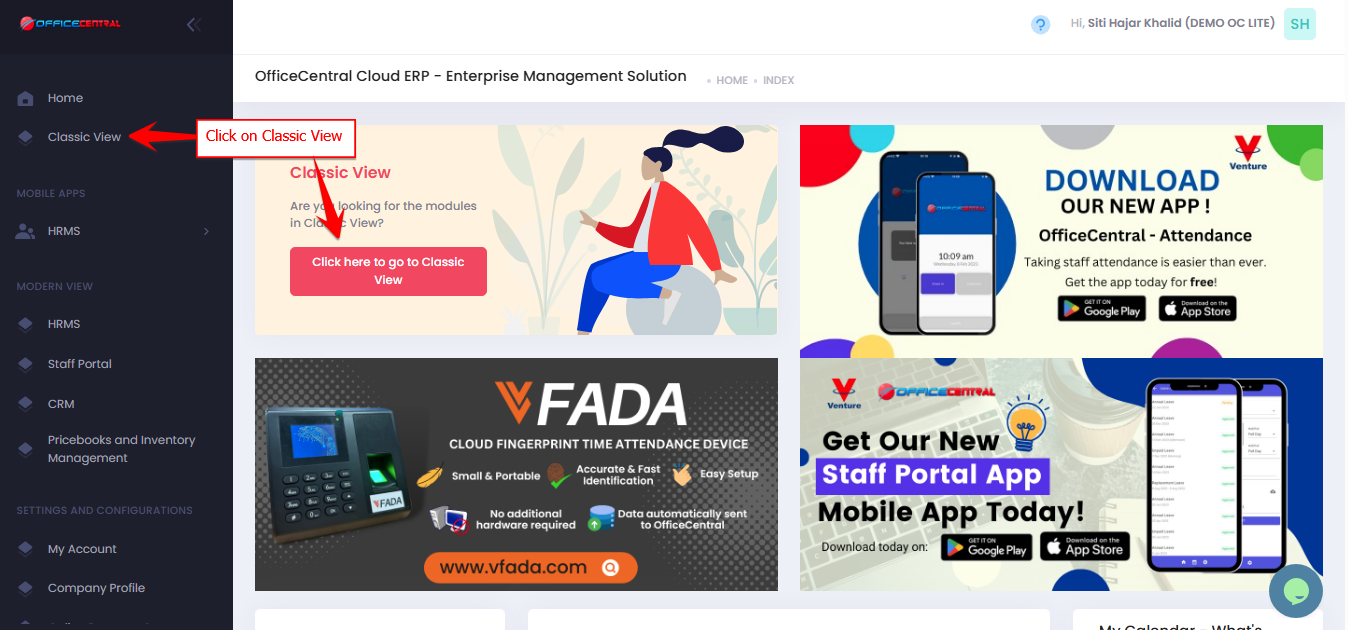

? Where to Access This Function
-
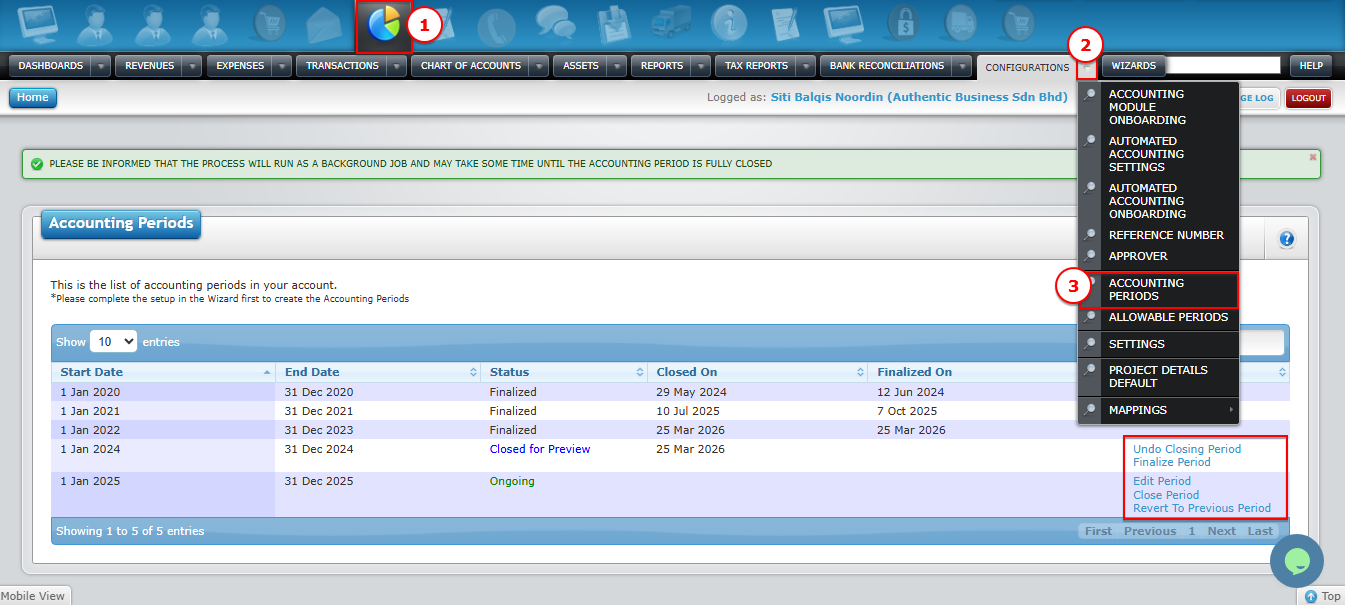
Go to Accounting > Configurations
-
Click on Accounting Periods
-
On the account period page, you will see some of these functions:
| No. | Function | Description |
|---|---|---|
| 1 | Edit Period | Update financial year dates |
| 2 | Close Period | Close current period and move to next financial year |
| 3 | Undo Close Period | Reopen closed period (only available if not finalized yet) |
| 4 | Finalize Period | Permanently close financial year. Not editable |
| 5 | Revert to Previous Period | Return to previous period (with verification via email) |
Please refer image below to locate the page.
Step-by-Step: Reset Financial Year
Step 1: Review Existing Transactions.
Before closing the financial year, ensure all transactions are complete and accurate.
✅ Best Practice
- Perform Bank Reconciliation every month
? This helps ensure your bank balances are accurate before year-end closing.
? Where to Review Transactions
You can review your transactions from the following:
| No. | Location | Path |
|---|---|---|
| 1 | Transactions | Accounting >Transactions > My Location > Active |
| 2 | Journal Listing Report | Accounting > Reports > Journal Listings > Overall |
| 3 | General Ledger | Accounting > Reports > General Ledger > Overall |
| 4 | Other Reports | Any relevant financial reports for verification |
? What to Check
- All invoices and receipts are recorded
- No missing or duplicate transactions
- Account balances are correct
- Bank balances match reconciliation
Step 2: Close Period (Move to New Financial Year)
-
Go to Accounting >Accounting Periods
-
Click Close Period
What happens:
-
✅ System automatically creates and sets the new financial year. This step moves your system into the next accounting period.
-
❌ No new transactions allowed in the closed period
-
✅ You can still adjust existing transactions in the closed period
Step 3: Make Adjustments (If necessary)
-
Review previous period data
-
Make necessary corrections or adjustments
Step 4: Finalize Period
-
Go to Accounting > Accounting Periods
-
Click Finalize Period
What happens:
-
? Previous financial year is permanently locked
-
❌ No further edits allowed
Reverting or Reopening Period
Undo Close Period
-
Reopens the closed period
-
Only available if the period is not finalized
Revert to Previous Period
-
Switch back to previous financial year
-
? System will send email verification