
ONLINE ONBOARDING
Step-by-step tutorials to help you get started with OCLite faster.
Step 1: Global Configuration
Step 2: HRMS
1. HRMS Configurations – Manage Department
2. HRMS Configurations – Manage Designation
3. HRMS Configurations – Manage Job Classifications
4. Staff Management – How to Add New Staff?
5. Staff Management – How to Edit Staff’s Information?
6. Leave Setup – Step 1: Define Leave Types
7. Leave Setup – Step 2: Leave Entitlement Defaults
Step 3: Payroll
Step 4: Accounting
1. Accounting Configurations – Wizards
2. Accounting Configurations – Accounting Period
3. Understanding Chart of Accounts
4. How to Create and Manage Customer (Debtor)
5. How to Create and Manage Invoice
6. How to Create and Manage Receipt (Receive Payment)
7. How to Create and Manage Credit Note
8. How to Create and Manage Debit Note
9. How to Create and Manage Supplier (Creditor)
10. How to Create and Manage Receive Invoice
11. How to Create and Manage Self-Billed Invoice
12. How to Create and Manage Payment (Issue Payment / Payment Voucher)
13. How to Create and Manage Received Credit Note
Step 5: Pricebook
Step 6: CRM
Step 7: POS
Step 8: System Enhancements (Optional)
Global Configuration
1. How Do I Change My Username, Email, or Password?
2. How to Set Reports Template?
4. What Should I Do If I Forgot My Password?
HRMS
1. HRMS Configurations – Manage Approvers
2. Staff Management – Resign, Deactivate, Suspend & Unassign
PAYROLL
1. Manage Adjustments – Adjustment Purposes
2. Manage Adjustments – Add Adjustment Individually
CRM
1. Contact Book Overview (Leads, Accounts and Contacts)
3. Financial Transactions Overview
ACCOUNTING
Step 9: OC Lite Beginner Certification
Complete all onboarding modules to unlock and download your Beginner Digital Certificate.
How to Manage Receipt
This guide explains how to create, edit, delete, and finalize Receipt in CRM.
A receipt is used to record payment received from customers and is the final step in the financial transaction process.
? Where to Access CRM
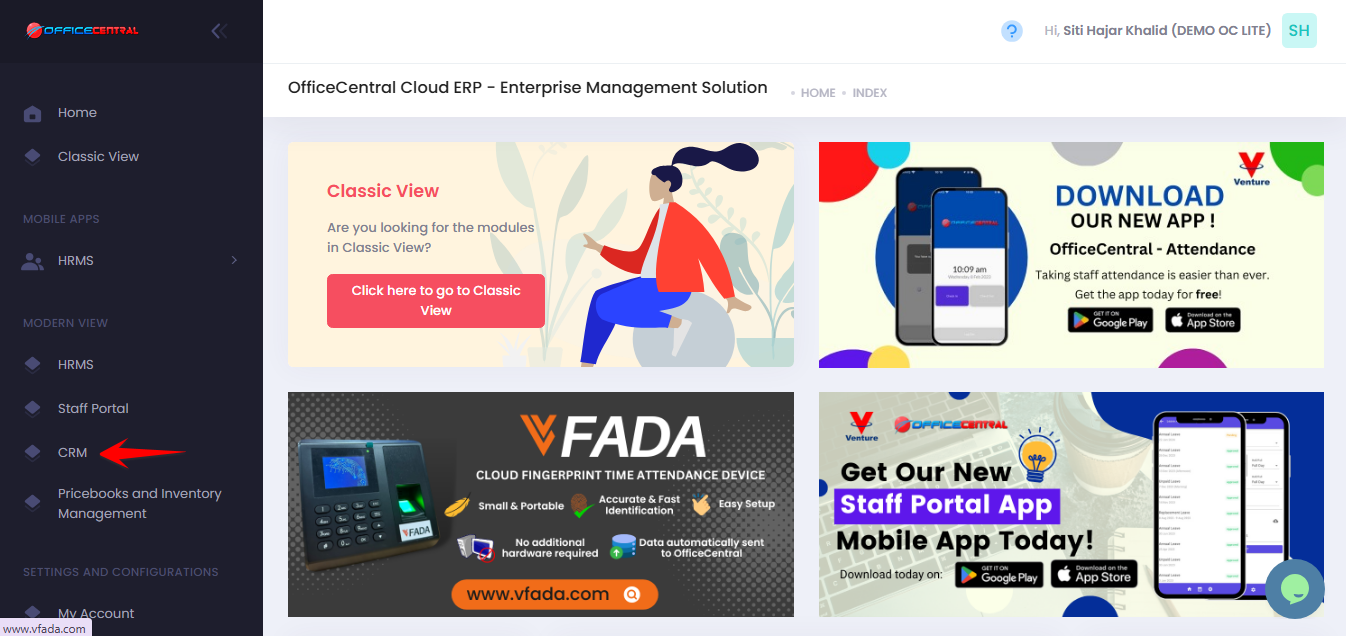
Where to Access This Function
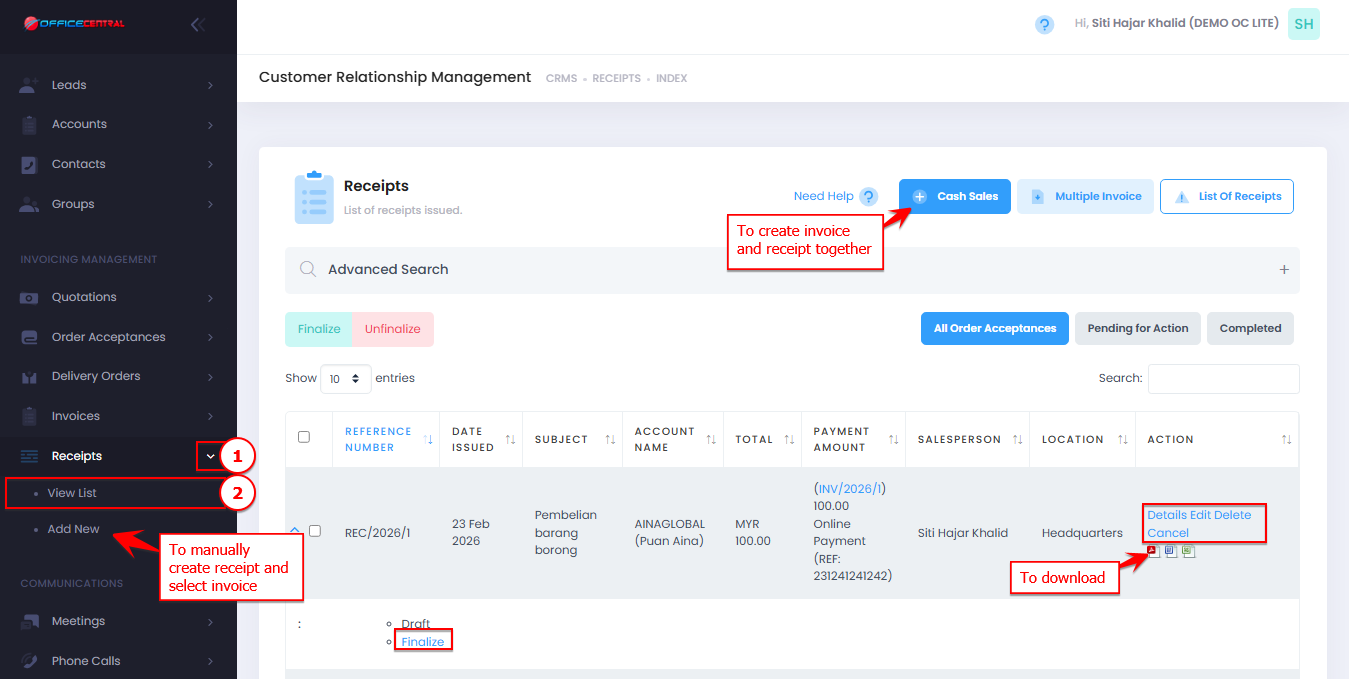
On the Receipts page, you will see:
| No. | Function | Description |
|---|---|---|
| 1 | Cash Sales | Create invoice and receipt together |
| 2 | Add New | Manually create receipt and select invoice |
| 2 | Edit | Modify existing receipt |
| 3 | Delete | Remove receipt permanently |
| 4 | Details | View full information of receipt |
| 5 | Cancel | Cancel receipt The details of the receipt is not deleted from the database |
| 6 | Finalize | Confirm and lock the document |
| 7 | Download | Download receipt in PDF / Excel / Words |
Use the screenshot below to locate these buttons.
Ways to Create Invoices
There are 3 methods:
| Method | Description |
|---|---|
| Generate from Invoice | Recommended method with auto-filled data |
| Create receipt and link invoice | Manually create receipt and select invoice |
| Create Cash Sales | Create invoice and receipt at the same time |
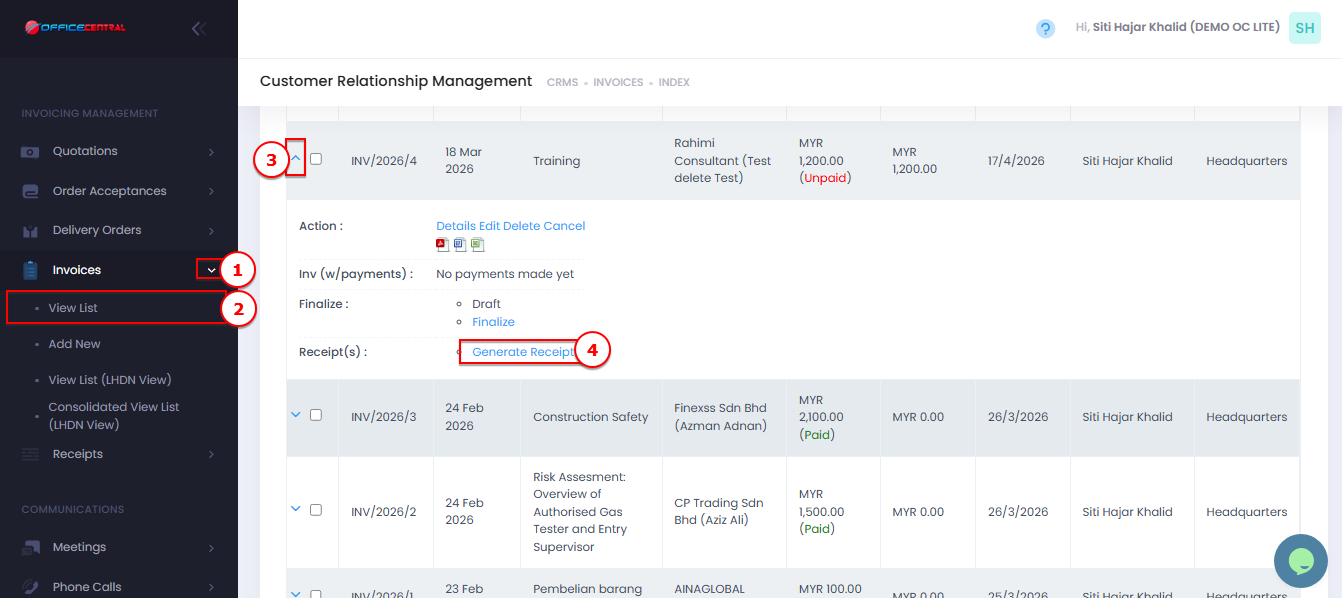
Method 1: Generate from Invoice
-
Go to Order Invoices > View List
-
Locate invoice that need receipt
-
Click Generate Receipt
-
Review the details
-
Click Save
Use the screenshot below to locate Generate Receipt from Invoices module
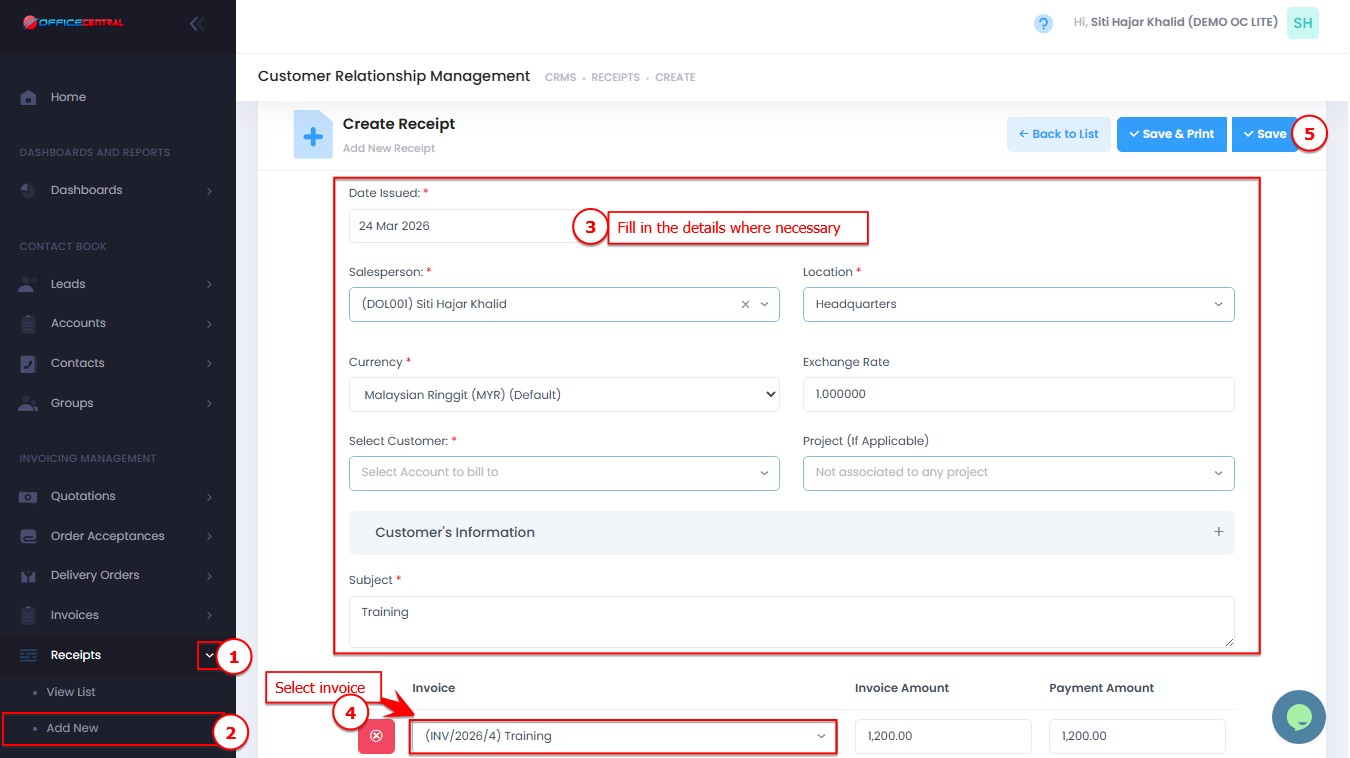
Method 2: Create Receipt and Link Invoice
-
Go to Receipts > Add New
-
Fill in the details
-
Select invoice
-
Click Save
Use the screenshot below to locate the button
Method 3: Cash Sales (Invoice + Receipt Together)
-
Go to Receipts > View List
-
Click Cash Sales
-
Fill in the required information
-
Click Save
Fields to Fill
1. Order Information
| No. | Field | Description |
|---|---|---|
| 1 | Reference Number * | Auto-generated (e.g., DO/2026/5). It is recommended not to modify it, as any changes may disrupt the running number sequence. |
| 2 | Order Acceptance Ref No | Optional. Select existing order acceptance |
| 3 | Date Issued * | Order date |
| 4 | Date Due | Due to pay |
| 5 | Salesperson * | Staff in charge |
| 6 | Location * | Company location if applicable |
| 7 | Currency * | Default MYR |
| 8 | Exchange Rate * | Default 1 |
2. Customer Information
| No. | Field | Description |
|---|---|---|
| 1 | Bill To * | Select account |
| 2 | Add New Contact | Add new customer if needed |
3. Order Details
| Field | Description |
|---|---|
| Subject * | Invoice title |
| Discount | Tick if discount is in percentage |
| Tax Inclusive | Tick if price includes tax |
4. Items / Products
| Field | Description |
|---|---|
| Qty | Quantity of item |
| Unit | Unit of measurement (e.g. pax) |
| Custom Product | “Custom Product” as the default selection. To use an existing product, manually add it in Pricebook Management under the Pricebook section. |
| Code | Item code |
| Name | Item name. Auto generated if select pricebook |
| Description | Additional item details |
| Unit Price | Price per unit |
| Discount | Discount can be entered as an amount or a percentage. The percentage field is editable only when the “Discount in Percentage” checkbox is selected. |
| Tax | Applicable tax |
| Amount | Auto-calculated |
| Add Item | User can add more than 1 item |
5. Summary Calculation
| Field | Description |
|---|---|
| Amount Excl Tax | Total before tax |
| Discount | Total discount |
| Tax | Total tax |
| Amount Incl Tax | Final total amount |
6. Optional – Auto Create Delivery Order
| Field | Description |
|---|---|
| Automatically create Delivery Order | Tick to auto-create DO |
⚠️ DO will only be created if:
- Invoice is NOT generated from DO or Order Acceptance
7. Payment Section
Fill in payment details:
| Field | Description |
|---|---|
| Bank | Select company bank account. Bank options can be added from Global Configuration. Please refer How to Manage Company Bank Account |
| Payment Status | Choose either to create invoice only or to create both invoice and receipt |
| Payment Amount | Enter amount received |
| Payment Method | Cash, bank transfer, etc. |
| Payment Ref Number | Reference (e.g., transaction ID) |
8. Terms and Remarks
| Field | Description |
|---|---|
| Terms | Conditions for the invoices (visible to customer) |
| Remarks | Payment or additional notes (visible to customer) |
9. Internal Notes
| Field | Description |
|---|---|
| Internal Notes | For internal use only (not visible to customer) |
How to Edit
-
Go to Receipts > View List
-
Click Edit next to the receipt
-
Update details if needed
-
Click Save
Delete Receipt
-
Go to Receipts > View List
-
Click Delete next to the receipt
-
Confirm deletion
Cancel Receipt
-
Go to Receipts > View List
-
Click Cancel next to the receipt
Finalize Invoice
-
Go to Receipt > View List
-
Click Finalize next to the receipt
-
Confirm action
✅ Once finalized:
-
Cannot be edited / deleted / cancelled
Best Practices
-
Use Generate Receipts from Invoices module
-
Always verify item details and pricing
-
Finalize only when receis confirmed
-
Link documents properly for better tracking