
ONLINE ONBOARDING
Step-by-step tutorials to help you get started with OCLite faster.
Step 1: Global Configuration
Step 2: HRMS
1. HRMS Configurations – Manage Department
2. HRMS Configurations – Manage Designation
3. HRMS Configurations – Manage Job Classifications
4. Staff Management – How to Add New Staff?
5. Staff Management – How to Edit Staff’s Information?
6. Leave Setup – Step 1: Define Leave Types
7. Leave Setup – Step 2: Leave Entitlement Defaults
Step 3: Payroll
Step 4: Accounting
1. Accounting Configurations – Wizards
2. Accounting Configurations – Accounting Period
3. Understanding Chart of Accounts
4. How to Create and Manage Customer (Debtor)
5. How to Create and Manage Invoice
6. How to Create and Manage Receipt (Receive Payment)
7. How to Create and Manage Credit Note
8. How to Create and Manage Debit Note
9. How to Create and Manage Supplier (Creditor)
10. How to Create and Manage Receive Invoice
11. How to Create and Manage Self-Billed Invoice
12. How to Create and Manage Payment (Issue Payment / Payment Voucher)
13. How to Create and Manage Received Credit Note
Step 5: Pricebook
Step 6: CRM
Step 7: POS
Step 8: System Enhancements (Optional)
Global Configuration
1. How Do I Change My Username, Email, or Password?
2. How to Set Reports Template?
4. What Should I Do If I Forgot My Password?
HRMS
1. HRMS Configurations – Manage Approvers
2. Staff Management – Resign, Deactivate, Suspend & Unassign
PAYROLL
1. Manage Adjustments – Adjustment Purposes
2. Manage Adjustments – Add Adjustment Individually
CRM
1. Contact Book Overview (Leads, Accounts and Contacts)
3. Financial Transactions Overview
ACCOUNTING
Step 9: OC Lite Beginner Certification
Complete all onboarding modules to unlock and download your Beginner Digital Certificate.
How to Create and Manage Customer (Debtor)
This guide explains how to create and manage customer accounts (Debtors) in OfficeCentral Accounting.
Creating a debtor is mandatory before issuing invoices or receiving payments.
Where to Access Accounting
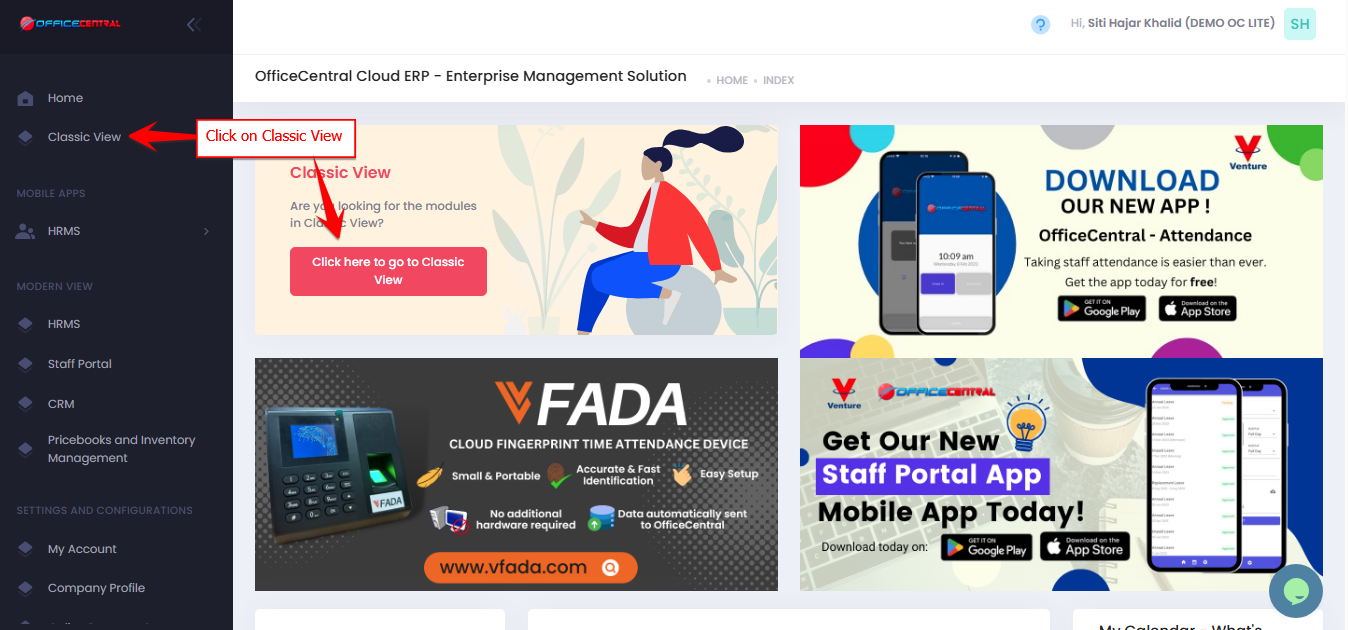
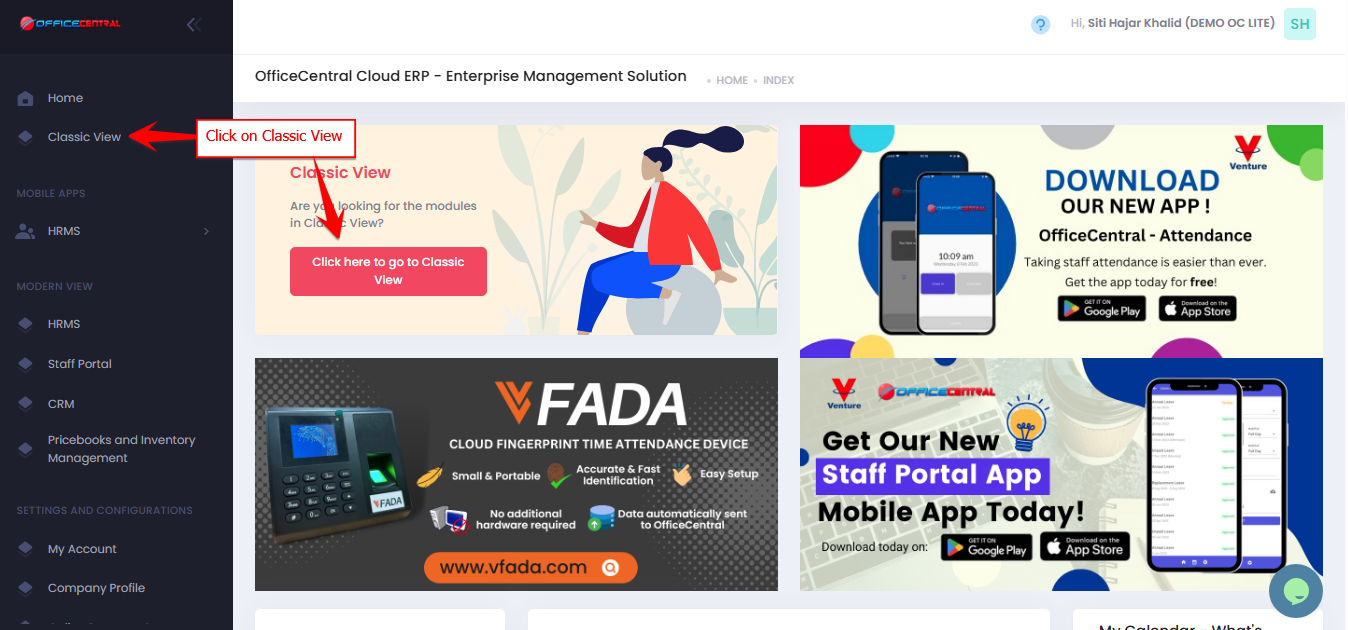

How to Create a New Customer / Debtor
Step 1: Access the Create Function
-
Go to Accounting > Revenues > Debtors > Add New
Use the screenshot below to locate these buttons.

Step 2: Fill in Account Information
| Field | Description |
|---|---|
| Registration Number | Customer / Company registration number |
| Account Type * | Usually set as Customer |
| Name * | Full customer/company name |
Step 3: Fill in LHDN e-Invoicing Information
| Field | Description |
|---|---|
| Registration Type | Default: Other |
| TIN | Tax Identification Number from LHDN (without space) |
| New Registration Number (For e-Invoicing use only!) |
Make sure to use NEW Registration Number |
| Account MSIC Code (if applicable) | Optional |
? Detailed e-Invoice instructions are covered in a separate article.
Step 4: Fill in Contact Information
| Field | Description |
|---|---|
| Street 1 & 2 | Customer address |
| Postcode | Postal code |
| City / State / Country | Location details |
| Phone | Include country code |
| Fax | Optional |
| For sending invoices (OC credit chargeable) |
Step 5: Fill in Bank Information
| Field | Description |
|---|---|
| Payable To | Name of account holder for payments |
| Bank Name | Customer’s bank |
| Bank Account No | Customer’s bank account number |
Step 6: Fill in SST Information
| Field | Description |
|---|---|
| SST No | SST registration number |
| Date SST Verified | Date SST number was verified |
Step 7: Fill in Optional E-Invoicing Payment Information
| Field | Description |
|---|---|
| Payable To | Optional alternate bank account for e-invoicing payments |
| Bank Name | Optional |
| Bank Account No | Optional |
Step 8: Fill in Other Information (MUST)
| Field | Description |
|---|---|
| Location * | Choose location for financial report. OC Lite users: limited to headquarters only |
| Map To Chart of Account * | Map this customer to Debtors in Chart of Accounts. Please refer image below |

Step 9: Save the Customer
-
Review all details
-
Click Submit at the top of the page
How to View Customer / Debtor Details
-
Go to Accounting > Revenues > Debtors > View List
-
Search customer name
-
Click on “Click here to edit Account”
Note: In View list page, user can also access customer’s / debtor’s transaction info (General Ledger, Account Statement, Statement of Account, Debtor Statement)
How to Edit Customer / Debtor
- Go to Accounting > Revenues > Debtors > View List
- Search customer name
- Click on “Click here to edit Account”
- Make necessary modification
- Click Save
⚠️ Important Notes
-
Map the customer correctly to Debtors Chart of Accounts for accurate financial reporting