
ONLINE ONBOARDING
Step-by-step tutorials to help you get started with OCLite faster.
Step 1: Global Configuration
Step 2: HRMS
1. HRMS Configurations – Manage Department
2. HRMS Configurations – Manage Designation
3. HRMS Configurations – Manage Job Classifications
4. Staff Management – How to Add New Staff?
5. Staff Management – How to Edit Staff’s Information?
6. Leave Setup – Step 1: Define Leave Types
7. Leave Setup – Step 2: Leave Entitlement Defaults
Step 3: Payroll
Step 4: Accounting
1. Accounting Configurations – Wizards
2. Accounting Configurations – Accounting Period
3. Understanding Chart of Accounts
4. How to Create and Manage Customer (Debtor)
5. How to Create and Manage Invoice
6. How to Create and Manage Receipt (Receive Payment)
7. How to Create and Manage Credit Note
8. How to Create and Manage Debit Note
9. How to Create and Manage Supplier (Creditor)
10. How to Create and Manage Receive Invoice
11. How to Create and Manage Self-Billed Invoice
12. How to Create and Manage Payment (Issue Payment / Payment Voucher)
13. How to Create and Manage Received Credit Note
Step 5: Pricebook
Step 6: CRM
Step 7: POS
Step 8: System Enhancements (Optional)
Global Configuration
1. How Do I Change My Username, Email, or Password?
2. How to Set Reports Template?
4. What Should I Do If I Forgot My Password?
HRMS
1. HRMS Configurations – Manage Approvers
2. Staff Management – Resign, Deactivate, Suspend & Unassign
PAYROLL
1. Manage Adjustments – Adjustment Purposes
2. Manage Adjustments – Add Adjustment Individually
CRM
1. Contact Book Overview (Leads, Accounts and Contacts)
3. Financial Transactions Overview
ACCOUNTING
Step 9: OC Lite Beginner Certification
Complete all onboarding modules to unlock and download your Beginner Digital Certificate.
Manage Pricebook Categories
The Pricebook Category module allows you to organize your products and services into categories for easier management, filtering, and assignment in the Pricebook.
? Where to Access Pricebooks and Inventory Management
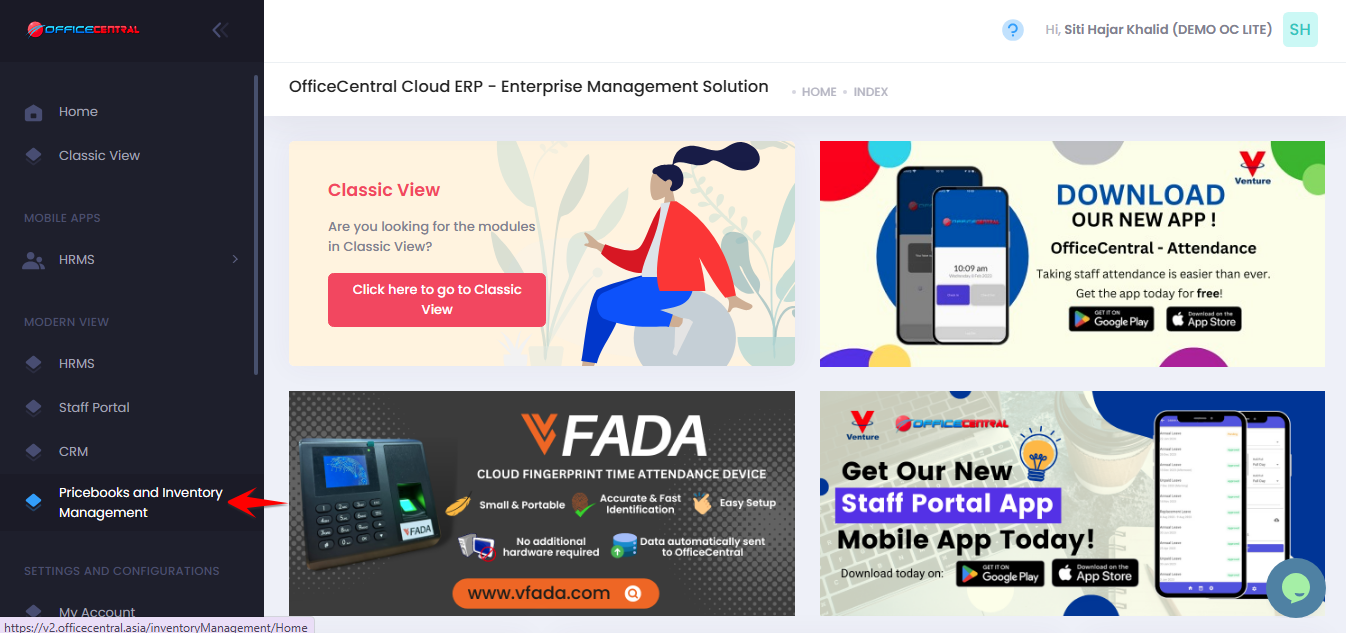
? Where to Access This Function
-
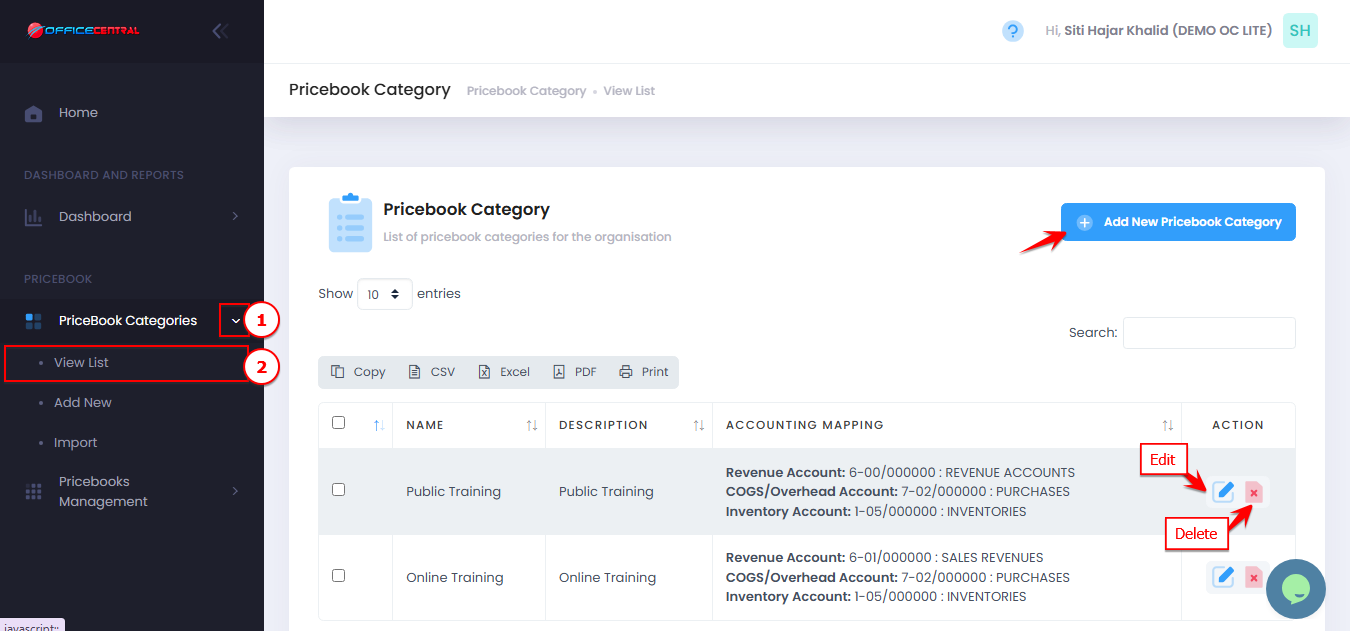
Go to Pricebook Categories
-
Click View List
-
Here you can see all existing categories and access the following buttons:
| No | Button | Function |
|---|---|---|
| 1 | Add | Add a new category |
| 2 | Edit | Modify details of an existing category |
| 3 | Delete | Remove an unused category |
Use screenshot below to locate the buttons
Add New Category
-
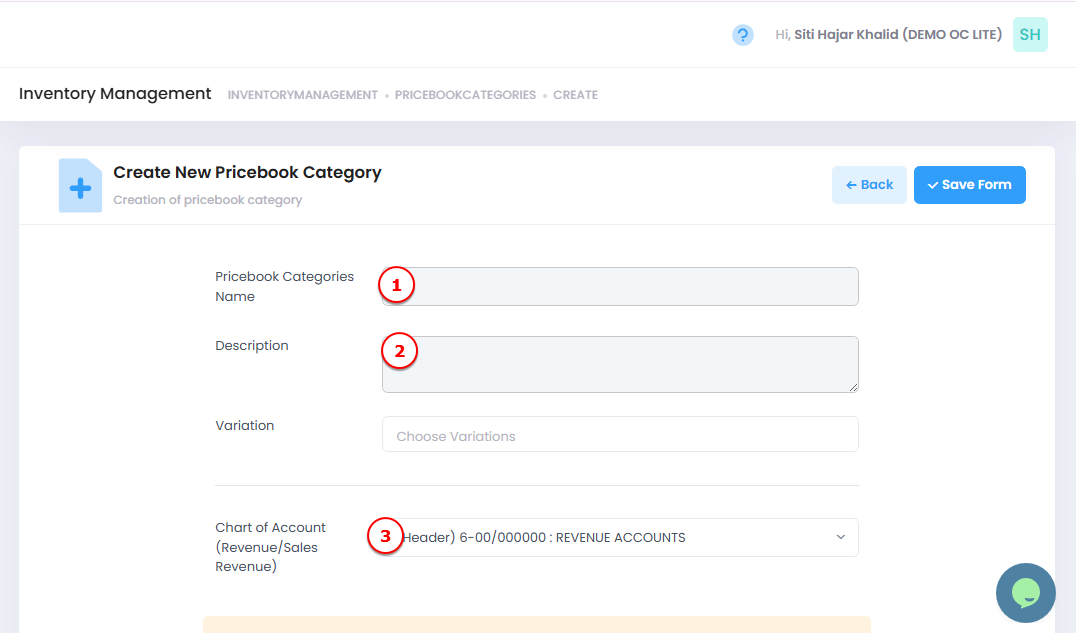
Click the Add New Pricebook Category button.
-
Fill in the following fields:
| No | Field | Description |
|---|---|---|
| 1 | Name | Enter the category name (e.g., “Electronics”) |
| 2 | Description | Optional: short description of the category |
| 3 | Chart of Account (Revenue / Sales Revenue) |
Fully automated:Leave blank if you already set up automated accounting in Accounting Module. The system will create accounts automatically. Header account: System creates a new account for any new products/services under this category. Detail account: System maps new products/services to the selected account. |
-
Click Save Form to create the category.
Edit Category
-
In the View List, find the category you want to edit.
-
Click Edit next to it.
-
Update the fields as needed (Name, Description, Chart of Account).
-
Click Save Form to apply changes.
Delete Category
-
In the View List, find the category you want to delete.
-
Click Delete next to it.
-
Confirm deletion in the pop-up dialog.
⚠️ Important Notes:
-
Only delete categories that are not linked to any products.
-
Deleted categories cannot be recovered, so verify before confirming.