
ONLINE ONBOARDING
Step-by-step tutorials to help you get started with OCLite faster.
Step 1: Global Configuration
Step 2: HRMS
1. HRMS Configurations – Manage Department
2. HRMS Configurations – Manage Designation
3. HRMS Configurations – Manage Job Classifications
4. Staff Management – How to Add New Staff?
5. Staff Management – How to Edit Staff’s Information?
6. Leave Setup – Step 1: Define Leave Types
7. Leave Setup – Step 2: Leave Entitlement Defaults
Step 3: Payroll
Step 4: Accounting
1. Accounting Configurations – Wizards
2. Accounting Configurations – Accounting Period
3. Understanding Chart of Accounts
4. How to Create and Manage Customer (Debtor)
5. How to Create and Manage Invoice
6. How to Create and Manage Receipt (Receive Payment)
7. How to Create and Manage Credit Note
8. How to Create and Manage Debit Note
9. How to Create and Manage Supplier (Creditor)
10. How to Create and Manage Receive Invoice
11. How to Create and Manage Self-Billed Invoice
12. How to Create and Manage Payment (Issue Payment / Payment Voucher)
13. How to Create and Manage Received Credit Note
Step 5: Pricebook
Step 6: CRM
Step 7: POS
Step 8: System Enhancements (Optional)
Global Configuration
1. How Do I Change My Username, Email, or Password?
2. How to Set Reports Template?
4. What Should I Do If I Forgot My Password?
HRMS
1. HRMS Configurations – Manage Approvers
2. Staff Management – Resign, Deactivate, Suspend & Unassign
PAYROLL
1. Manage Adjustments – Adjustment Purposes
2. Manage Adjustments – Add Adjustment Individually
CRM
1. Contact Book Overview (Leads, Accounts and Contacts)
3. Financial Transactions Overview
ACCOUNTING
Step 9: OC Lite Beginner Certification
Complete all onboarding modules to unlock and download your Beginner Digital Certificate.
Manage Adjustments – Adjustment Purposes
In OfficeCentral, you can also add additional earnings (allowance, bonus, commission, gratia etc) and additional deductions (PTPTN, advances, staff loan etc) types calculated during salary processing. To access this module, you need to have adjustment purpose first.
? Where to Access Payroll
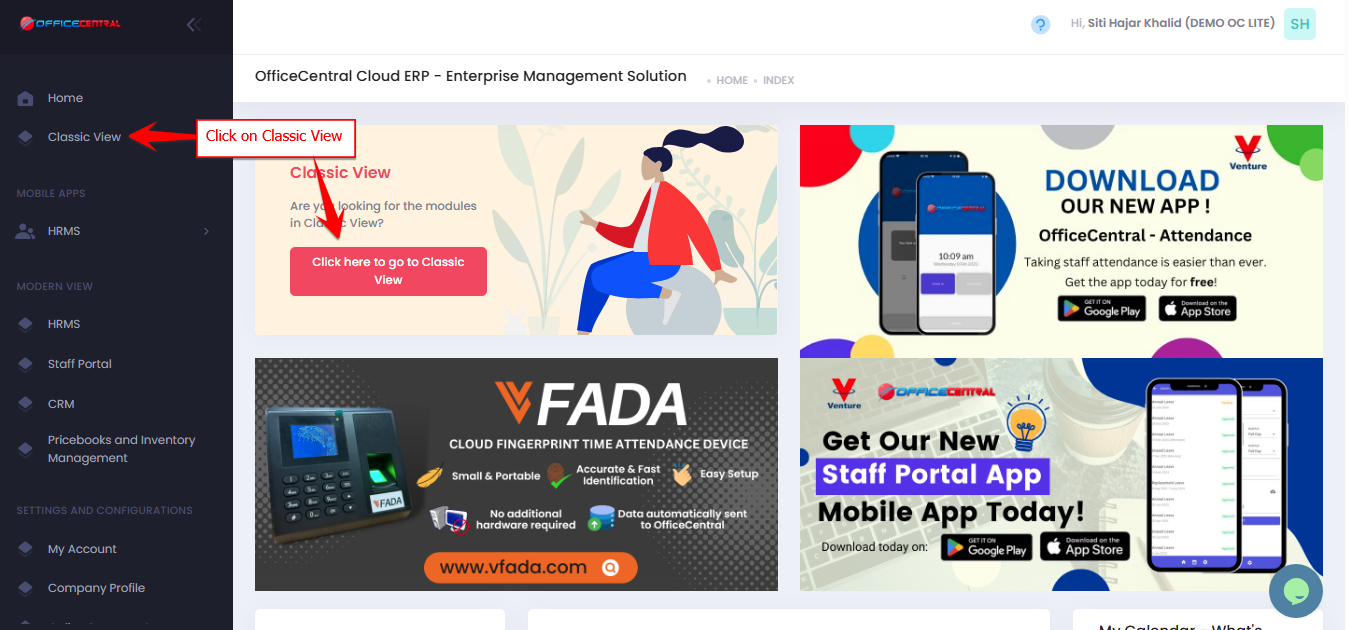

1️⃣ Where to Access This Function
-
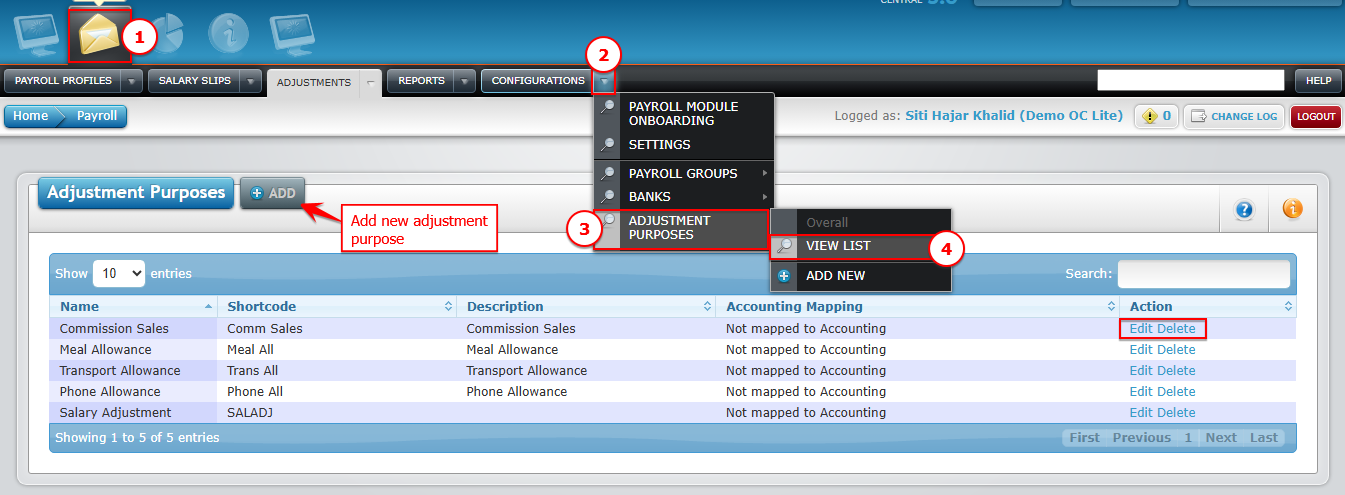
Go to Payroll > Configurations > Adjustment Purposes > View List
-
You will see a list of existing adjustment purposes for additional earnings / deductions.
-
From here, you can:
| Button | Function |
|---|---|
| Add | Add new adjustment purpose |
| Edit | Modify adjustment purpose |
| Delete | Permanently remove adjustment purpose |
Use the screenshot below to locate each button
2️⃣ How to Add a New Adjustment Purpose
-
Click Add.
-
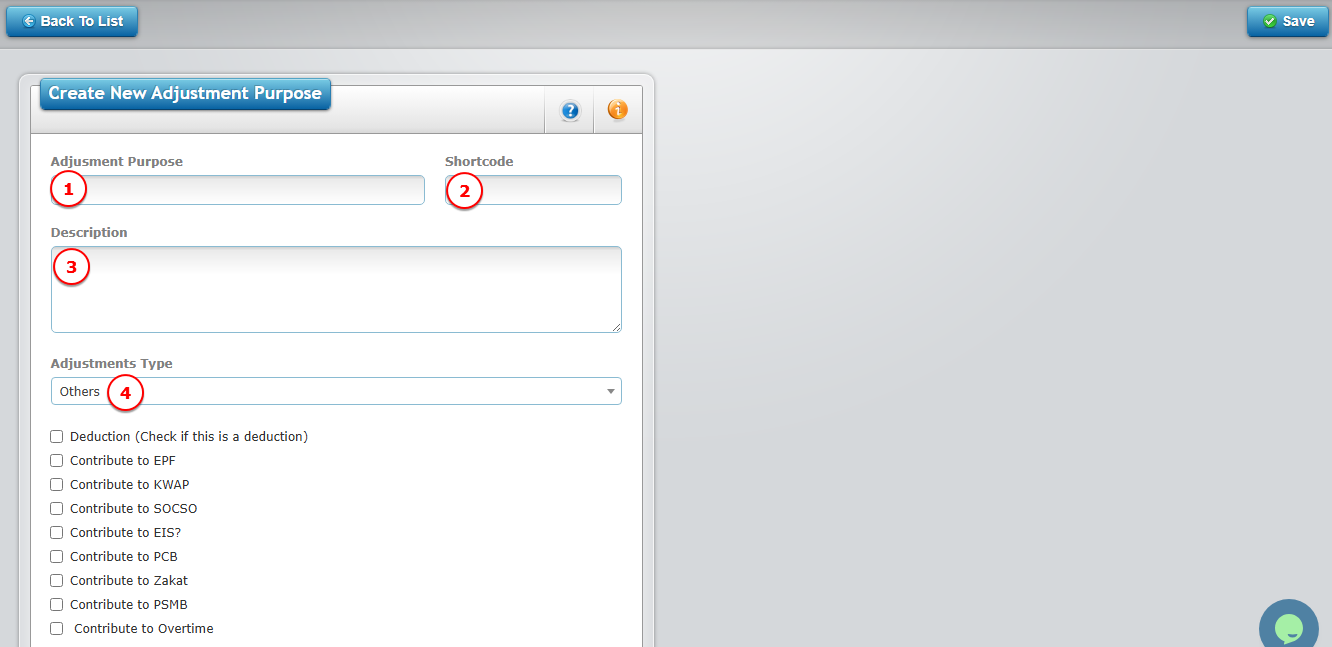
Fill in the required information:
| No. | Field | Description | Tips |
|---|---|---|---|
| 1 | Ajdustment Purspose | Enter the allowance or deduction name (e.g., Travel Allowance) | Use clear and standard naming |
| 2 | Shortcode | Short form shown on salary slip (e.g., TRVALLW) | No fixed format — follow company practice |
| 3 | Description | Additional details about this adjustment | Optional but useful for internal reference |
| 4 | Adjustment Type | Select from available options (choose “Others” if not listed) | Example: PTPTN, Commissions |
| 5 | Deduction Checkbox | Tick (√) if this is a salary deduction | Leave unticked if it is an allowance or other additional earnings |
| 6 | EPF Contribution | Tick (√) if included in EPF calculation | Based on company policy |
| 7 | SOCSO Contribution | Tick (√) if included in SOCSO calculation | Based on company policy |
| 8 | PCB / MTD | Tick (√) if subject to monthly tax deduction | For taxable allowances/deductions |
| 9 | Zakat | Tick (√) if included in Zakat calculation | If applicable |
| 10 | HRDF / PSMB | Tick (√) if included in HRDF contribution | For eligible companies |
| 11 | Overtime | Tick (√) if included in overtime calculation | Only if it affects OT |
Use the screenshot below to locate each button
-
Once complete, click Save (top-right of page).
⚠️ Important Notes
-
Only UNUSED adjustment purposes can be deleted. Once deleted, it CANNOT be recovered.
-
Use the Adjustment Purpose setup to standardize allowances and deductions across payroll.
-
Any adjustments to staff should be done separately (individual or bulk).