
ONLINE ONBOARDING
Step-by-step tutorials to help you get started with OCLite faster.
Step 1: Global Configuration
Step 2: HRMS
1. HRMS Configurations – Manage Department
2. HRMS Configurations – Manage Designation
3. HRMS Configurations – Manage Job Classifications
4. Staff Management – How to Add New Staff?
5. Staff Management – How to Edit Staff’s Information?
6. Leave Setup – Step 1: Define Leave Types
7. Leave Setup – Step 2: Leave Entitlement Defaults
Step 3: Payroll
Step 4: Accounting
1. Accounting Configurations – Wizards
2. Accounting Configurations – Accounting Period
3. Understanding Chart of Accounts
4. How to Create and Manage Customer (Debtor)
5. How to Create and Manage Invoice
6. How to Create and Manage Receipt (Receive Payment)
7. How to Create and Manage Credit Note
8. How to Create and Manage Debit Note
9. How to Create and Manage Supplier (Creditor)
10. How to Create and Manage Receive Invoice
11. How to Create and Manage Self-Billed Invoice
12. How to Create and Manage Payment (Issue Payment / Payment Voucher)
13. How to Create and Manage Received Credit Note
Step 5: Pricebook
Step 6: CRM
Step 7: POS
Step 8: System Enhancements (Optional)
Global Configuration
1. How Do I Change My Username, Email, or Password?
2. How to Set Reports Template?
4. What Should I Do If I Forgot My Password?
HRMS
1. HRMS Configurations – Manage Approvers
2. Staff Management – Resign, Deactivate, Suspend & Unassign
PAYROLL
1. Manage Adjustments – Adjustment Purposes
2. Manage Adjustments – Add Adjustment Individually
CRM
1. Contact Book Overview (Leads, Accounts and Contacts)
3. Financial Transactions Overview
ACCOUNTING
Step 9: OC Lite Beginner Certification
Complete all onboarding modules to unlock and download your Beginner Digital Certificate.
Step 2: Manage Payroll Profile
In OfficeCentral, each paid staff MUST HAVE payroll profile. All salary information such as basic salary, bank account number, salary currency, etc are recorded in this payroll profile.
Where to Access Payroll

1️⃣ Where to Access This Function
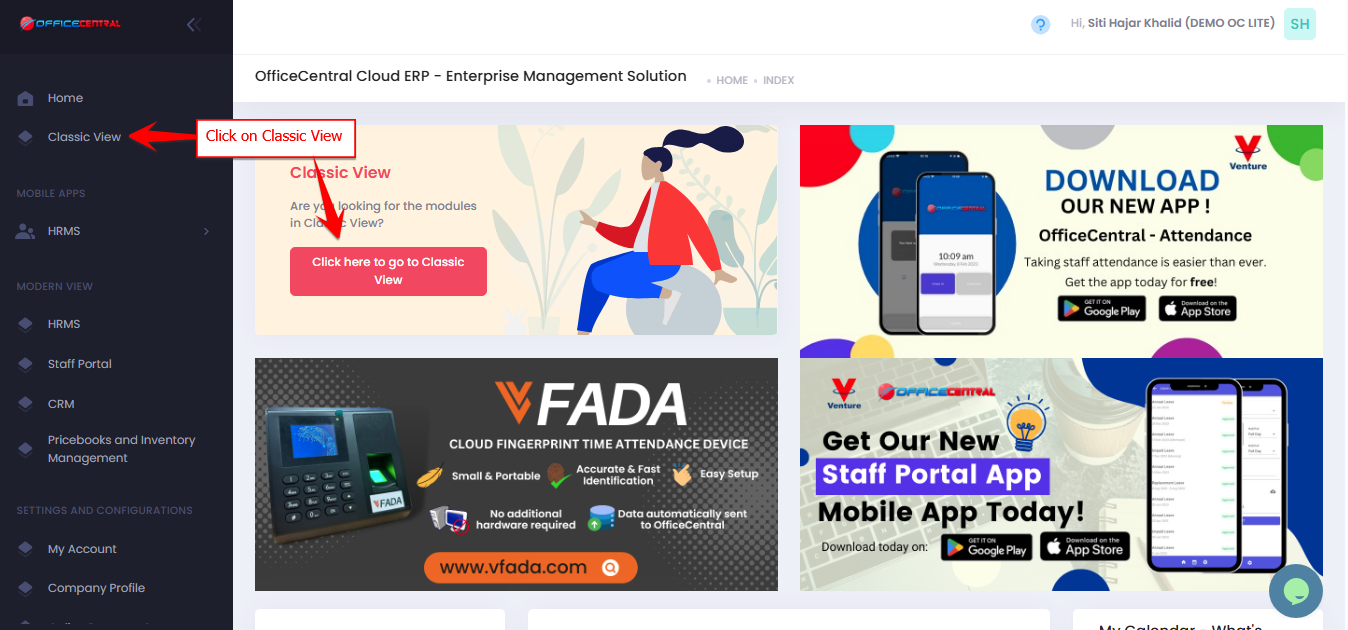
- Go to Payroll > Payroll Profiles > Payroll Profiles
-
You will see a list of existing payroll profile for each staff in your company.
| Button | Function |
|---|---|
| Create Profile Profile | Create payroll profile for the staff |
| Payroll Profile | Modify payroll profile |
2️⃣ Create Payroll Profile

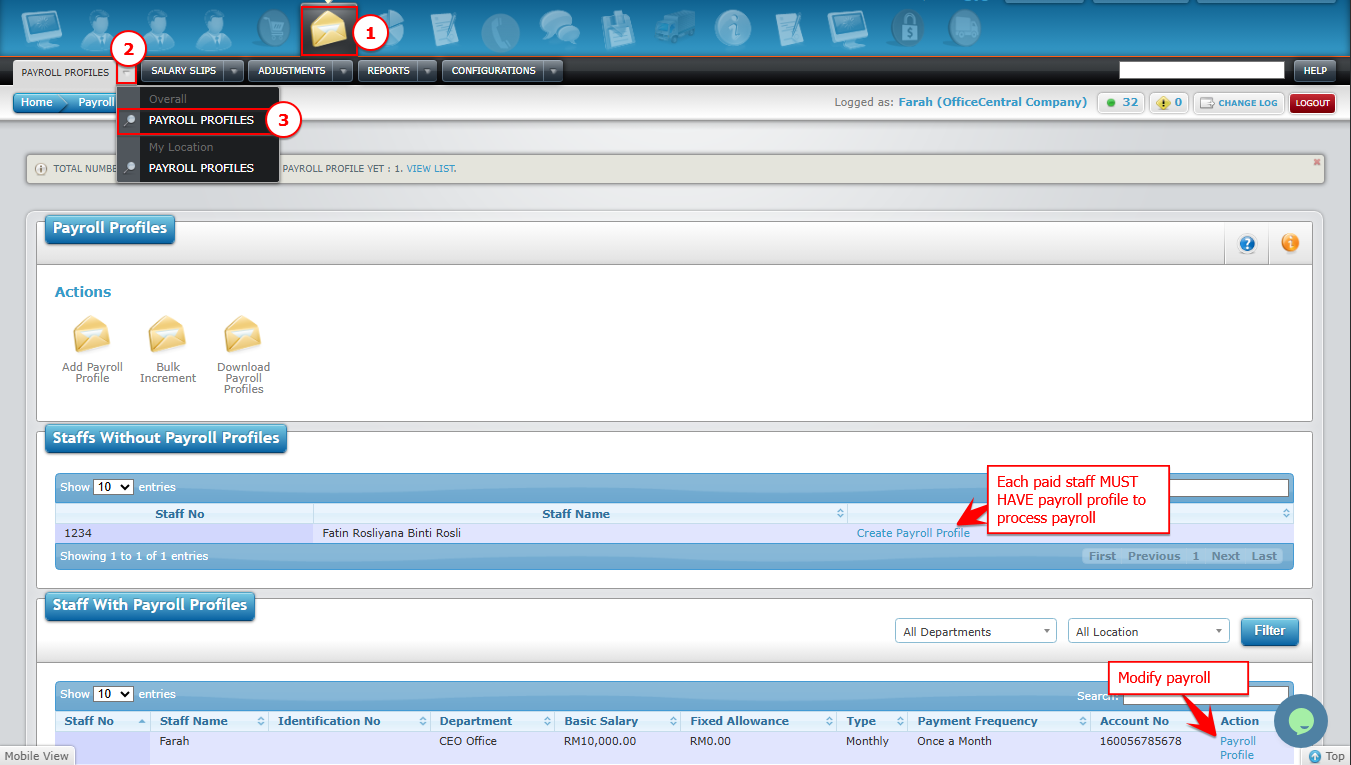
Description:
| Number | Description |
| A | Enter staff basic salary. |
| B |
Select salary type whether it is daily, hourly or monthly. Daily: Salary is calculated per day worked. Enter the daily rate in the Basic Salary box. Staff earns RM80/day → Enter 80 in Basic Salary. Hourly: Salary is calculated per hour worked. Enter the hourly rate in the Basic Salary box. Staff earns RM10/hour → Enter 10 in Basic Salary. Monthly: Salary is calculated per month. Enter the monthly amount in the Basic Salary box. Staff earns RM2,000/month → Enter 2000 in Basic Salary. |
| C |
Select the frequency of salary payment in a month. Once a month: Staff receives their salary one time per month. Salary = RM2,000 → Paid once as RM2,000. Twice a month: Staff receives their salary two times per month. The system automatically splits the salary into two equal payments. Salary = RM2,000 → Paid RM1,000 in the first half, RM1,000 in the second half of the month. |
| D | Select salary calculation group for this staff. |
| E |
Fixed Allowance is an amount you pay to staff that remains the same regardless of leave or other factors.
⚠️ Important:
? Tip: Use the fixed allowance field only for amounts that should stay constant. |
| F | Tick “√” here if this staff has calculation for overtime. |
| G | Select bank for the purpose of salary payment for this staff. |
| H | Enter staff account number based on selected bank. |
| I | Select salary currency. |
Next, key in also other required information such as contributions to statutory bodies such as EPF, SOCSO, PCB, etc

3. Once done, click on “Save” button on the top right of the page.