
ONLINE ONBOARDING
Step-by-step tutorials to help you get started with OCLite faster.
Step 1: Global Configuration
Step 2: HRMS
1. HRMS Configurations – Manage Department
2. HRMS Configurations – Manage Designation
3. HRMS Configurations – Manage Job Classifications
4. Staff Management – How to Add New Staff?
5. Staff Management – How to Edit Staff’s Information?
6. Leave Setup – Step 1: Define Leave Types
7. Leave Setup – Step 2: Leave Entitlement Defaults
Step 3: Payroll
Step 4: Accounting
1. Accounting Configurations – Wizards
2. Accounting Configurations – Accounting Period
3. Understanding Chart of Accounts
4. How to Create and Manage Customer (Debtor)
5. How to Create and Manage Invoice
6. How to Create and Manage Receipt (Receive Payment)
7. How to Create and Manage Credit Note
8. How to Create and Manage Debit Note
9. How to Create and Manage Supplier (Creditor)
10. How to Create and Manage Receive Invoice
11. How to Create and Manage Self-Billed Invoice
12. How to Create and Manage Payment (Issue Payment / Payment Voucher)
13. How to Create and Manage Received Credit Note
Step 5: Pricebook
Step 6: CRM
Step 7: POS
Step 8: System Enhancements (Optional)
Global Configuration
1. How Do I Change My Username, Email, or Password?
2. How to Set Reports Template?
4. What Should I Do If I Forgot My Password?
HRMS
1. HRMS Configurations – Manage Approvers
2. Staff Management – Resign, Deactivate, Suspend & Unassign
PAYROLL
1. Manage Adjustments – Adjustment Purposes
2. Manage Adjustments – Add Adjustment Individually
CRM
1. Contact Book Overview (Leads, Accounts and Contacts)
3. Financial Transactions Overview
ACCOUNTING
Step 9: OC Lite Beginner Certification
Complete all onboarding modules to unlock and download your Beginner Digital Certificate.
HRMS Configurations – Manage Approvers
The Approver submodule allows you to assign approval workflows for:
-
Leave
-
Course
-
Movement
-
Compensatory Time Off
-
Recruitment
-
Overtime
-
Overtime Application
? Where to Access HRMS
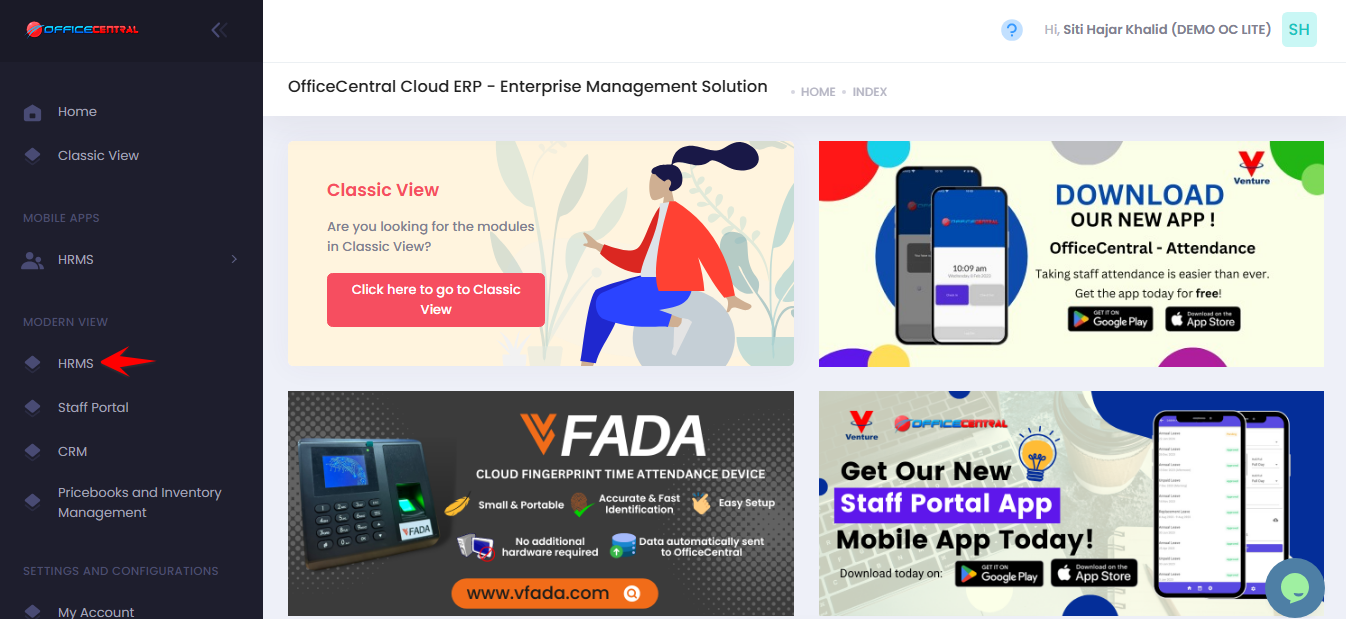
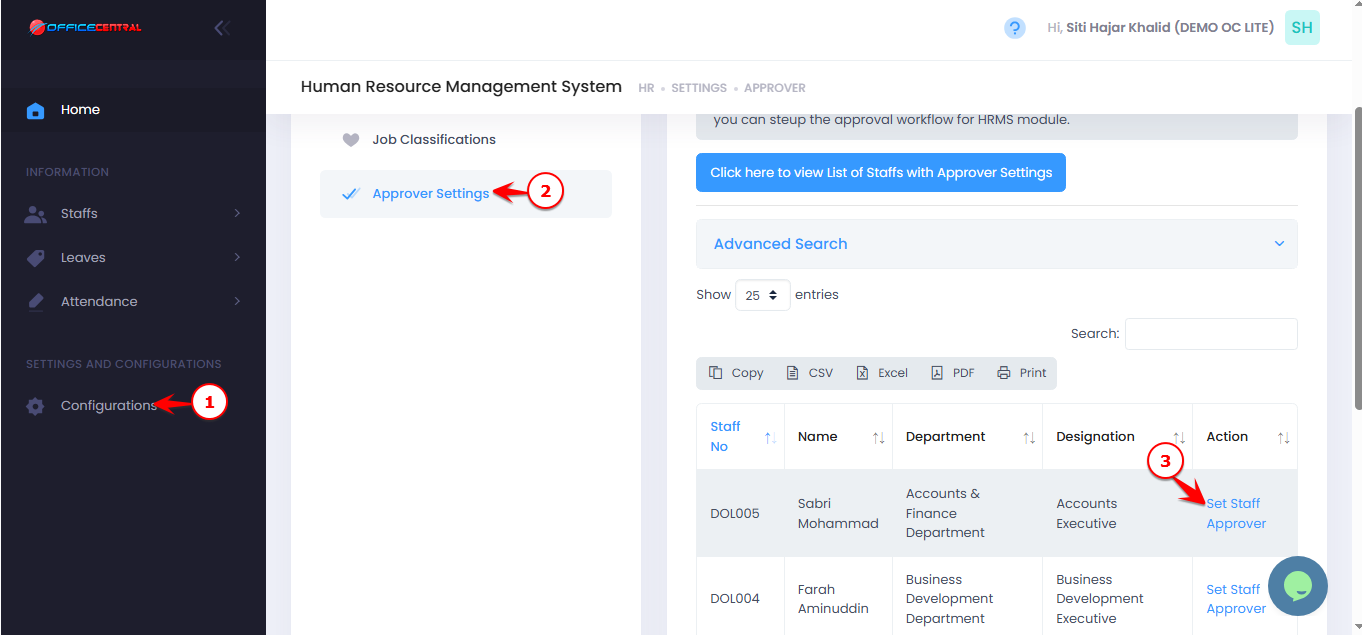
? Where to Access This Function
-
Go to Configurations
-
Click Approver
-
Click Set Staff Approver
-
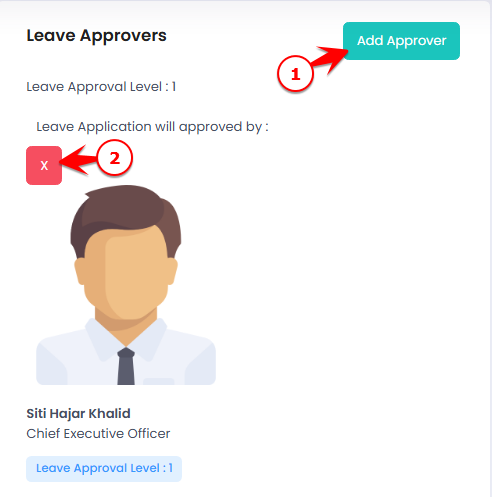
From here you can:
| No. | Action | Description | Button / Location |
|---|---|---|---|
| 1 | Add Approver | Add new approver | Click Add Approver |
| 2 | Delete | Remove approver | Click Delete |
Use the screenshot below to locate each button.
How to Set an Approver
-
Click Add Approver
-
Fill in the details:
| No. | Field | What to Enter |
|---|---|---|
| 1 | Approver Level | Enter approval level number |
| 2 | Approver | Select the staff who will approve |
| 3 | Staff To Be Approved | Select the staff who requires approval |
-
Click Submit to submit
❓ What Does “Approval Level” Mean?
Approval Level determines the sequence and structure of approval.
? Sequential Approval (Different Levels)
| Level | Meaning |
|---|---|
| 1 | First approver |
| 2 | Second approver (after Level 1 approves) |
| 3 | Third approver (after Level 2 approves) |
-
If Level 1 rejects → request is rejected immediately.
-
Level 2 will only receive the request after Level 1 approves.
? Parallel Approval (Same Level)
You can assign multiple approvers at the same level.
If multiple approvers are set at the same level number:
-
Only one of them needs to approve for the request to proceed.
-
If any one of them rejects, the request will be rejected.
Example:
| Approver | Level |
|---|---|
| Manager A | 1 |
| Manager B | 1 |
Either Manager A or Manager B can approve the request.
⚠️ Special Notes
1️⃣ Movement Auto-Approval Rule
-
If no approver is assigned for Movement, the system will automatically approve the movement request.
-
If you want movement requests to go through approval, you must assign at least one approver.
2️⃣ Important Rule About Approver Timing
-
Approvers must be configured before the staff submits the application (e.g., leave application).
-
If an approver is assigned after the application has already been submitted:
-
The configured approver will not be able to approve that existing application.
-
Only a user with Admin access can approve the application.
-
✅ Best Practice: Always ensure approvers are properly configured before staff start submitting applications.