
ONLINE ONBOARDING
Step-by-step tutorials to help you get started with OCLite faster.
Step 1: Global Configuration
Step 2: HRMS
1. HRMS Configurations – Manage Department
2. HRMS Configurations – Manage Designation
3. HRMS Configurations – Manage Job Classifications
4. Staff Management – How to Add New Staff?
5. Staff Management – How to Edit Staff’s Information?
6. Leave Setup – Step 1: Define Leave Types
7. Leave Setup – Step 2: Leave Entitlement Defaults
Step 3: Payroll
Step 4: Accounting
1. Accounting Configurations – Wizards
2. Accounting Configurations – Accounting Period
3. Understanding Chart of Accounts
4. How to Create and Manage Customer (Debtor)
5. How to Create and Manage Invoice
6. How to Create and Manage Receipt (Receive Payment)
7. How to Create and Manage Credit Note
8. How to Create and Manage Debit Note
9. How to Create and Manage Supplier (Creditor)
10. How to Create and Manage Receive Invoice
11. How to Create and Manage Self-Billed Invoice
12. How to Create and Manage Payment (Issue Payment / Payment Voucher)
13. How to Create and Manage Received Credit Note
Step 5: Pricebook
Step 6: CRM
Step 7: POS
Step 8: System Enhancements (Optional)
Global Configuration
1. How Do I Change My Username, Email, or Password?
2. How to Set Reports Template?
4. What Should I Do If I Forgot My Password?
HRMS
1. HRMS Configurations – Manage Approvers
2. Staff Management – Resign, Deactivate, Suspend & Unassign
PAYROLL
1. Manage Adjustments – Adjustment Purposes
2. Manage Adjustments – Add Adjustment Individually
CRM
1. Contact Book Overview (Leads, Accounts and Contacts)
3. Financial Transactions Overview
ACCOUNTING
Step 9: OC Lite Beginner Certification
Complete all onboarding modules to unlock and download your Beginner Digital Certificate.
1️⃣ Register
If you don’t have an account yet, you’ll need to register first.
Step-by-Step Registration Guide
-
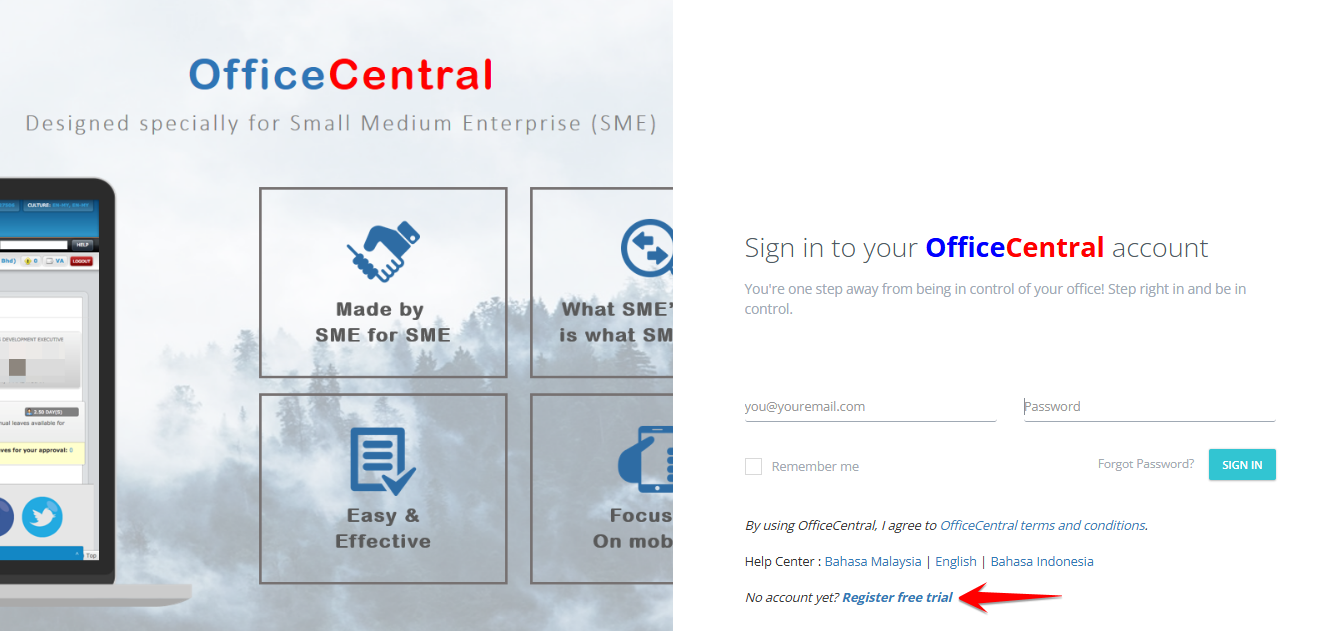
Go to the OfficeCentral login page.
-
Click “Register Free Trial.
-
Fill in the required information:
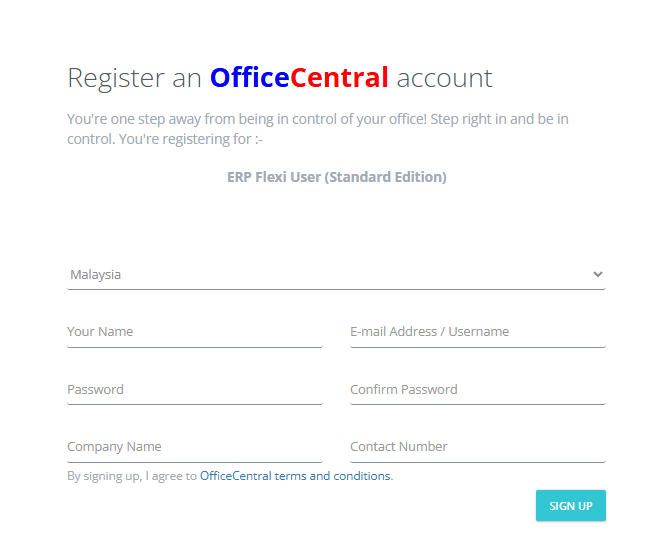
| Field | What To Do |
|---|---|
| Country | Select your country (e.g., Malaysia). |
| Your Name | Enter your full name. |
| Email Address / Username | Enter a valid email address. ⚠️ You must have access to this email (it will be your username). |
| Password |
Create a new password. Use a password with upper- and lowercase letters, numbers, and symbols. Make it 12–16 characters long. Make sure you remember it. |
| Confirm Password | Re-enter the same password to confirm. |
| Company Name | Enter your company’s actual name. |
| Contact Number | Enter a valid contact number. |
-
After completing all fields, click “Sign Up”.
⚠️ Important Note
If you have previously registered using the same email address, your old password will still apply, not the new one entered during registration.
2️⃣ Log In to OfficeCentral
Once you have registered, you can log in anytime.
Login Steps
-
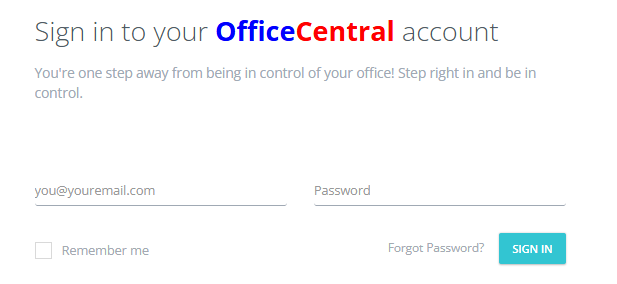
Enter:
-
Registered Email Address (Username)
-
Registered Password
-
-
Click Sign In to access the system.
Why Login Credentials Are Important
-
Your email and password protect your company data.
-
DO NOT share your password with others.
-
If you suspect your password has been compromised:
-
Log in immediately.
-
Change your password from your account settings.
-