ONLINE ONBOARDING
Step-by-step tutorials to help you get started with OCLite faster.
Step 1: Global Configuration
Step 2: HRMS
1. HRMS Configurations – Manage Department
2. HRMS Configurations – Manage Designation
3. HRMS Configurations – Manage Job Classifications
4. Staff Management – How to Add New Staff?
5. Staff Management – How to Edit Staff’s Information?
6. Leave Setup – Step 1: Define Leave Types
7. Leave Setup – Step 2: Leave Entitlement Defaults
Step 3: Payroll
Step 4: Accounting
1. Accounting Configurations – Wizards
2. Accounting Configurations – Accounting Period
3. Understanding Chart of Accounts
4. How to Create and Manage Customer (Debtor)
5. How to Create and Manage Invoice
6. How to Create and Manage Receipt (Receive Payment)
7. How to Create and Manage Credit Note
8. How to Create and Manage Debit Note
9. How to Create and Manage Supplier (Creditor)
10. How to Create and Manage Receive Invoice
11. How to Create and Manage Self-Billed Invoice
12. How to Create and Manage Payment (Issue Payment / Payment Voucher)
13. How to Create and Manage Received Credit Note
Step 5: Pricebook
Step 6: CRM
Step 7: POS
Step 8: System Enhancements (Optional)
Global Configuration
1. How Do I Change My Username, Email, or Password?
2. How to Set Reports Template?
4. What Should I Do If I Forgot My Password?
HRMS
1. HRMS Configurations – Manage Approvers
2. Staff Management – Resign, Deactivate, Suspend & Unassign
PAYROLL
1. Manage Adjustments – Adjustment Purposes
2. Manage Adjustments – Add Adjustment Individually
CRM
1. Contact Book Overview (Leads, Accounts and Contacts)
3. Financial Transactions Overview
ACCOUNTING
Step 9: OC Lite Beginner Certification
Complete all onboarding modules to unlock and download your Beginner Digital Certificate.
How to Add, Remove & Replace Users
WHEN to Add Users
Add users when:
-
A new staff needs system access.
-
Different departments require system access.
-
You want to control access using role groups.
-
You want staff to access only their own data (non-admin users).
-
You want better task delegation and workflow efficiency.
Important:
-
Each User must / will be linked to a Staff profile.
-
License credits are deducted only for active users.
How to Add a New User
There are 2 ways to add a user:
-
Create User (for new users)
-
Assign User (for existing registered users)
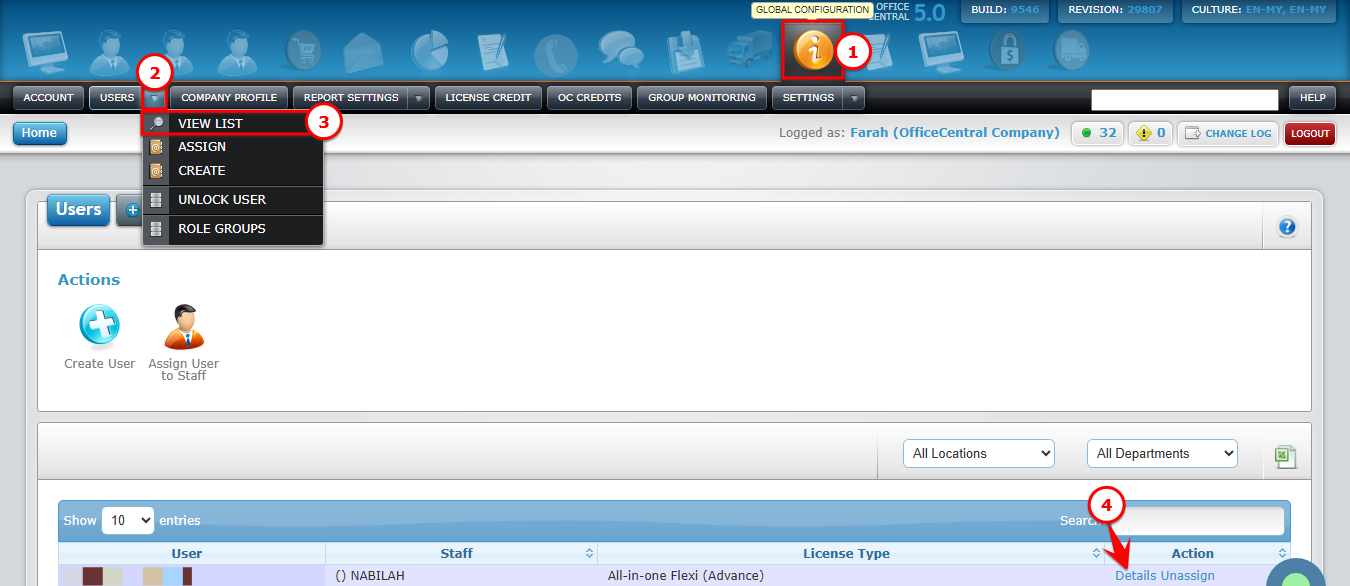
? Where to Access This Function
To manage users:
-
Go to Global Configuration
-
Click Users
Use the screenshot below to locate each button:

1️⃣ Create User (For New Users)
Use this option if the staff has NEVER registered before.
Steps:
-
Go to Global Configuration > Users
-
Click Create
-
Fill in the required information:
| No. | Field | What to Do |
|---|---|---|
| 1 | Staff Type | Choose New Staff or Existing Staff |
| 2 | Staff Name | Select existing staff OR type new staff name |
| 3 | License Type | Choose the license to assign (based on subscription) |
| 4 | Enter email (this will be the username) | |
| 5 | Password | Enter password |
| 6 | Confirm Password | Re-enter password |
-
Click Save
2️⃣ Assign User (For Existing Registered Users)
Use this option if:
-
The user has already registered before, OR
-
The email is already used in another OfficeCentral account.
Steps:
-
Go to Global Configuration > Users
-
Click Assign
-
Fill in the following details:
| No. | Field | What to Do |
|---|---|---|
| 1 | Username | Enter the existing username |
| 2 | License Type | Select the license to assign (based on subscription) |
| 3 | Staff Name | Select the staff name |
-
Click Save
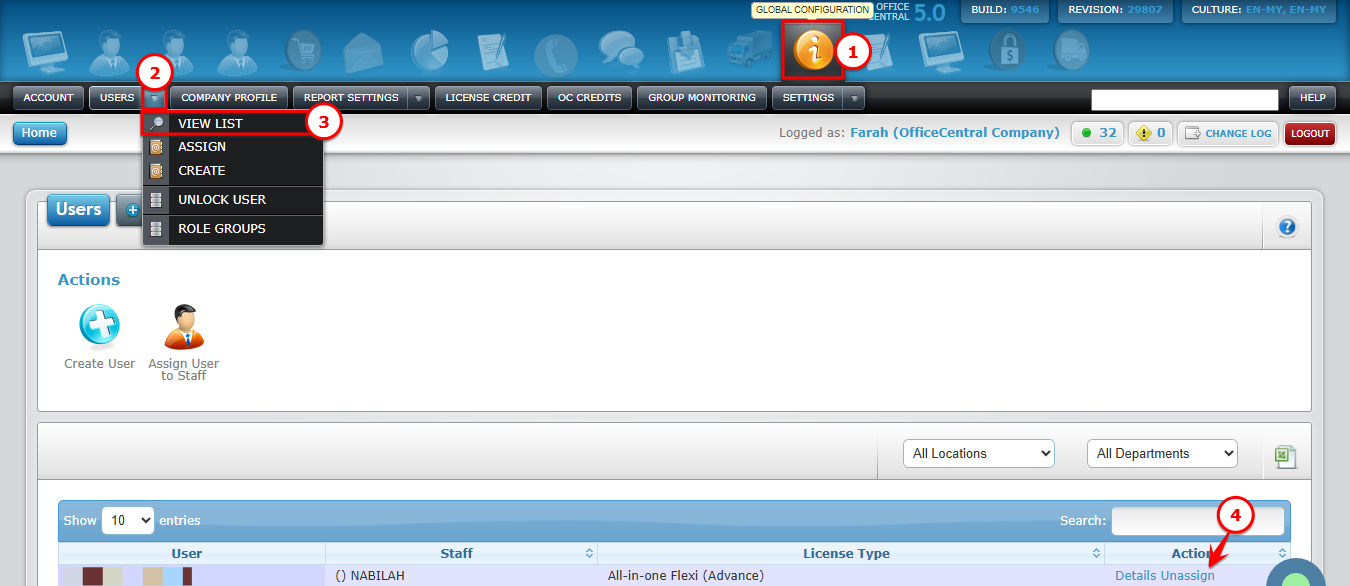
How to Unassign User (Remove from Active License)
If a staff is no longer using the system / resign, you should Unassign the user.
Steps to Unassign:
-
Go to Global Configuration > Users
-
Click View List
You will see the user list.
| No. | Action | What to Do | |
|---|---|---|---|
| 1 | Click Unassign | Click the Unassign button | |
| 2 | Confirm | Click OK to proceed OR Cancel to stop |
Use the screenshot below to locate each button:
After confirmation:
-
The user account becomes inactive.
-
The staff is removed from active license count, hence they cannot log in anymore.
-
System will stop charging license for this user in the next billing cycle.
Reassign License & Roles
Steps to reassign:
-
Go to Global Configuration > Users
-
Click View List
-
Click Details
You will see the user list.
| No. | Step | What to Do |
|---|---|---|
| 1 | Select License | Choose new license type |
| 2 | Update License | Click Update License |
| 3 | Select Role Group | Choose appropriate role group(s) |
| 4 | Update Roles | Click Update Roles |
Use the screenshot below to locate each button: